Permissions
MacBook Pro
Mac Screensharing
To enable screen sharing and audio recording on your Mac, follow these steps:
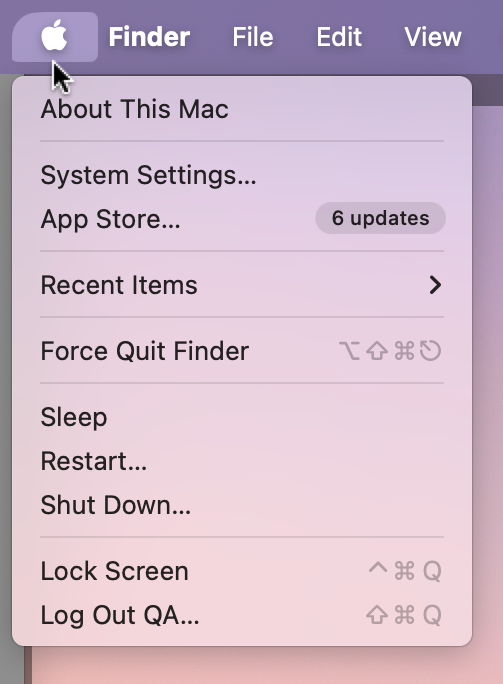
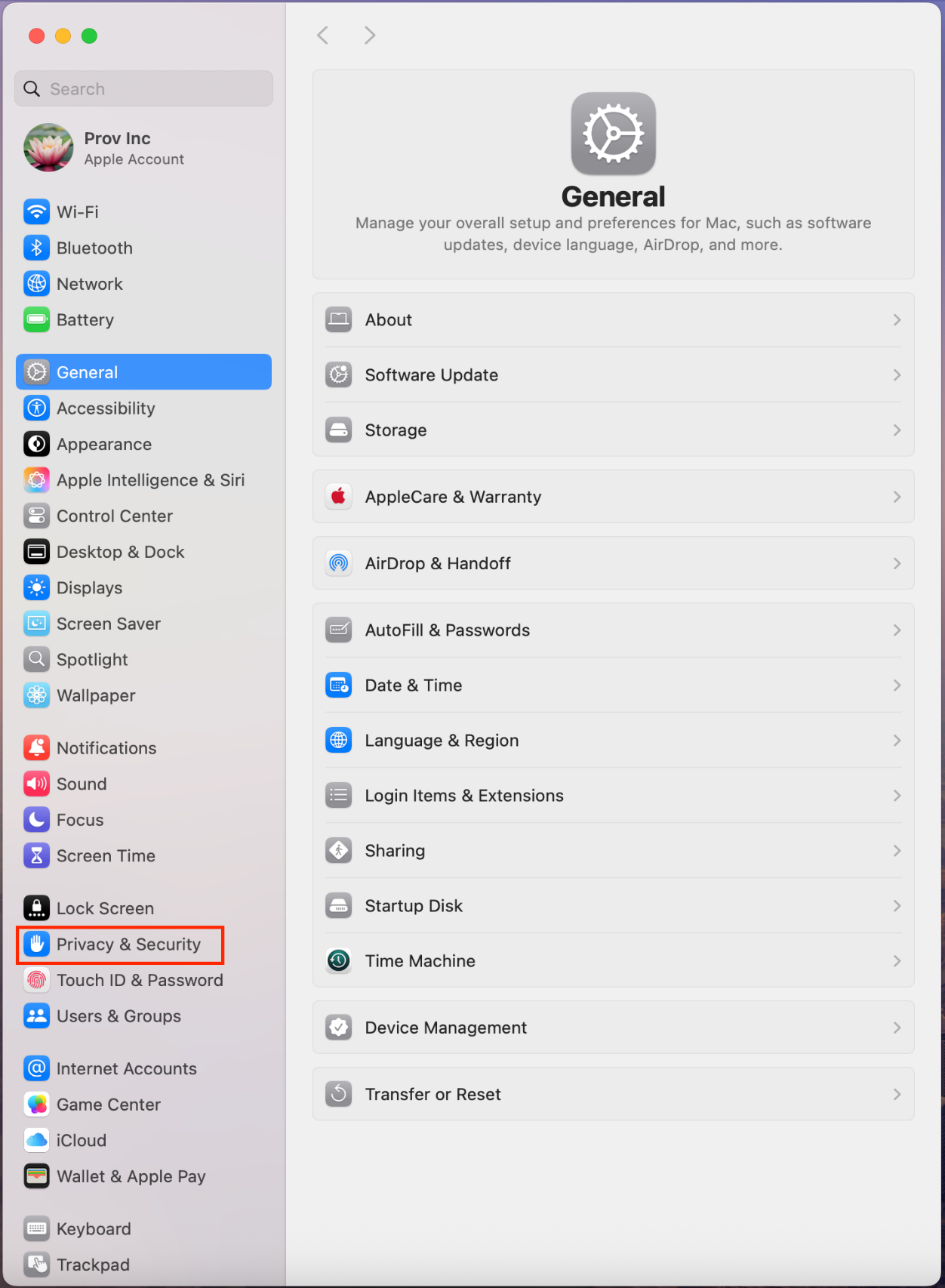
- Click the Apple icon in the top-left corner of the screen and select System Settings from the drop-down menu.
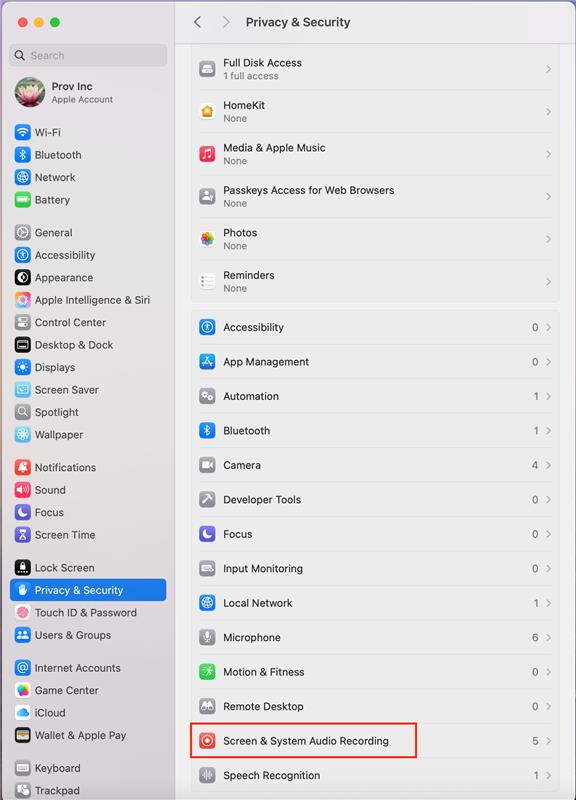
- In the left-hand menu, click on Privacy & Security.
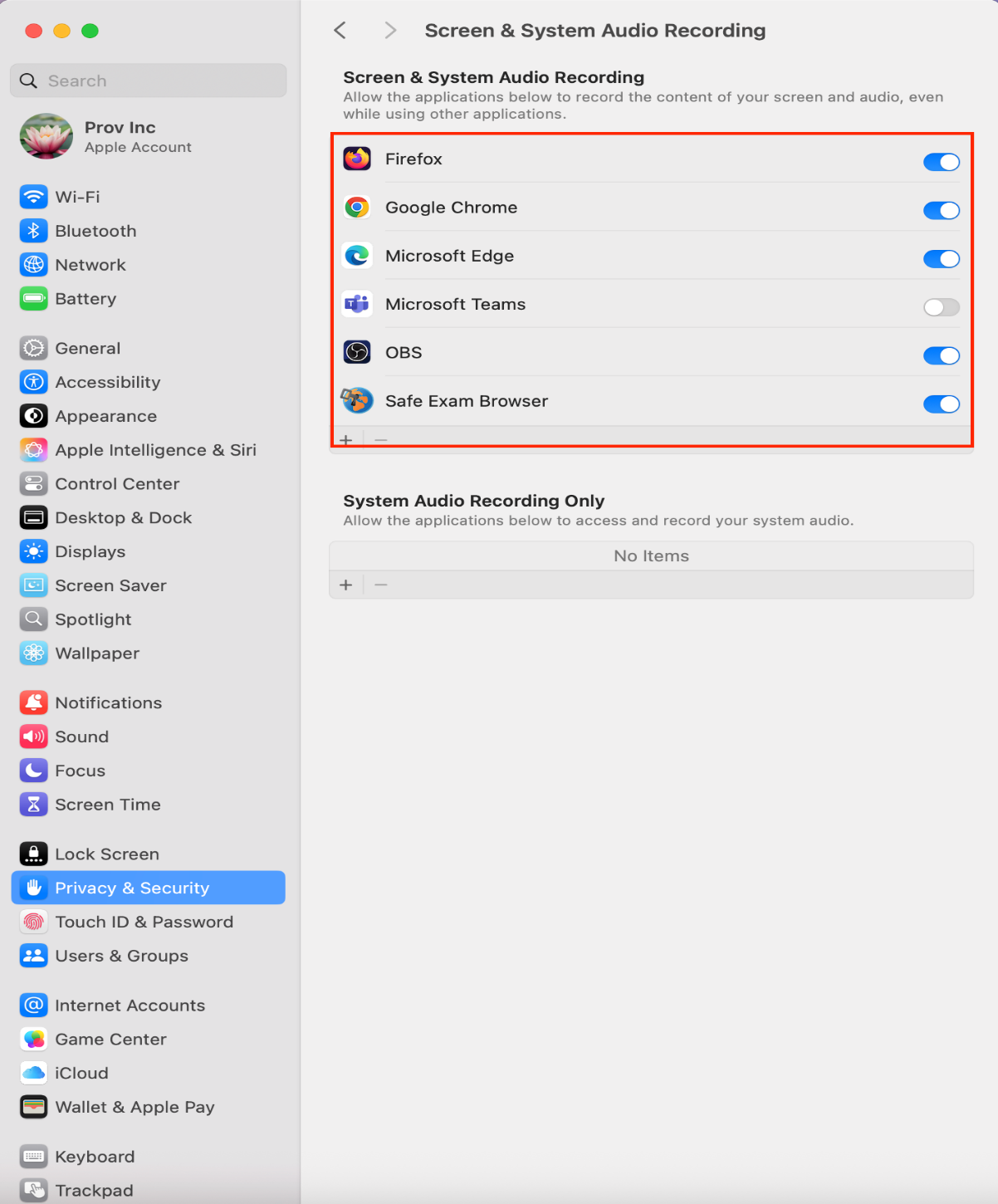
- Scroll down and select Screen & System Audio Recording under the Privacy & Security settings.
- Toggle the appropriate permissions for the app you wish to allow screen and audio recording access.
Unblocking JavaScript
By default, JavaScript is enabled in Chrome. If it has been disabled, follow the steps below to unblock it:
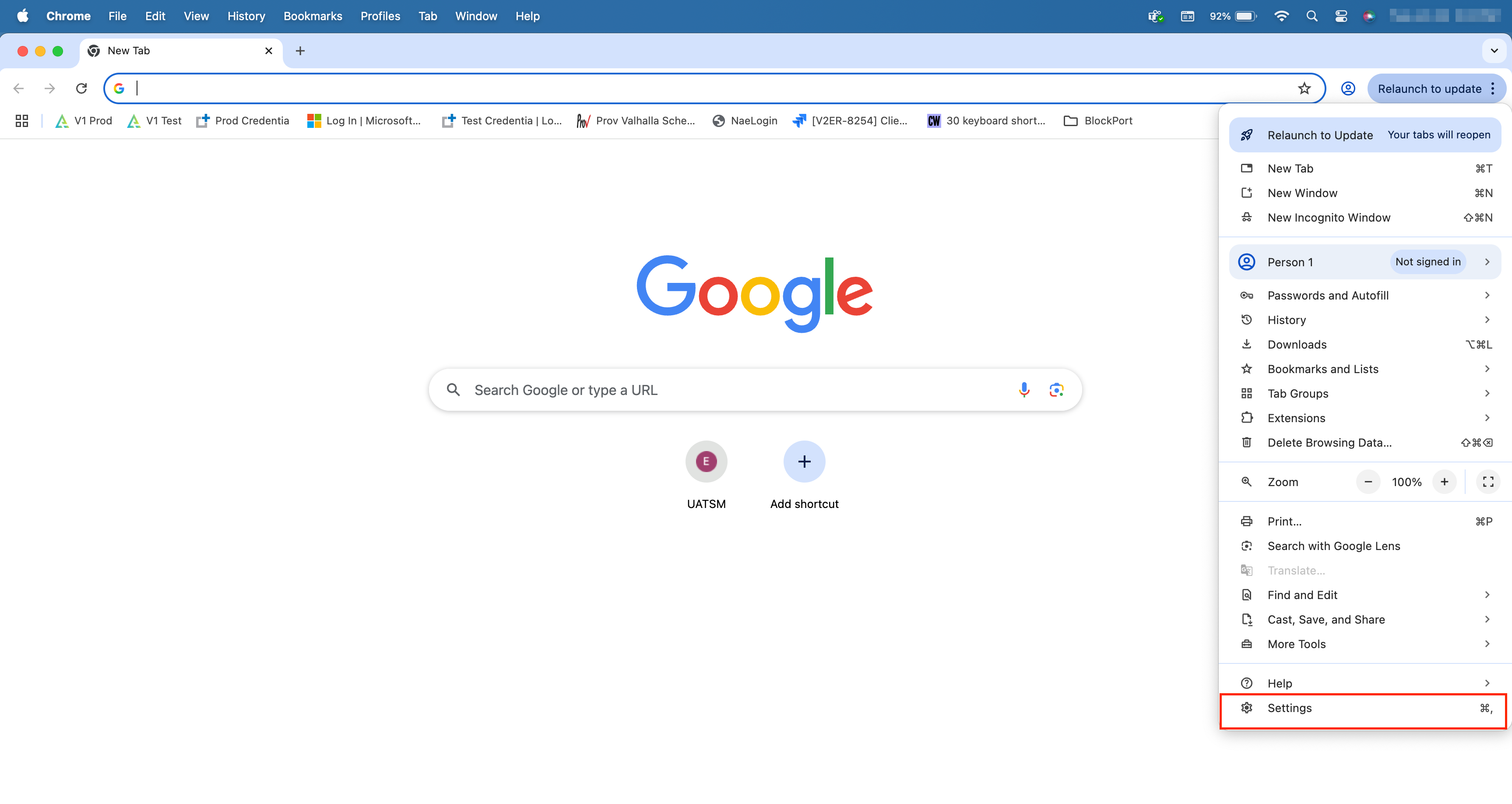
- Open Chrome on your Mac.
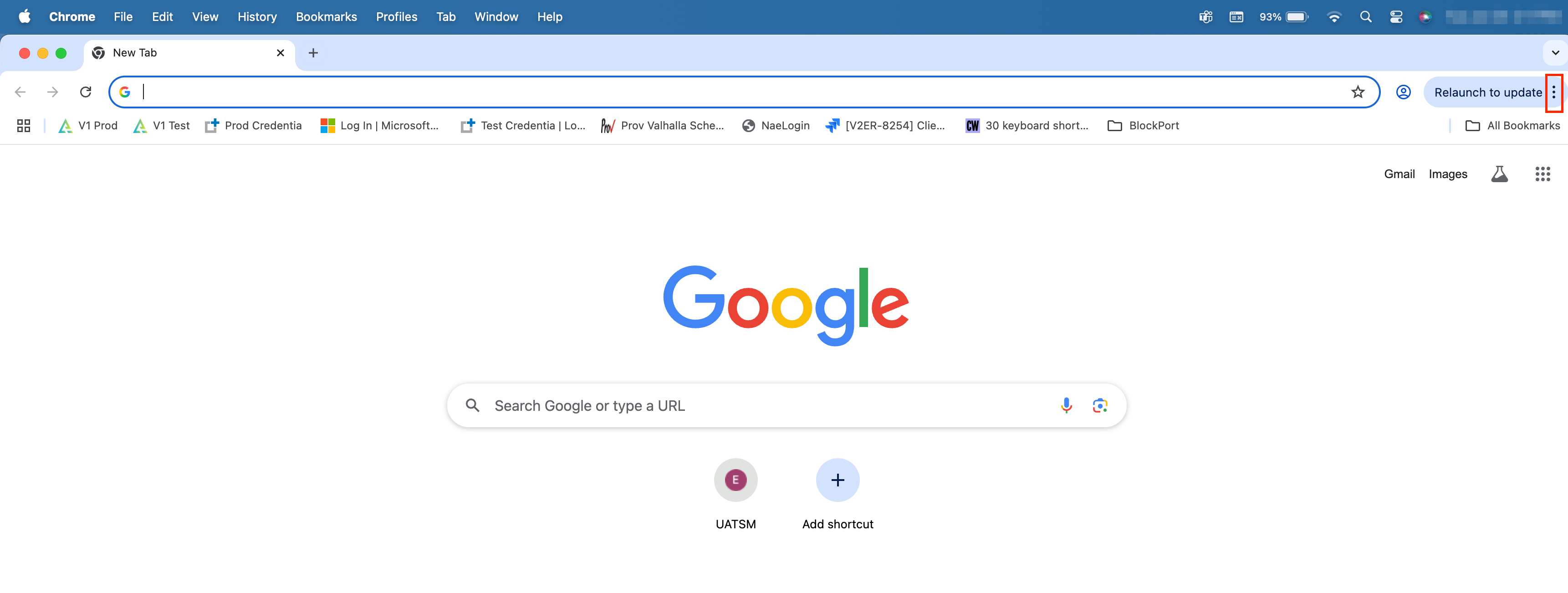
- In the top-right corner, click the three-dot menu (⋮).
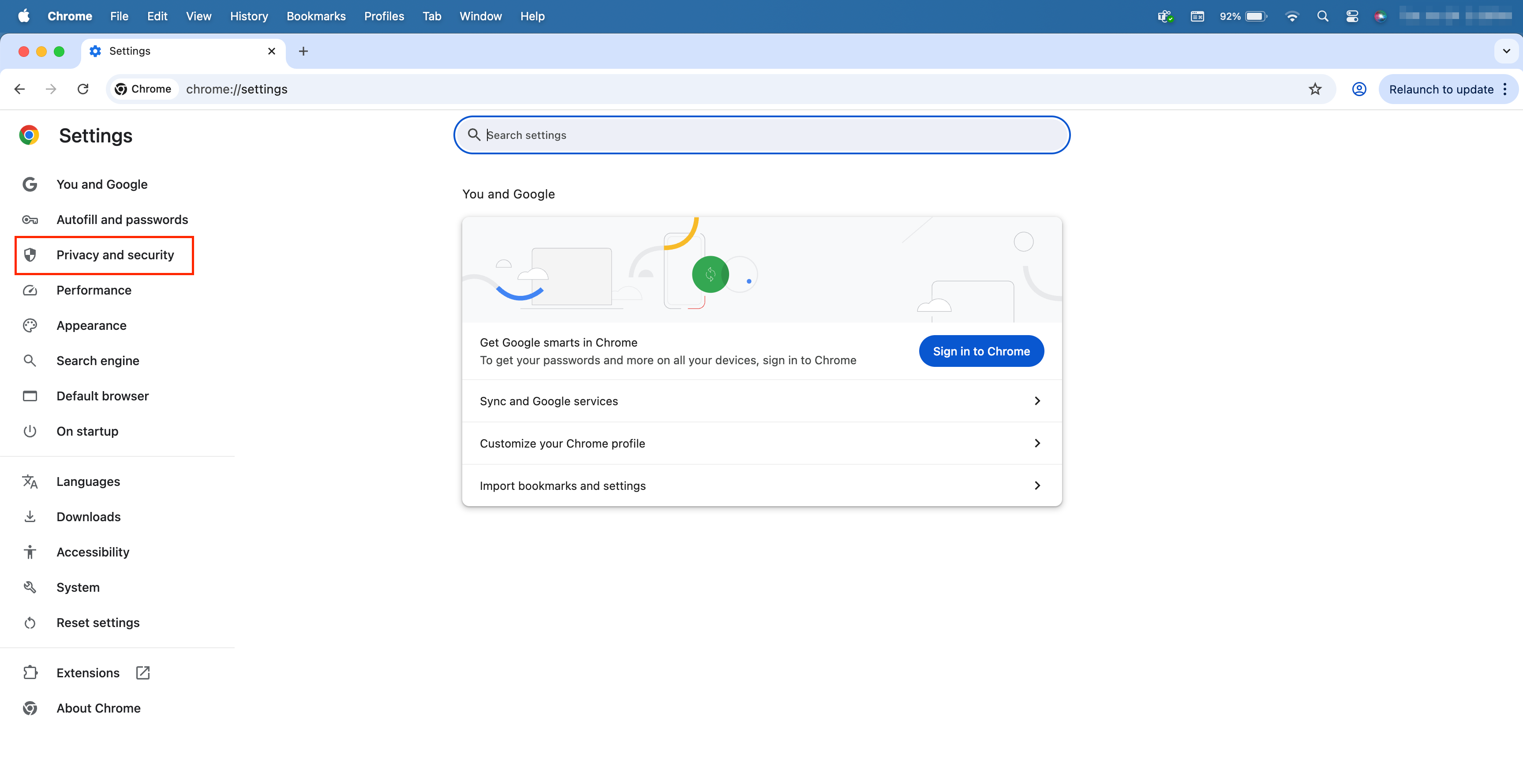
- Select Settings.
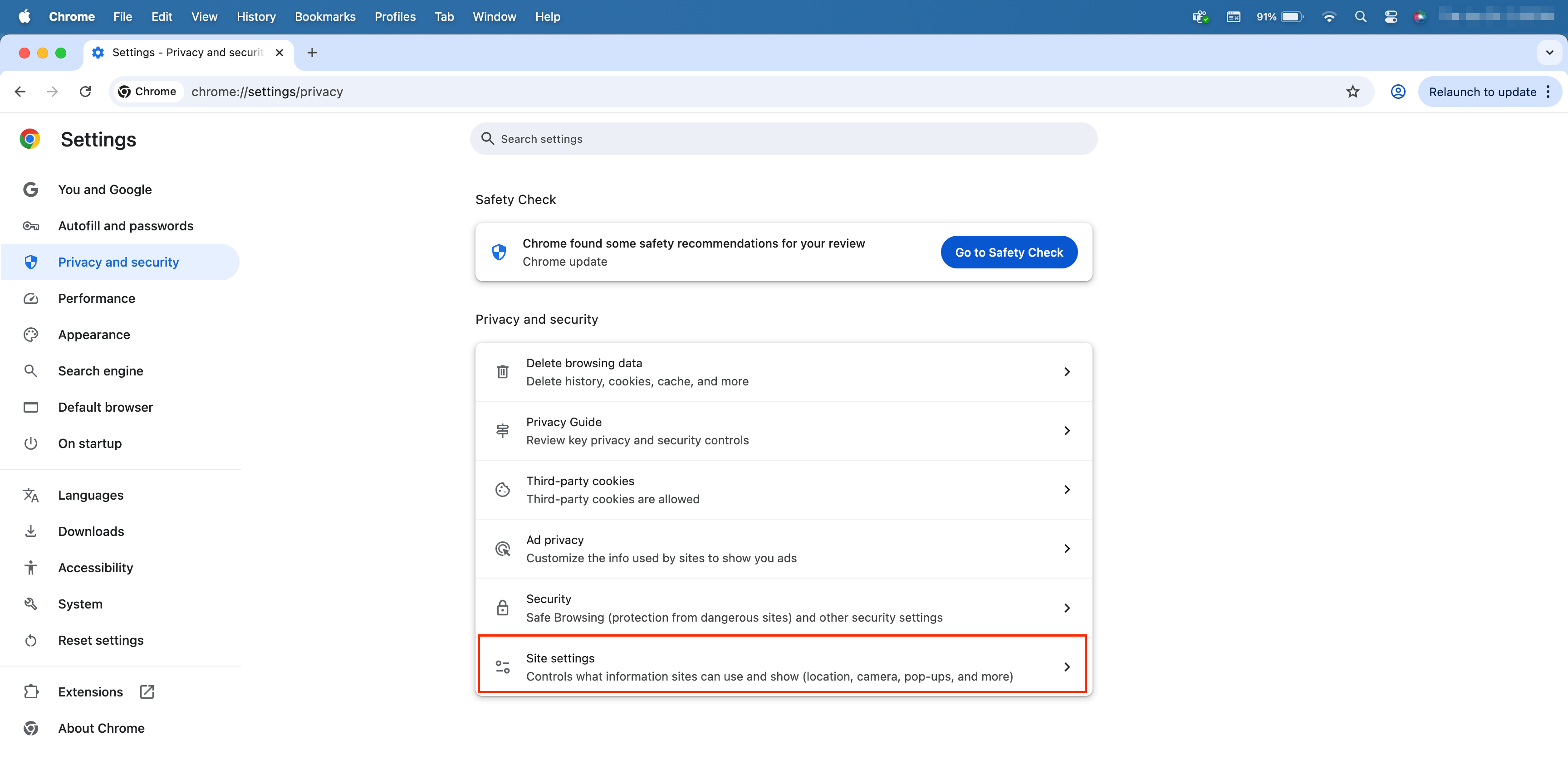
- In the left-hand sidebar, click Privacy and Security.
- Click Site Settings.
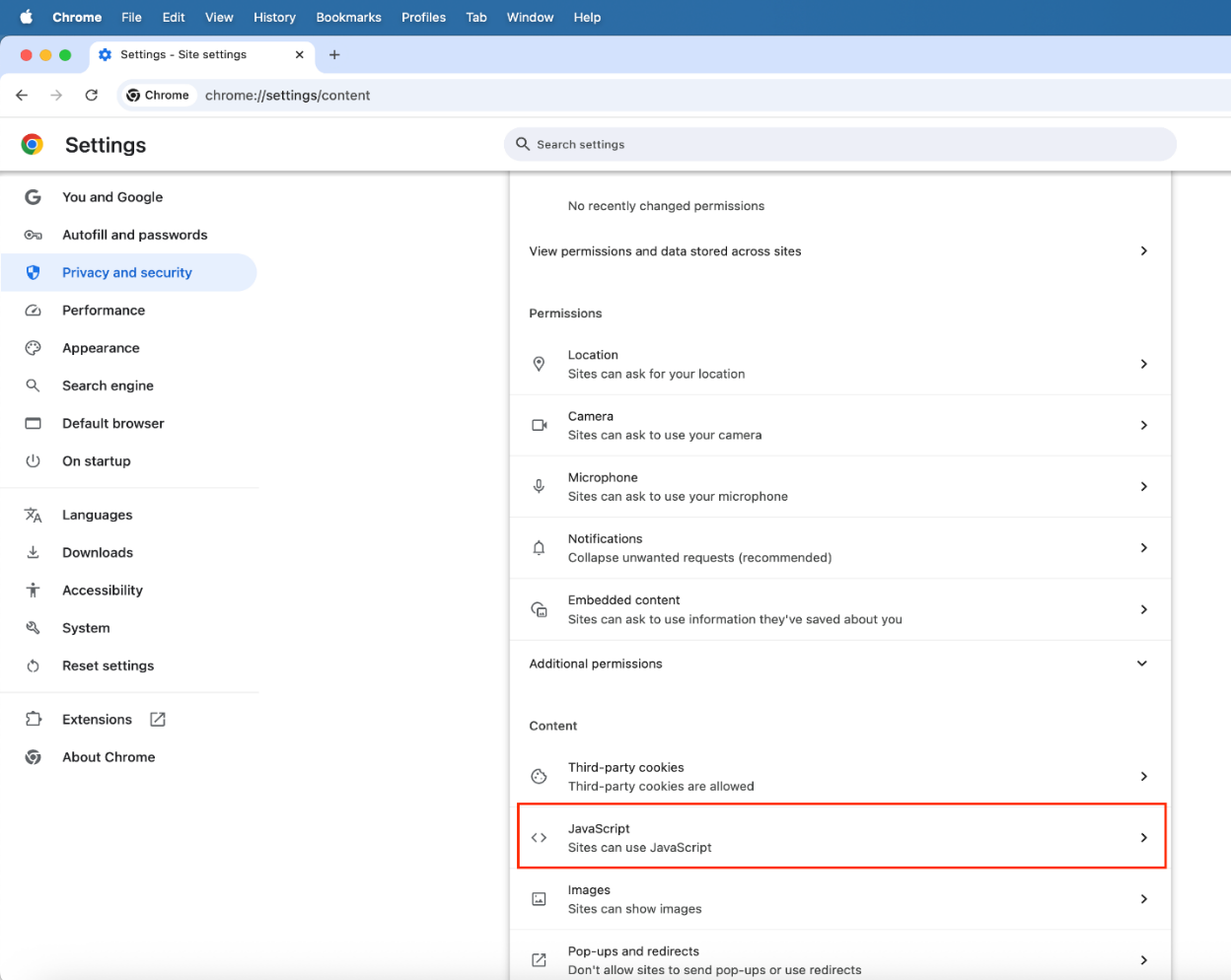
- Under Content, click JavaScript.
- Select Sites can use JavaScript to enable it.
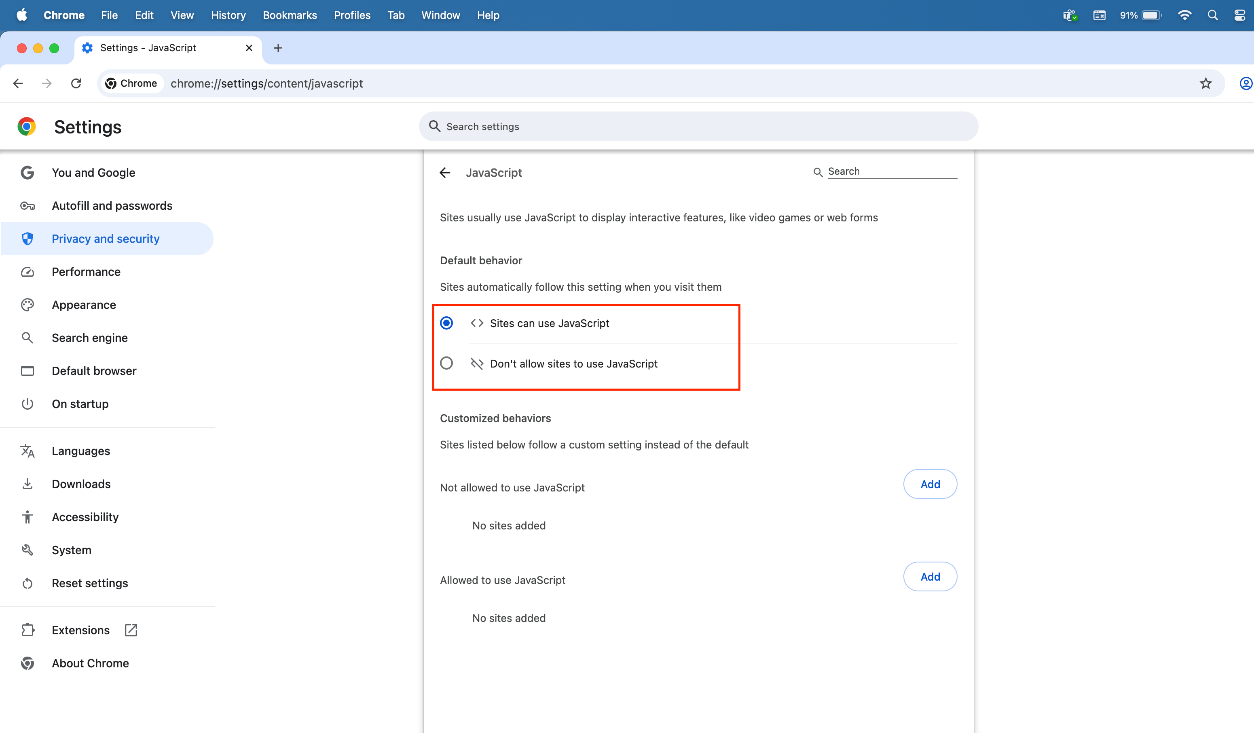
To block or allow JavaScript for specific websites:
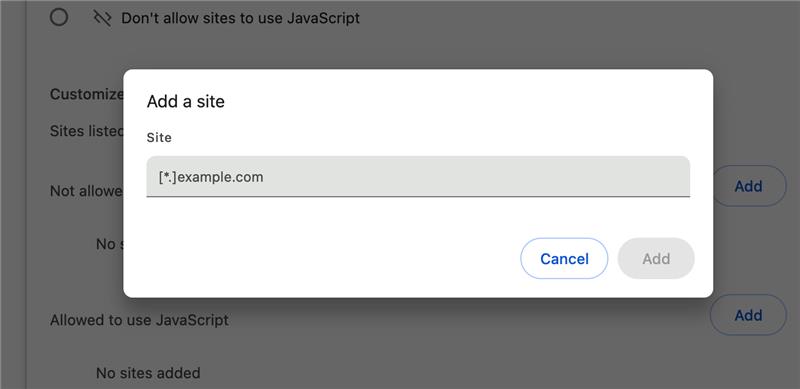
- Under the Customized behaviors section, click Add next to Allowed to use JavaScript or Not allowed to use JavaScript.
- Enter the site URL and click Add.
Firewall
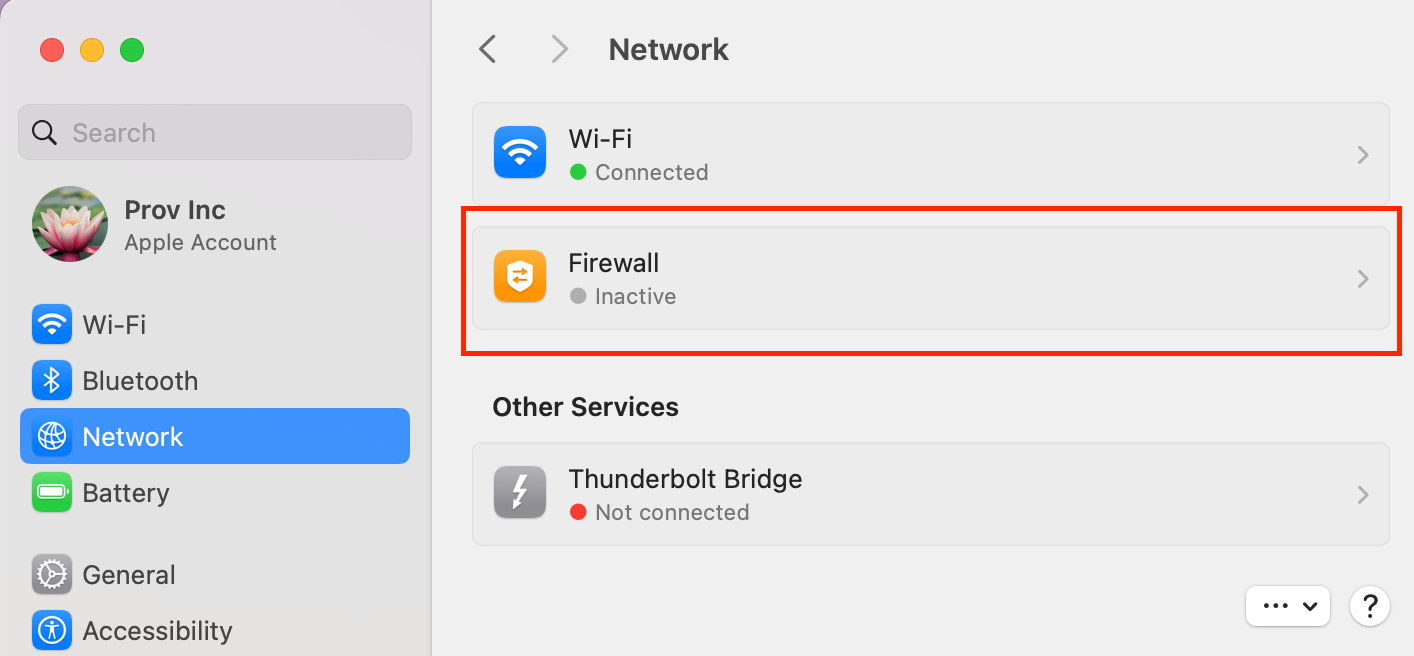
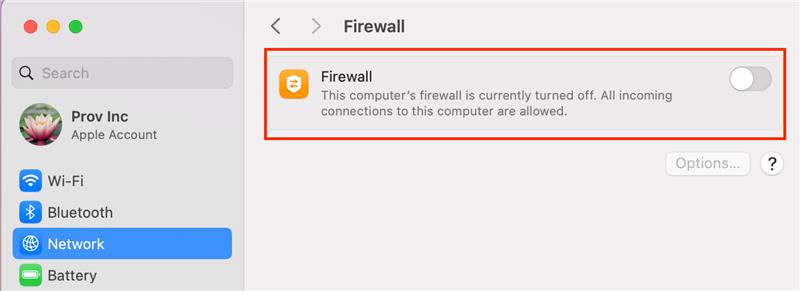
The macOS Firewall helps block unwanted incoming connections to protect your device. To enable or adjust the firewall settings follow the steps below.
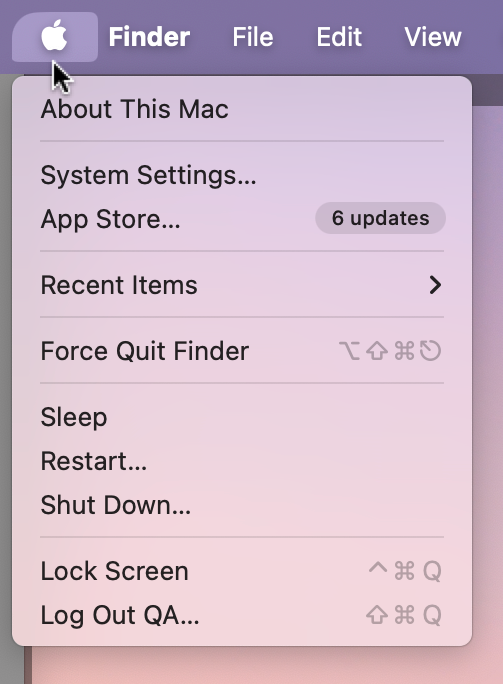
- Click the Apple icon in the top-left corner of your screen and select System Settings (or System Preferences, depending on macOS version).
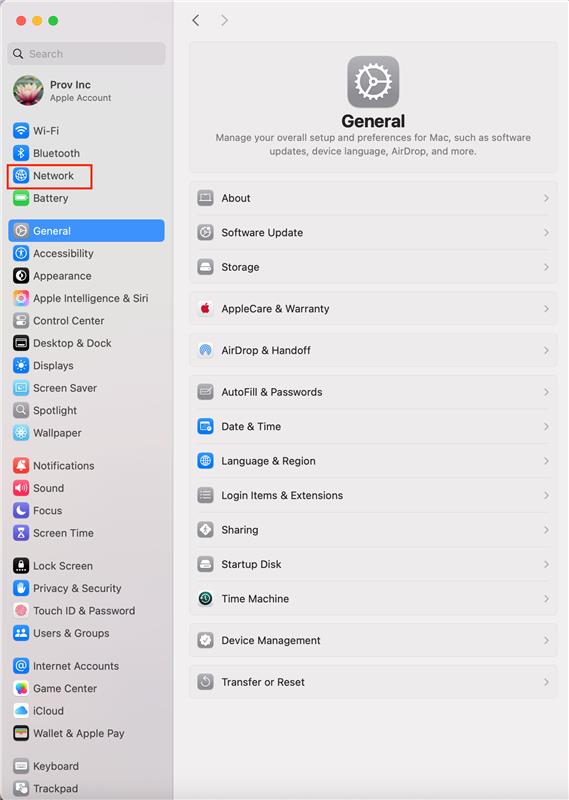
- In the sidebar, scroll down and click on Network.
- Under Network, scroll to the bottom and select Firewall.
- Toggle the Firewall switch ON to enable it.
- Click Options... (if available) to:
• Allow or block incoming connections for specific apps.
• Enable Stealth Mode to make your Mac less visible to network scanners.
Chrome Permissions
- When you click "Start ID registration," it asks permission to use microphones and cameras. Toggle on both to approve access and click Recheck.
- If you have already provided access to the camera and microphone, then the screen above will not show up.
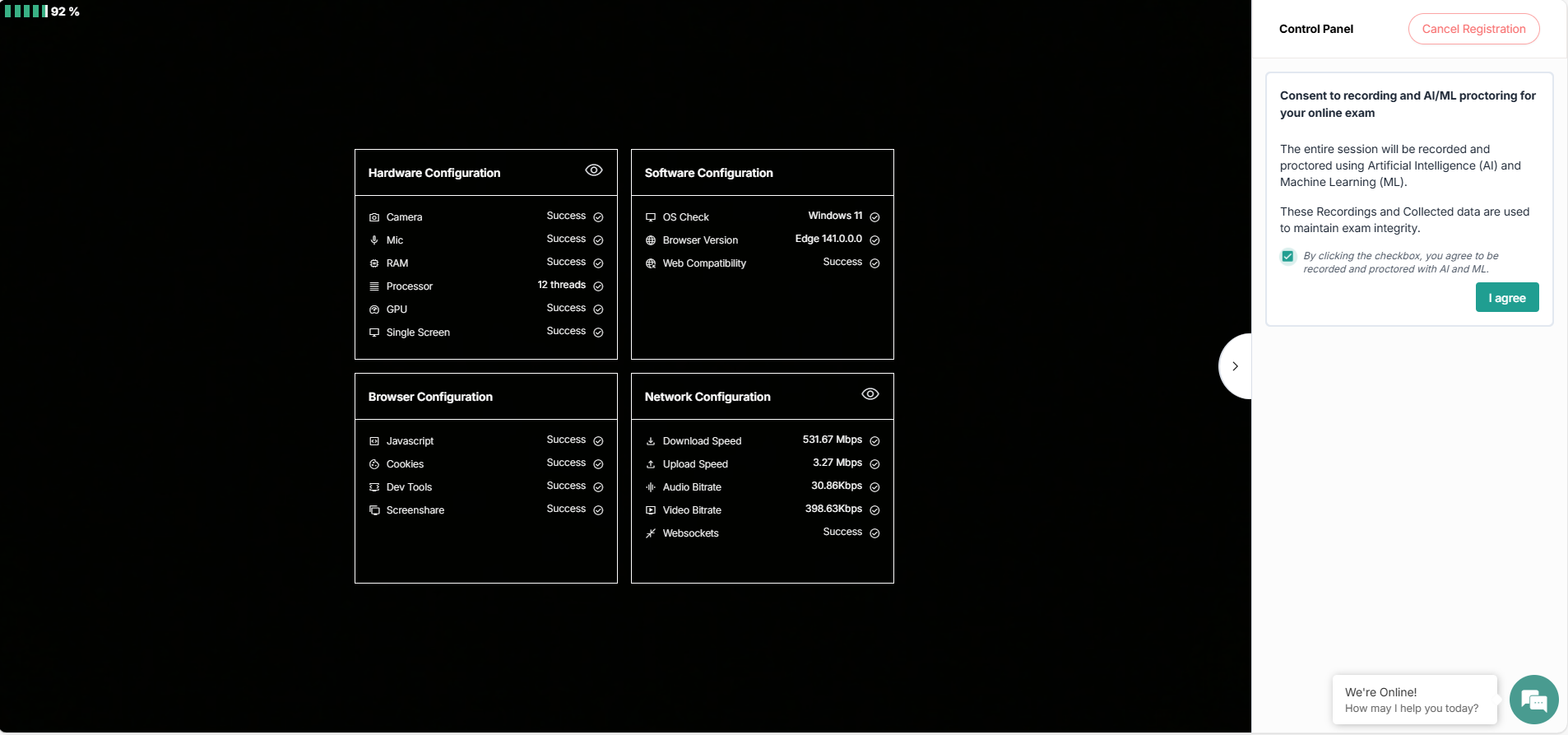
- In the control panel, select the checkbox and click I Agree to consent to recording and AI/ML proctoring to support exam integrity.
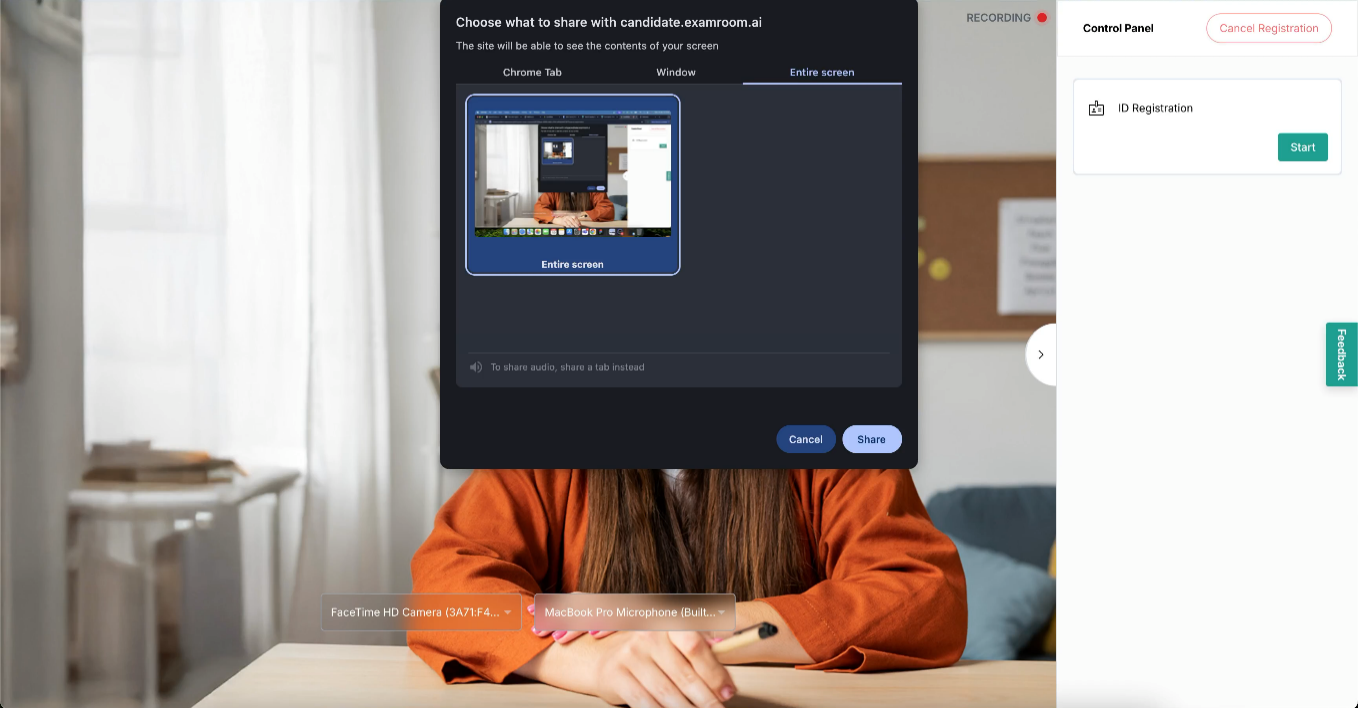
Note: If any of the requirements are not marked as successful, which means they are not meeting the minimum system requirements, the I Agree button will not be enabled. - A pop-up for screen sharing appears on the page. Click the Entire Screen tab. Then click the small image inside the box, then click share.
Edge permissions
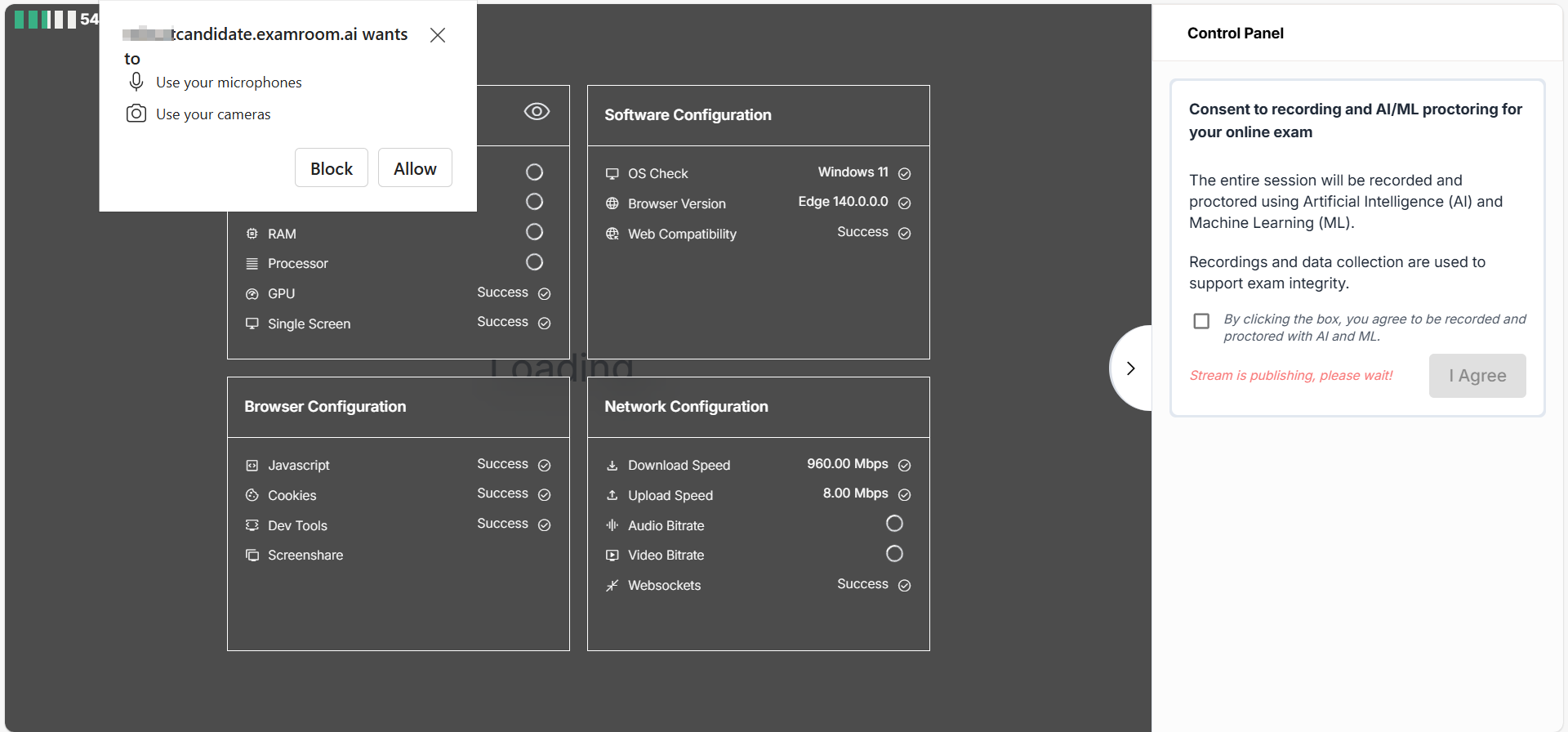
- When you click "start ID registration," it asks permission to use microphones and cameras. Click Allow to approve access to both.
- In the control panel, select the checkbox and click I Agree to consent to recording and AI/ML proctoring to support exam integrity.
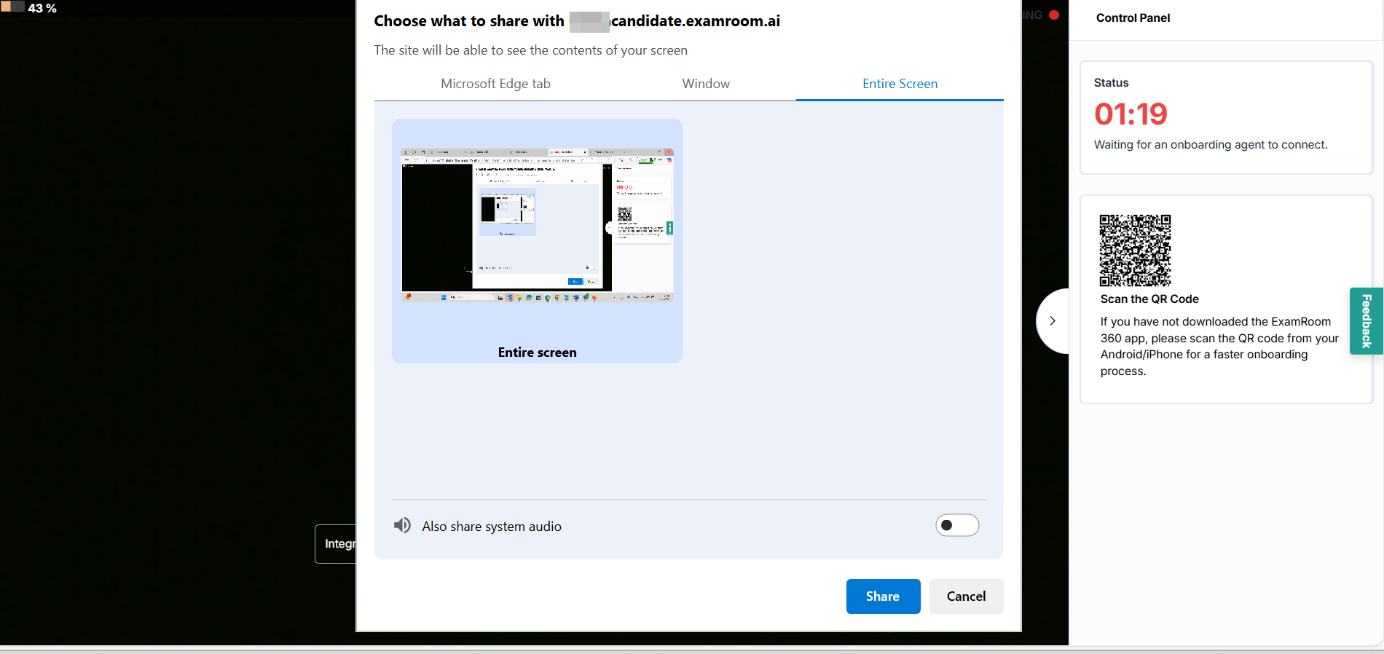
- A pop-up for screen sharing appears on the page, so make sure to share the Entire Screen instead of a tab or window.
Firefox permissions
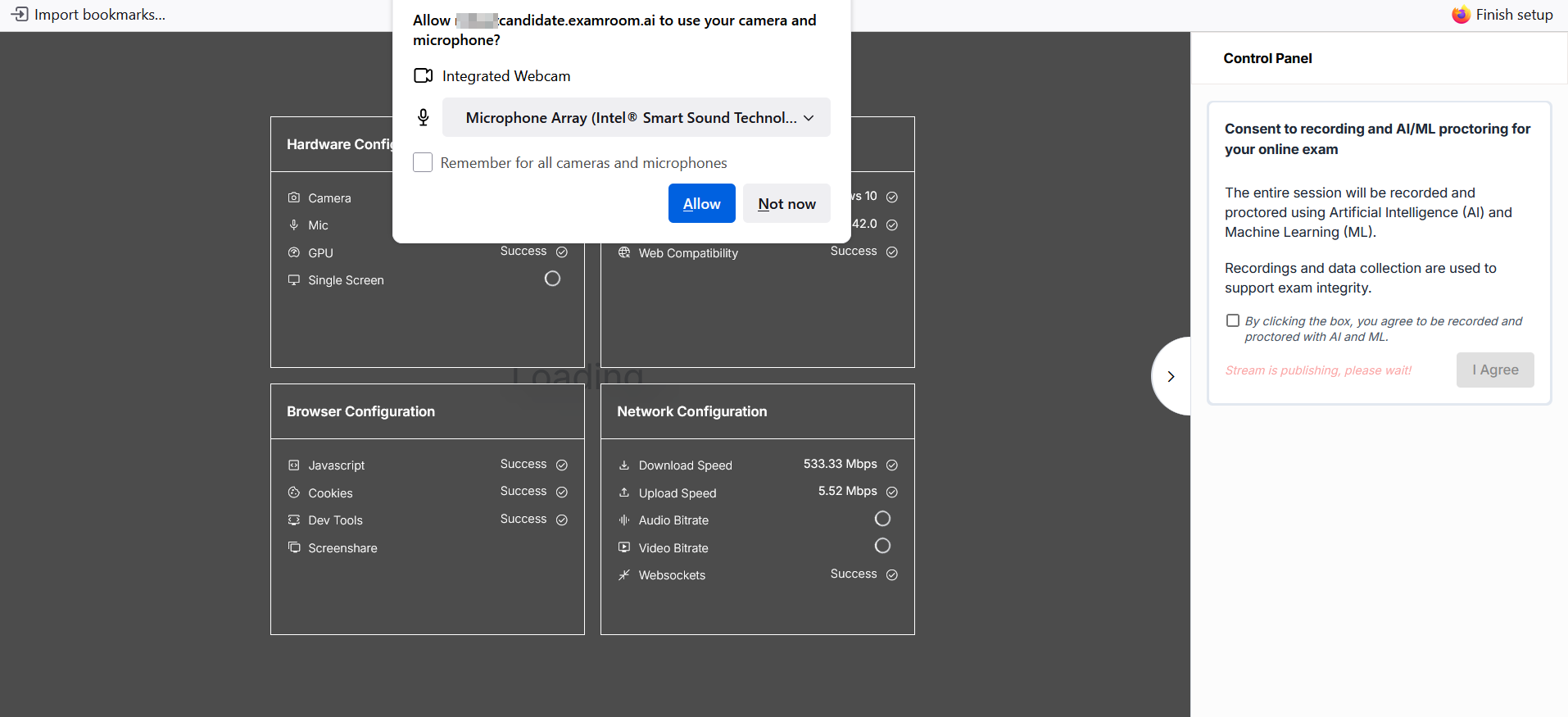
- When you click "Start ID registration," it asks permission to use the camera and microphones. Click Allow to approve access to both.
- In the control panel, select the checkbox and click I Agree to consent to recording and AI/ML proctoring to support exam integrity.
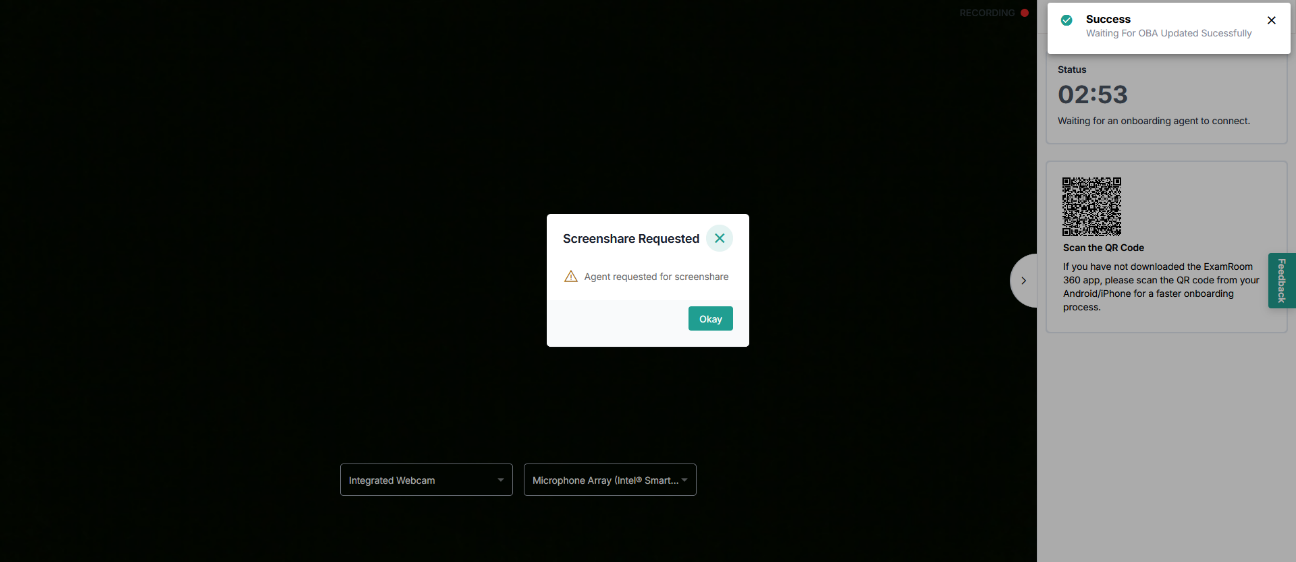
- A pop-up for screen sharing appears on the page. Click Okay to proceed.
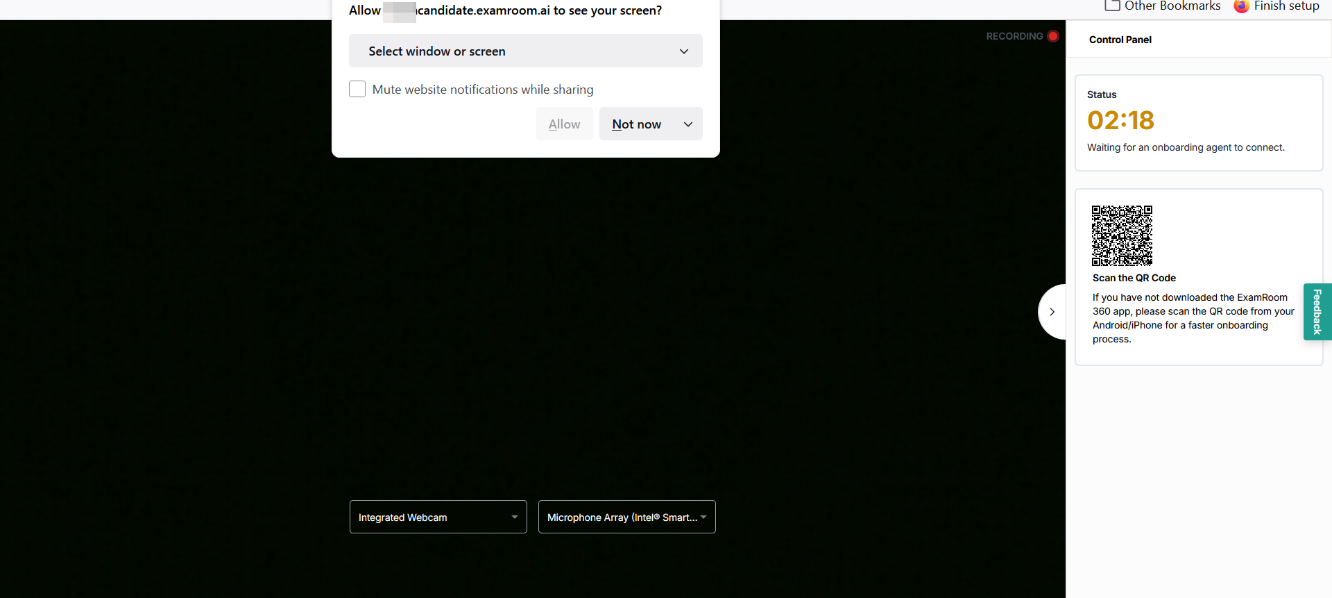
- A pop-up for screen sharing appears on the page to share the screen. Select Entire Screen from that drop-down and click Allow to share your screen with the onboarding agent.