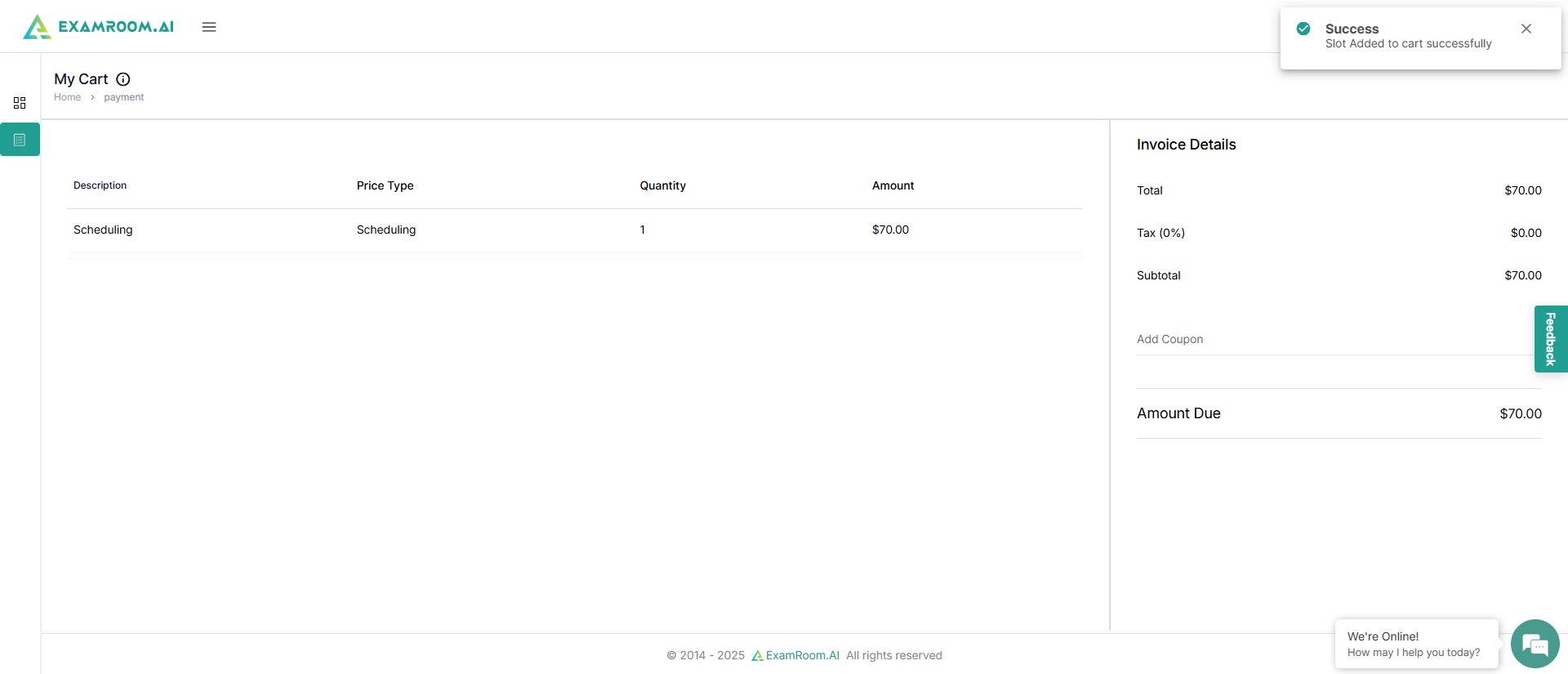
A pop-up on the top right of the screen shows that the exam slot has been added to the cart successfully.
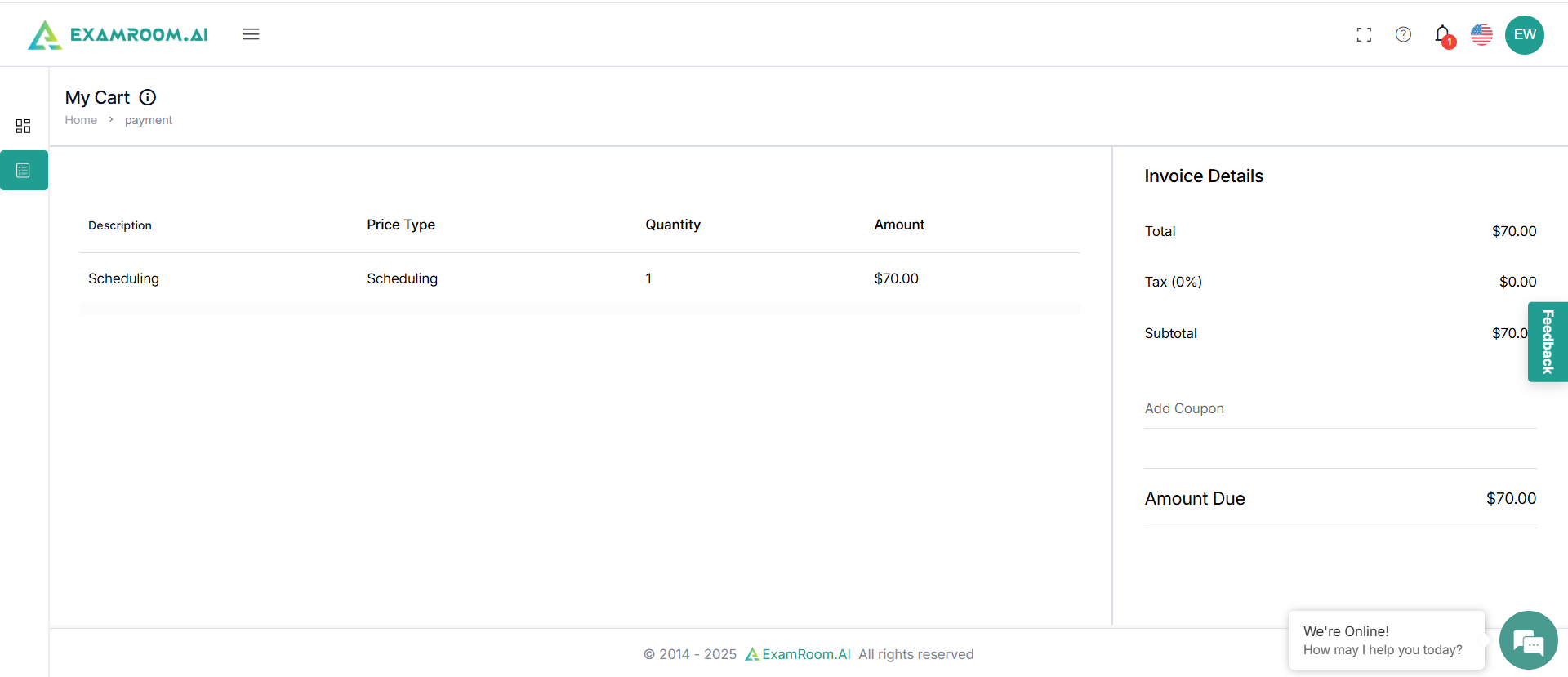
The left half of the screen shows your cart information, including the description, price type, quantity, and amount.
The right half of the screen shows the invoice details.
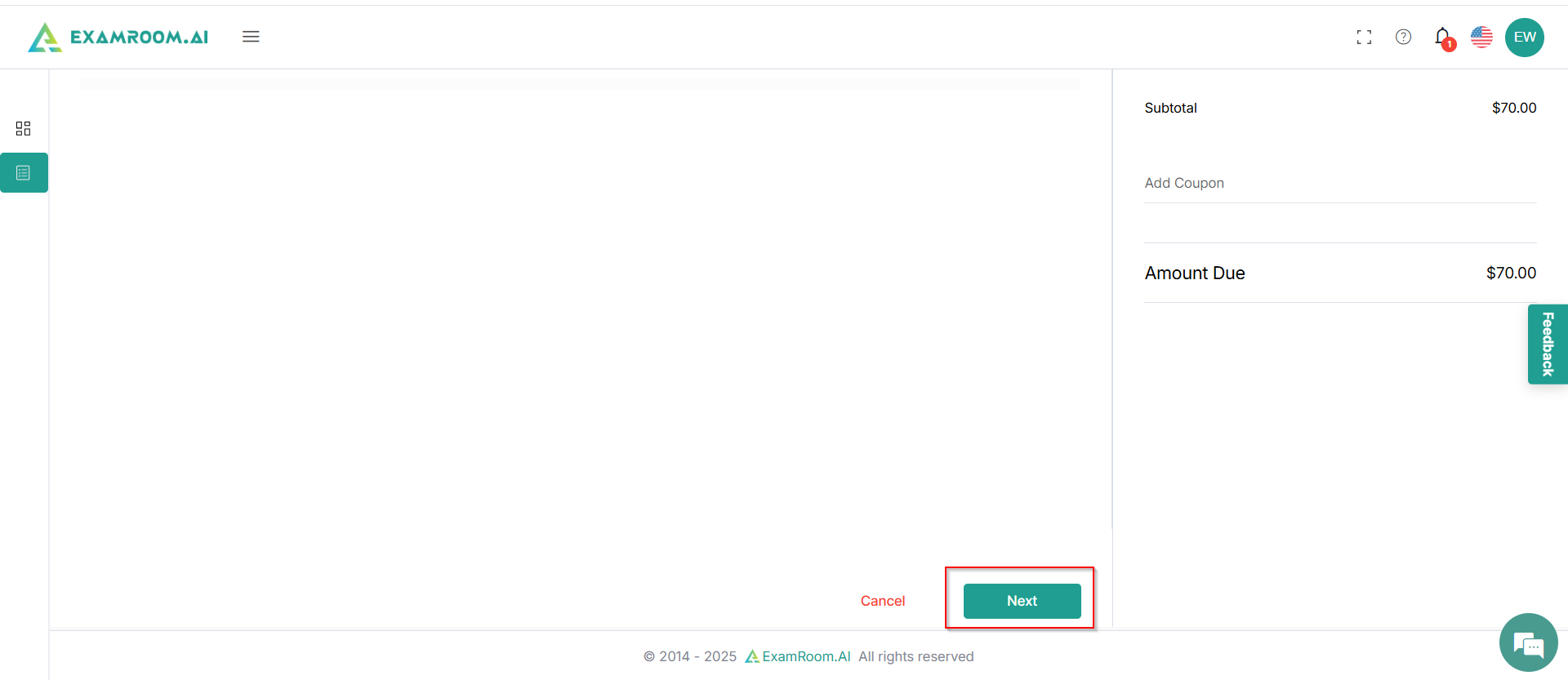
Review your cart details and scroll down to click Next to proceed.
Now, enter the address information. Select from Entity or Individual and fill in your billing address information.
Select use as primary address if you wish to save your billing address as your primary address in the system.
Now, enter your shipping address. Select Use billing address as shipping address if it is the same for you.
Select Use as primary address if you wish to save your shipping address as your primary address in the system.
Select Savemyaddressinformation to have your address saved for future use. Click Next to proceed.
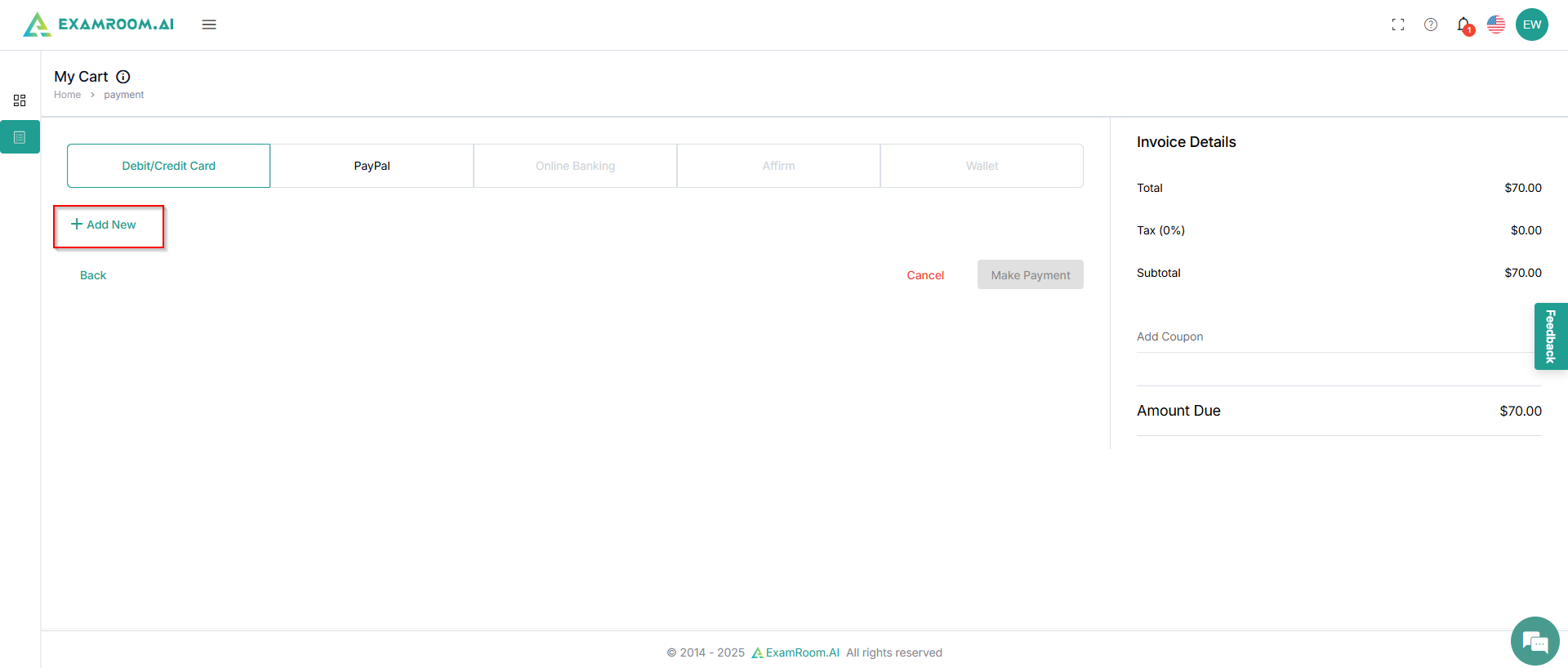
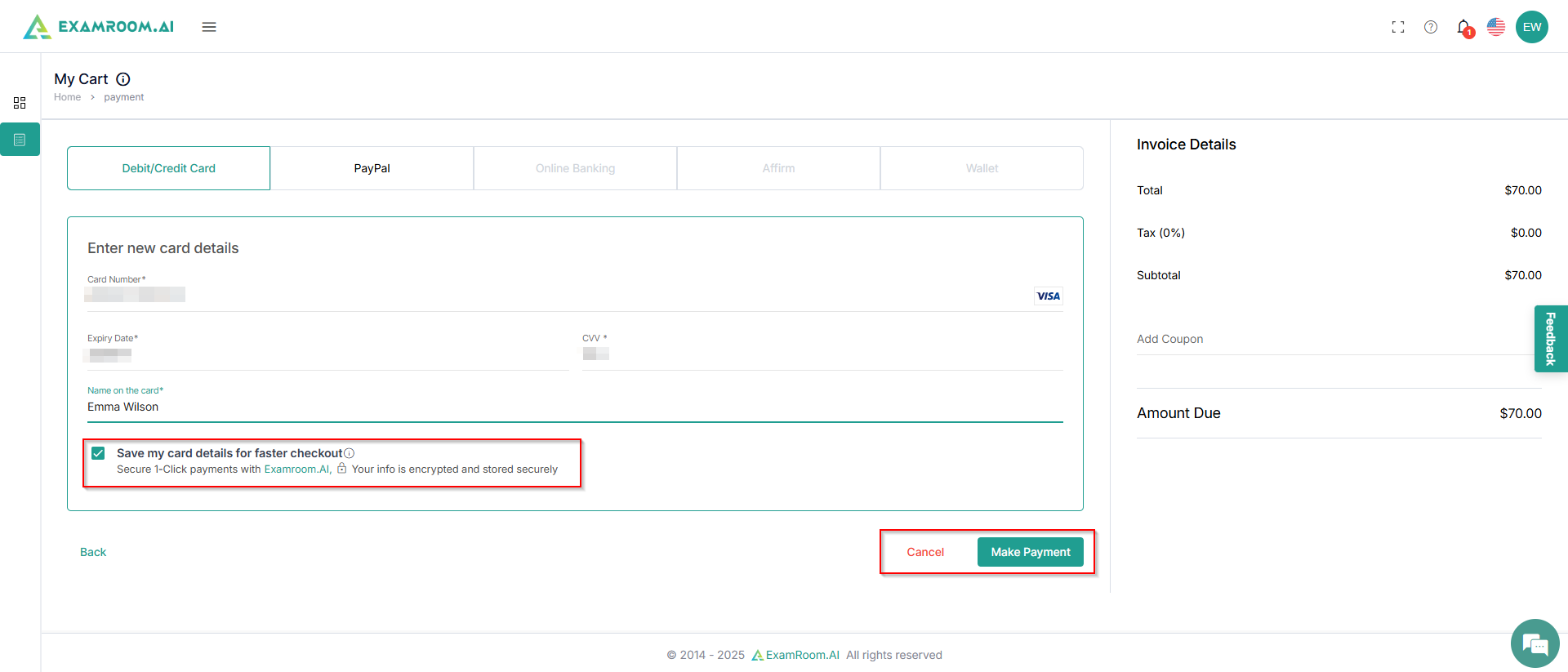
On the next screen, choose your payment method and click +AddNew. For example, here payment method chosen is Debit/Credit Card.
Enter the details and click MakePayment. Select Savemycarddetailsforfastercheckout, if you wish to save your card details securely for faster payment in the future.
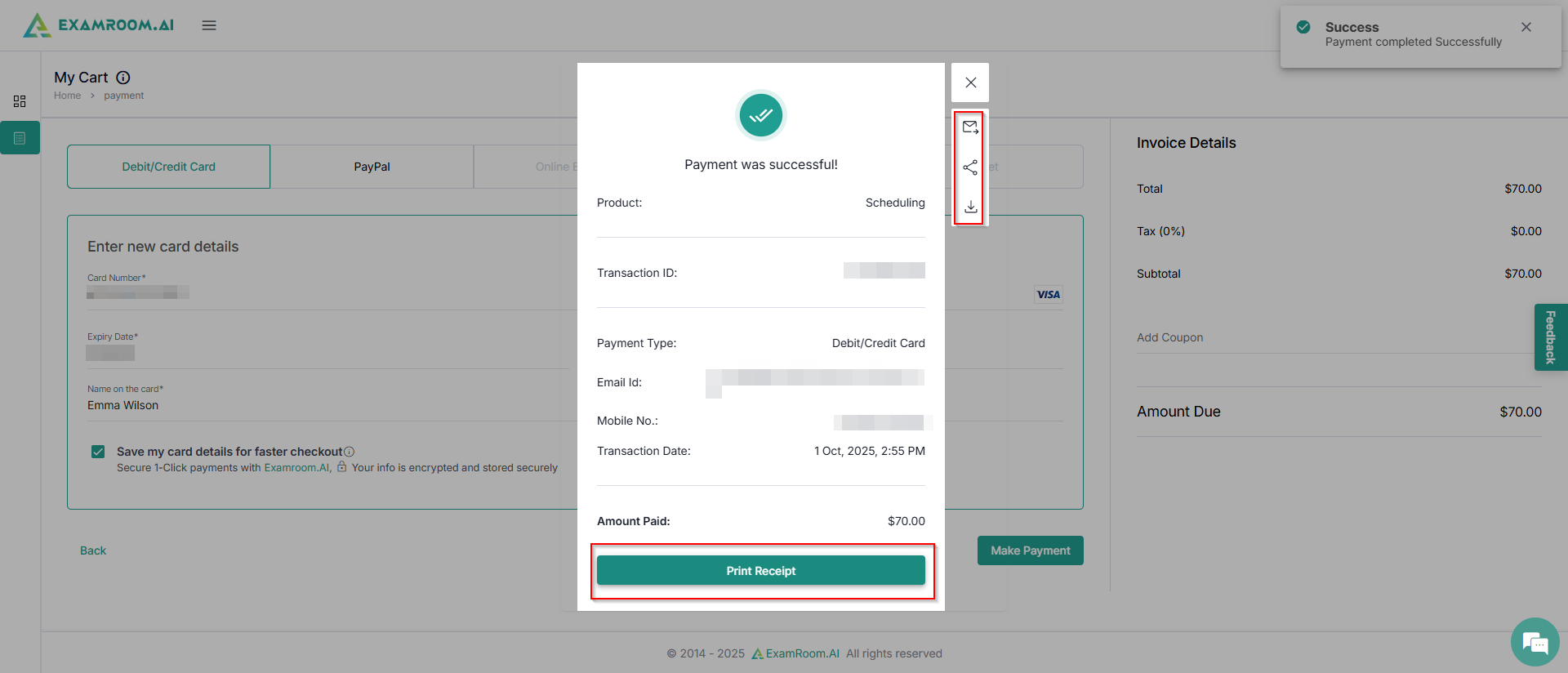
After a successful payment, a confirmation pop-up will appear on the screen showing your payment details.
Click PrintReceipt to print the payment receipt, or you can directly send to email, share, or download the receipt.
The exam status on the dashboard gets updated to ExamScheduled, which is also reflected in the Upcoming Exam section on the dashboard.