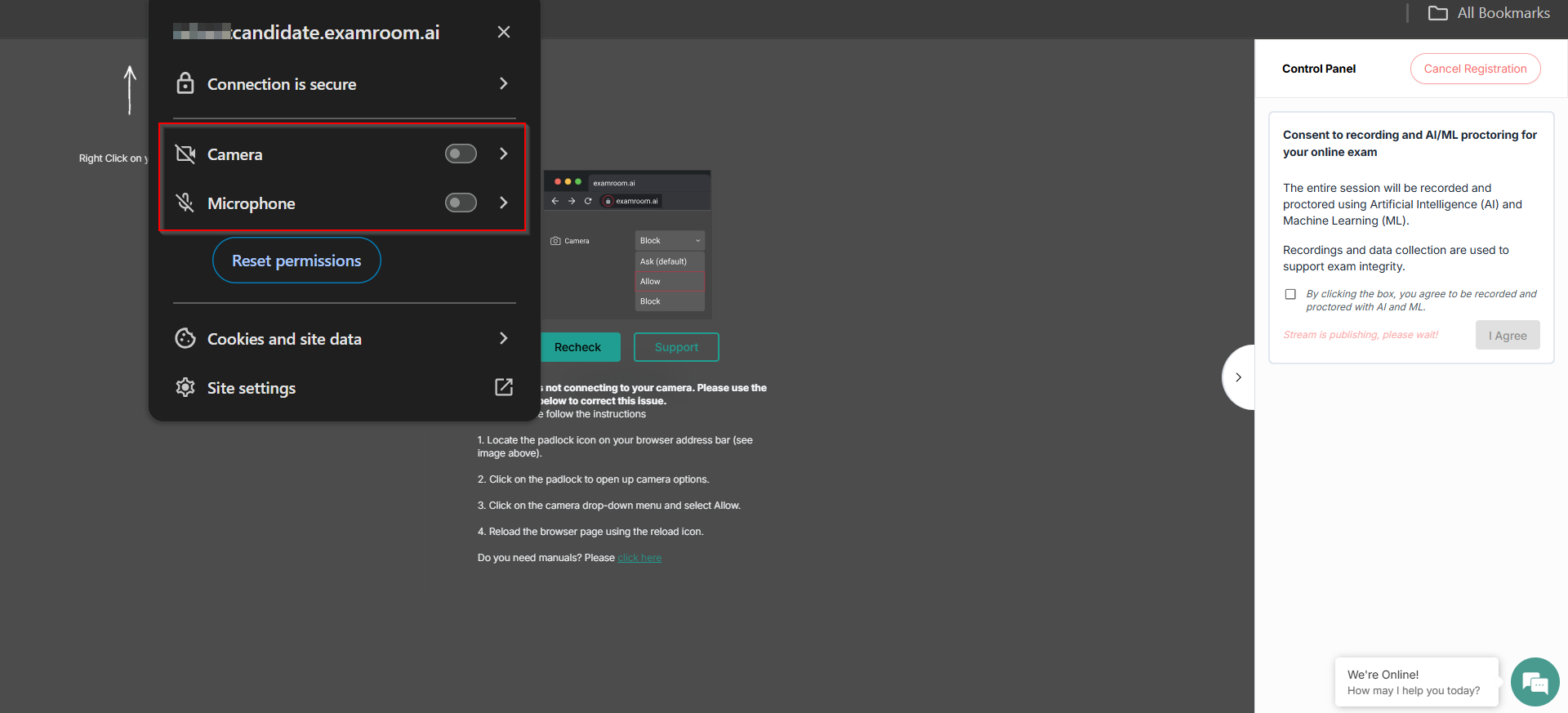
When you click "Start ID registration," it asks permission to use microphones and cameras. Toggle on both to approve access and click Recheck.
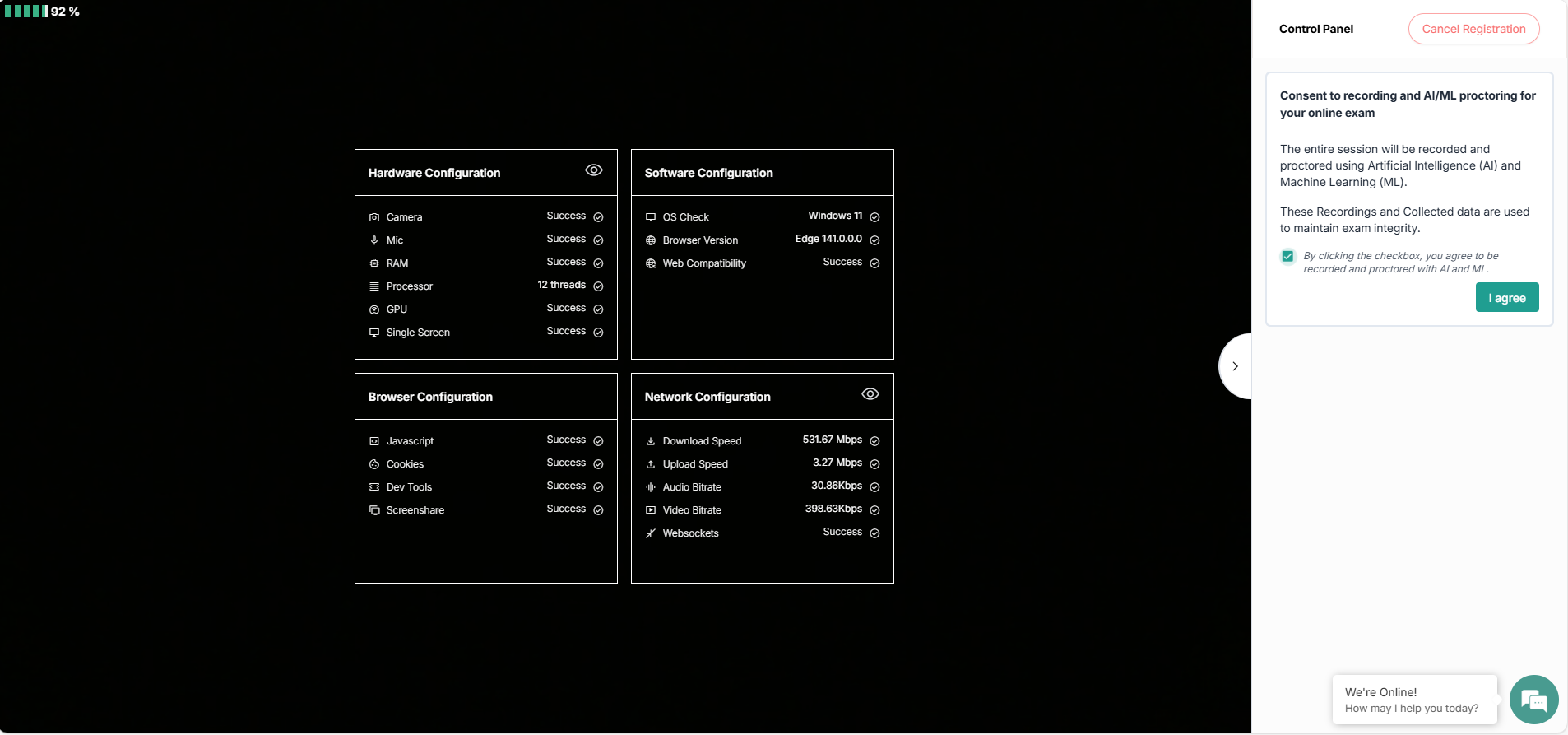
If you have already provided access to the camera and microphone, then the above screen will not show up, and the configuration data is directly fetched.
In the control panel, select the checkbox and click IAgree to consent to recording and AI/ML proctoring to support exam integrity. Note: If any of the requirements are not marked as successful, which means they are not meeting the minimum system requirements, the I Agree button will not be enabled.
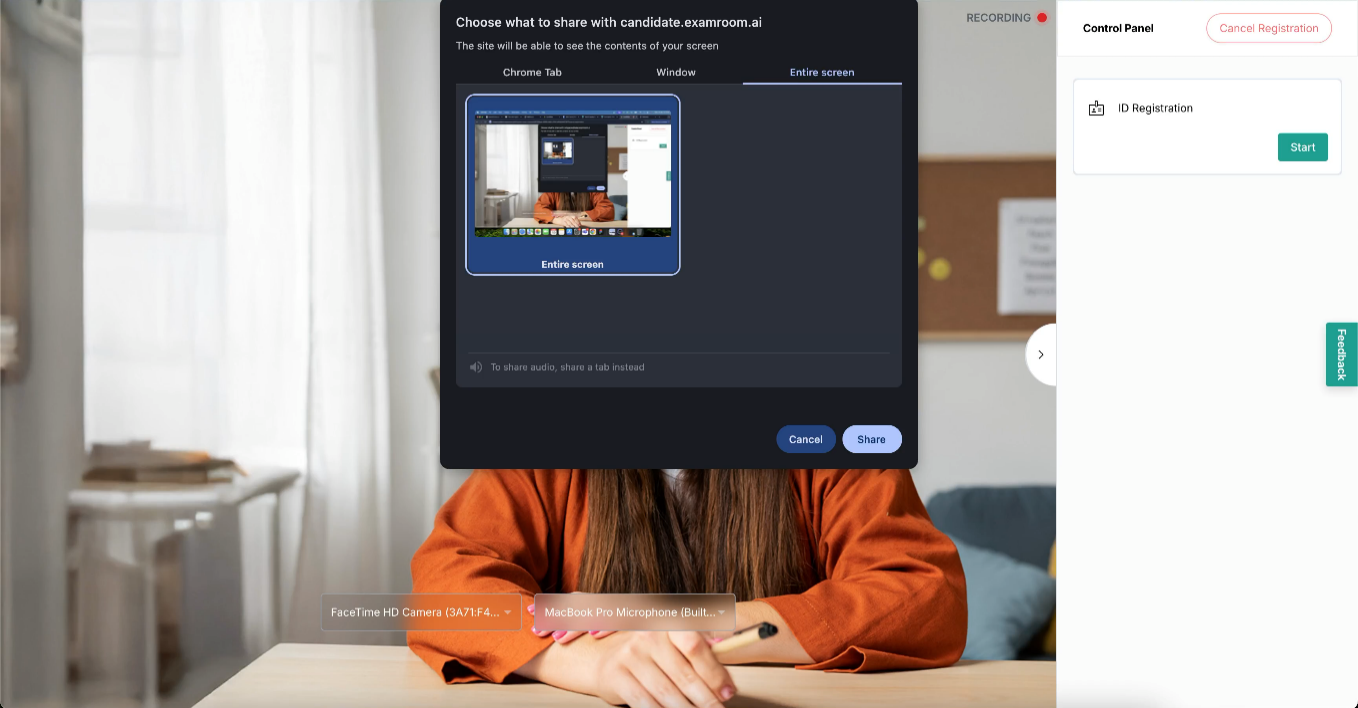
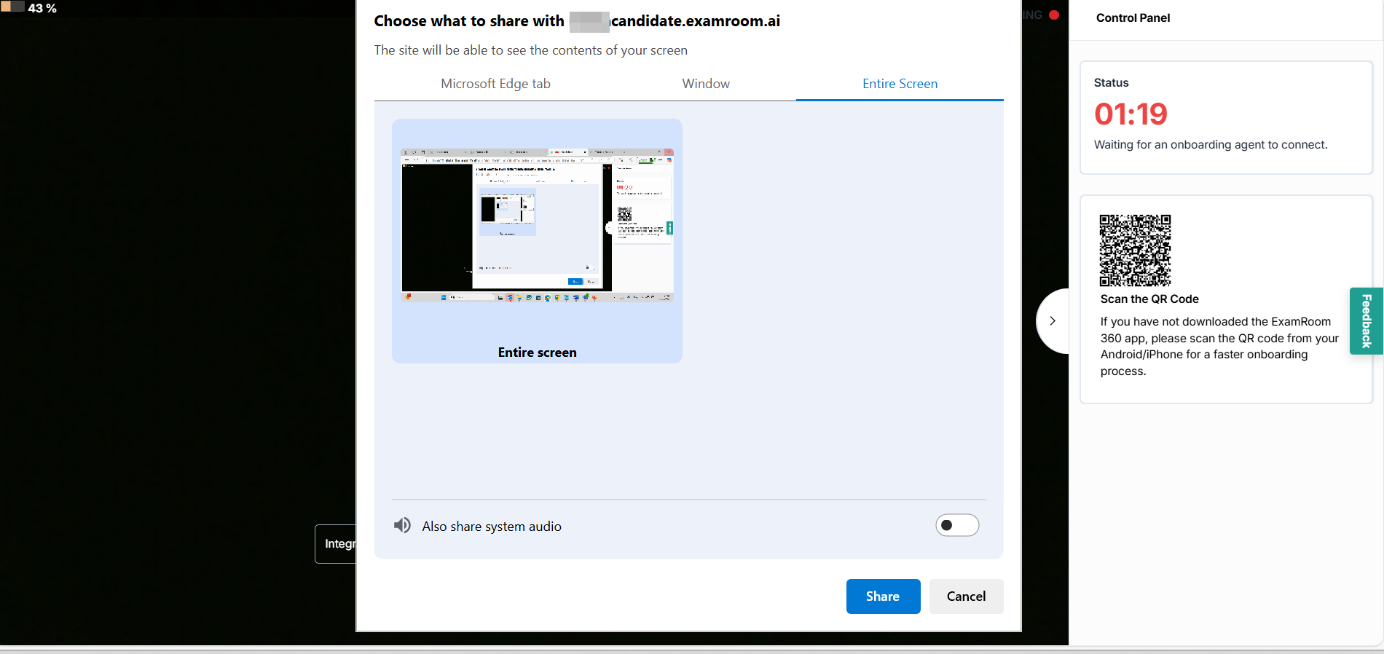
A pop-up for screen sharing appears on the page. Click the EntireScreentab. Then click the small image inside the box, then click share.
B. If you are using Edge, follow these permissions:
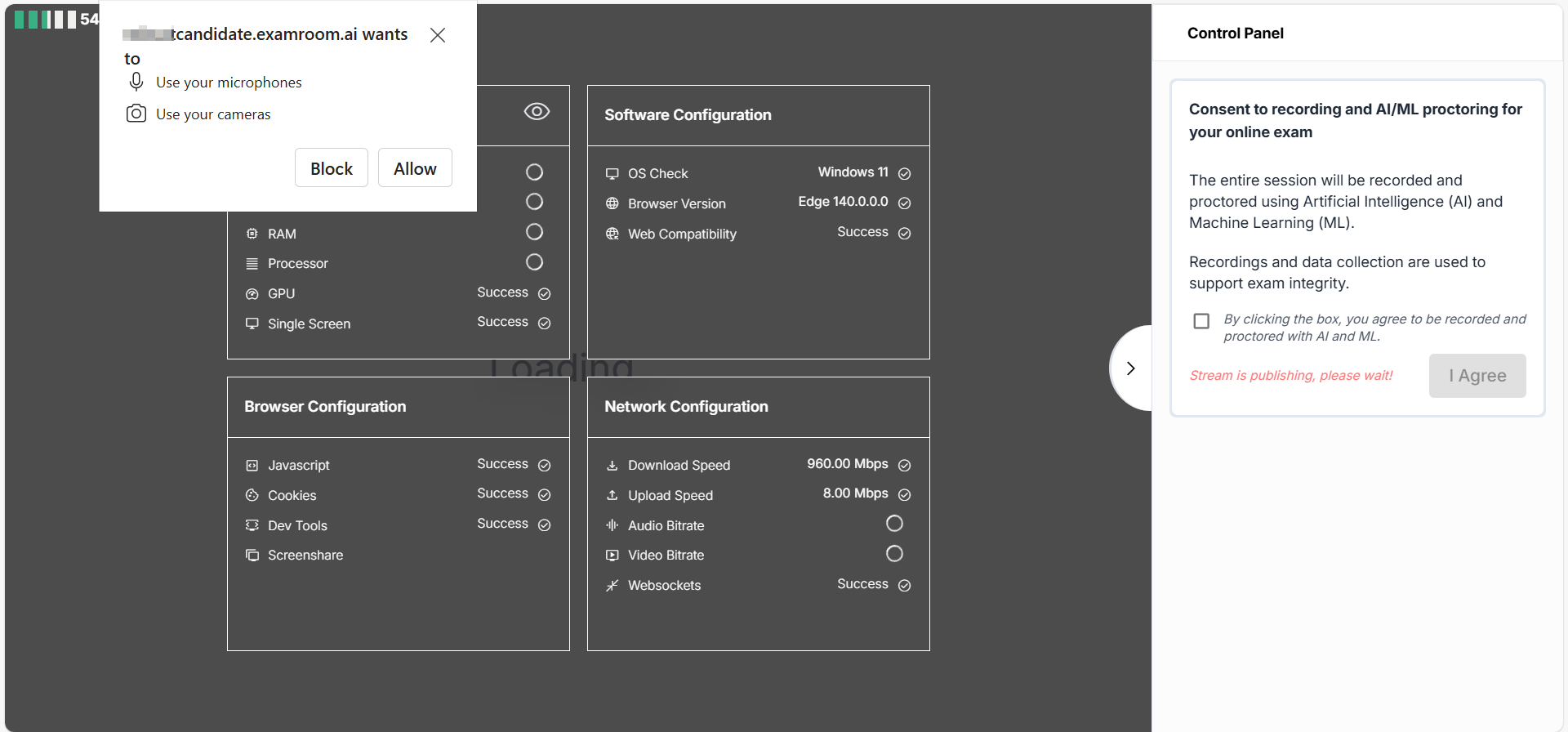
When you click "start ID registration," it asks permission to use microphones and cameras. Click Allow to approve access to both.
In the control panel, select the checkbox and click IAgree to consent to recording and AI/ML proctoring to support exam integrity.
A pop-up for screen sharing appears on the page, so make sure to share the EntireScreen instead of a tab or window.
C. If you are using Firefox, follow these permissions:
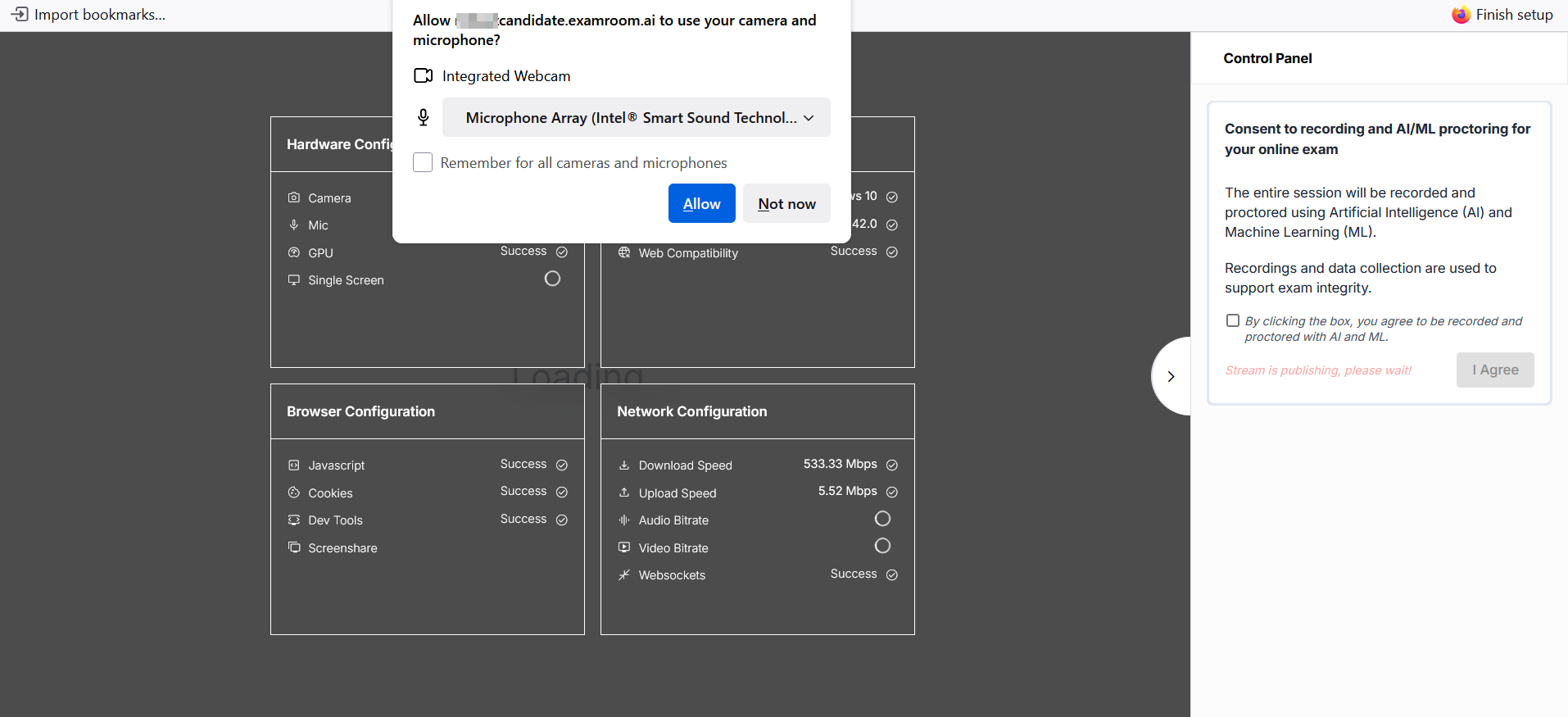
When you click "Start ID registration," it asks permission to use the camera and microphones. Click Allow to approve access to both.
In the control panel, select the checkbox and click IAgree to consent to recording and AI/ML proctoring to support exam integrity.
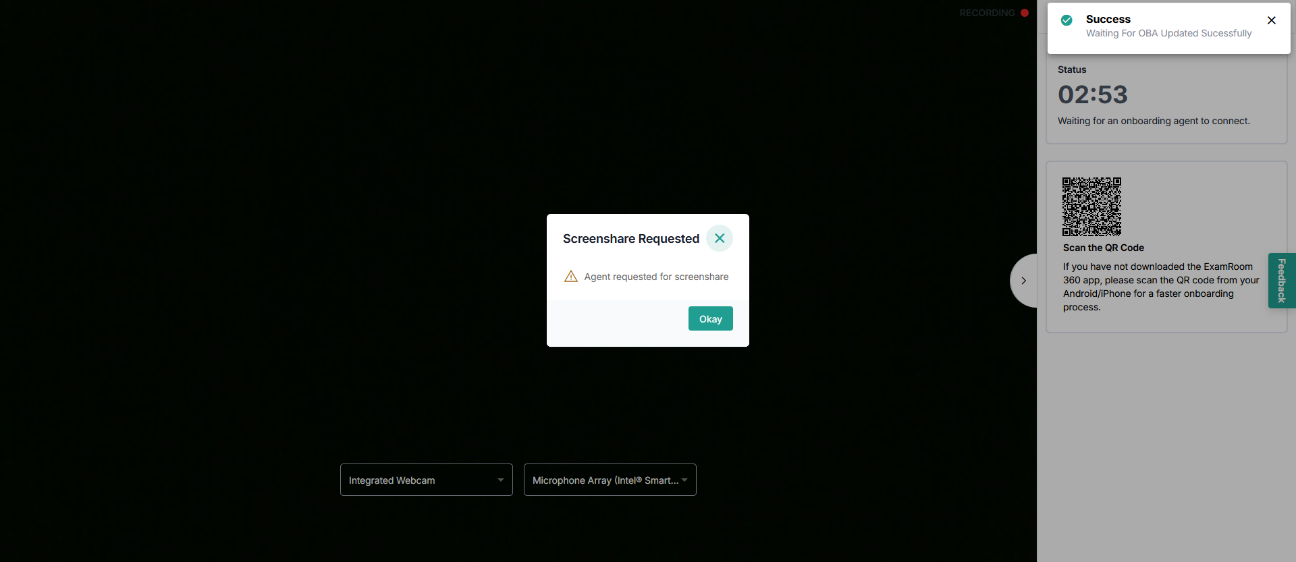
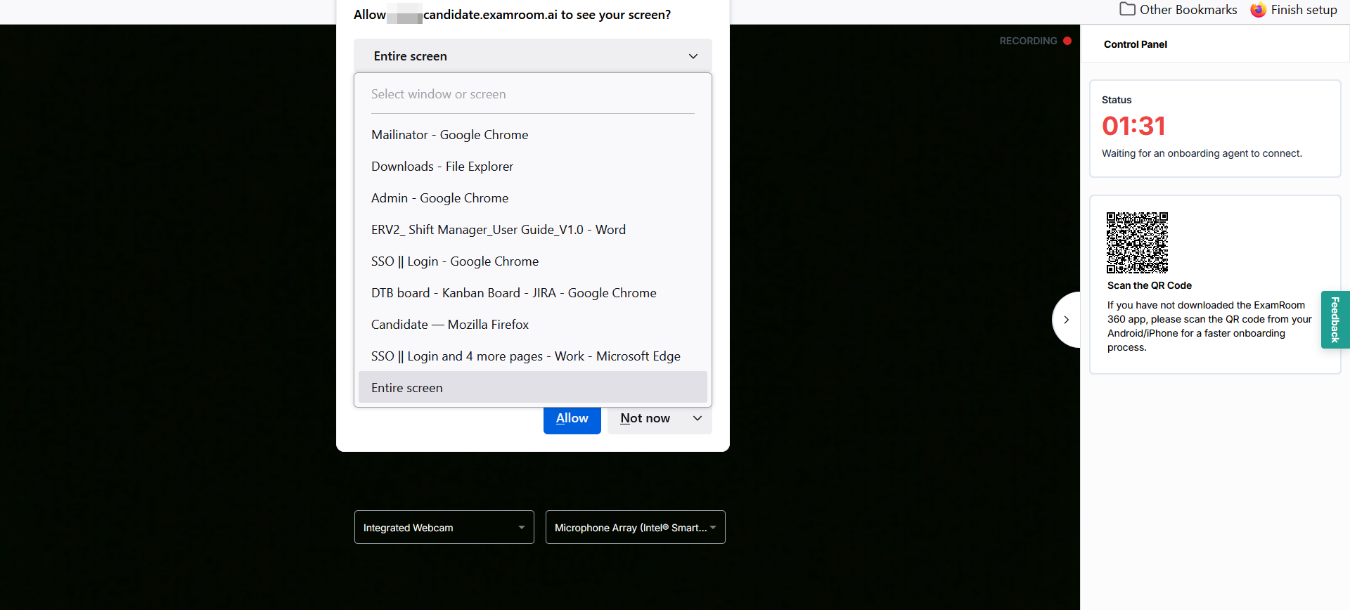
A pop-up for screen sharing appears on the page. Click Okay to proceed.
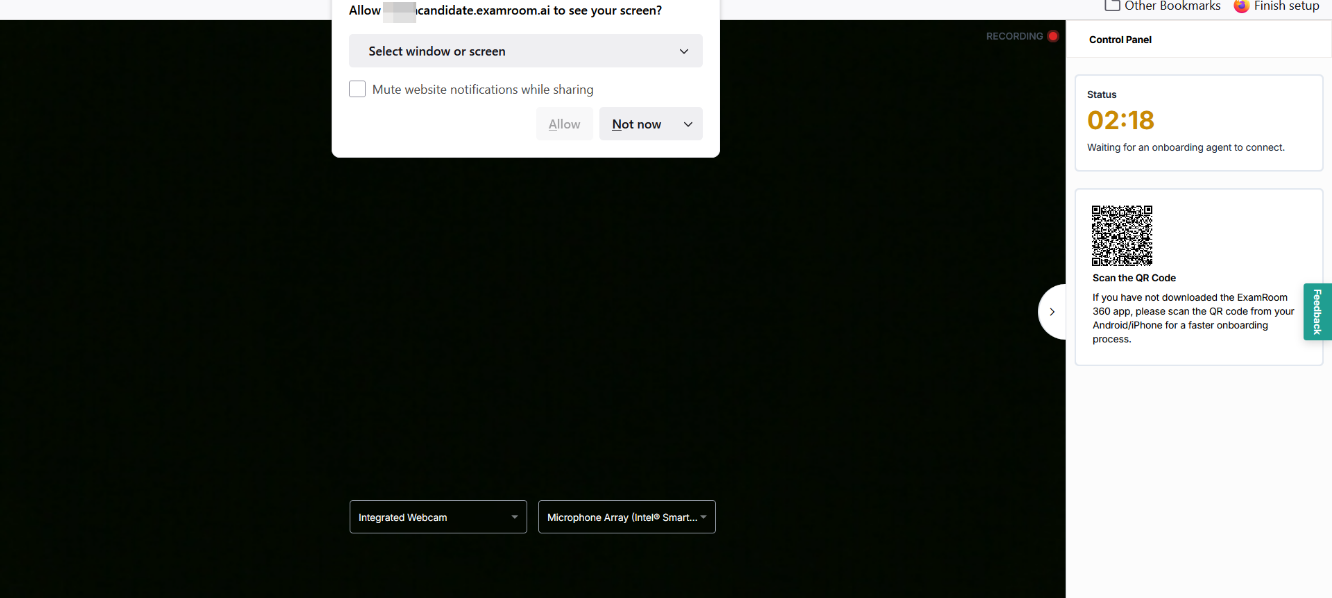
A pop-up for screen sharing appears on the page to share the screen. Select EntireScreen from that drop-down and click Allow to share your screen with the onboarding agent.