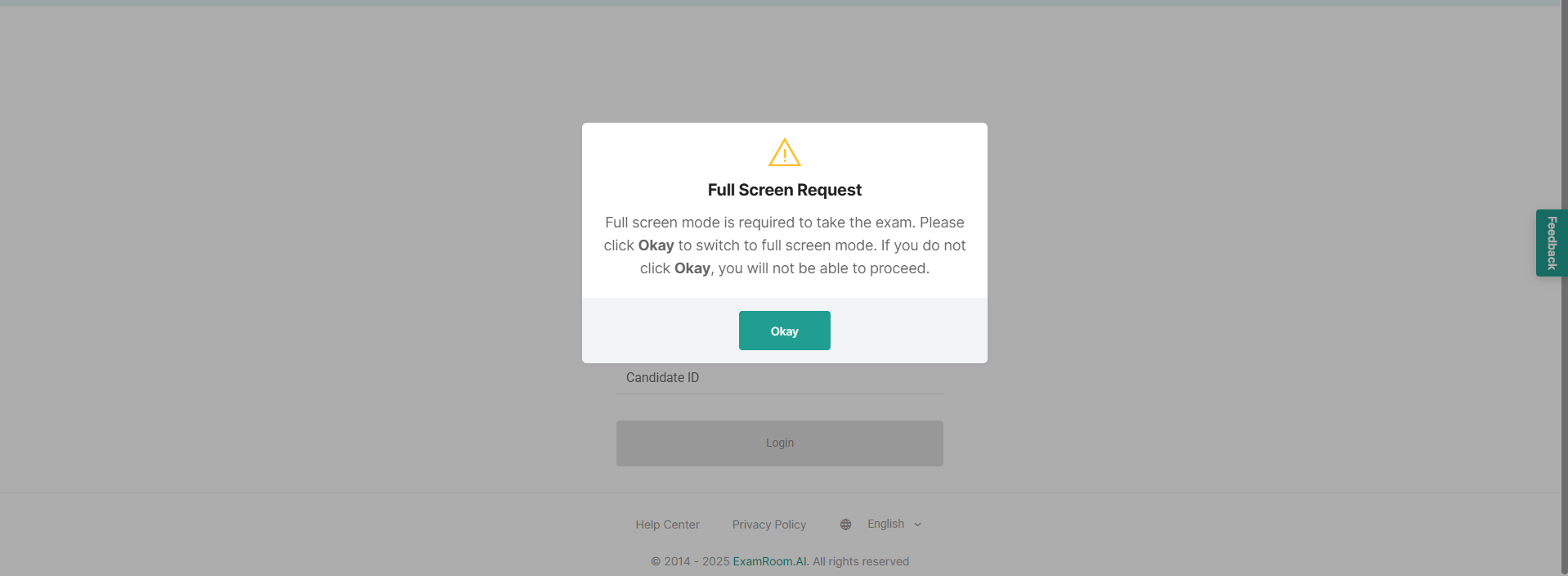
After being connected to the proctor, the test console screen will appear. A pop-up will prompt you to enter full-screen mode. Click Okay to continue.
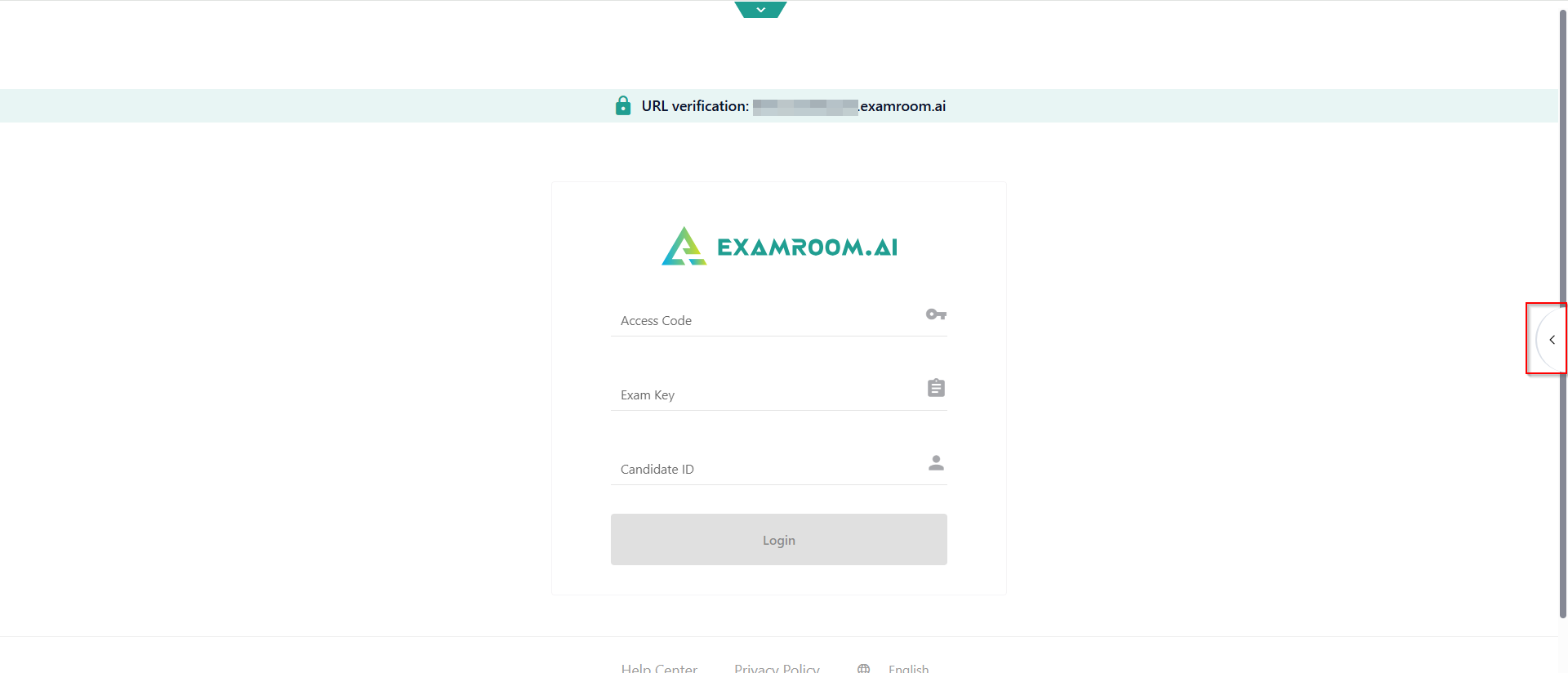
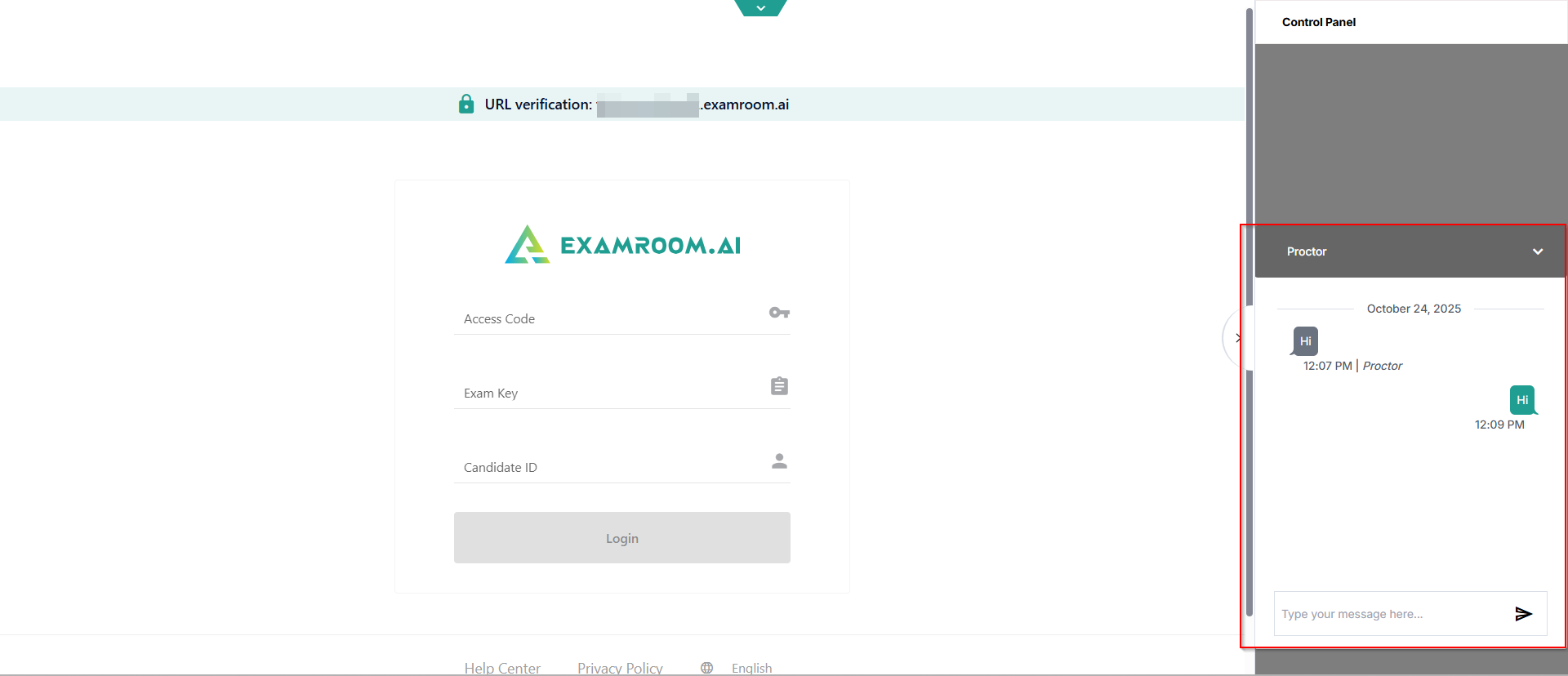
When the test login screen appears, please wait for the proctor to complete the Access Code, Exam Key, and Candidate ID fields.
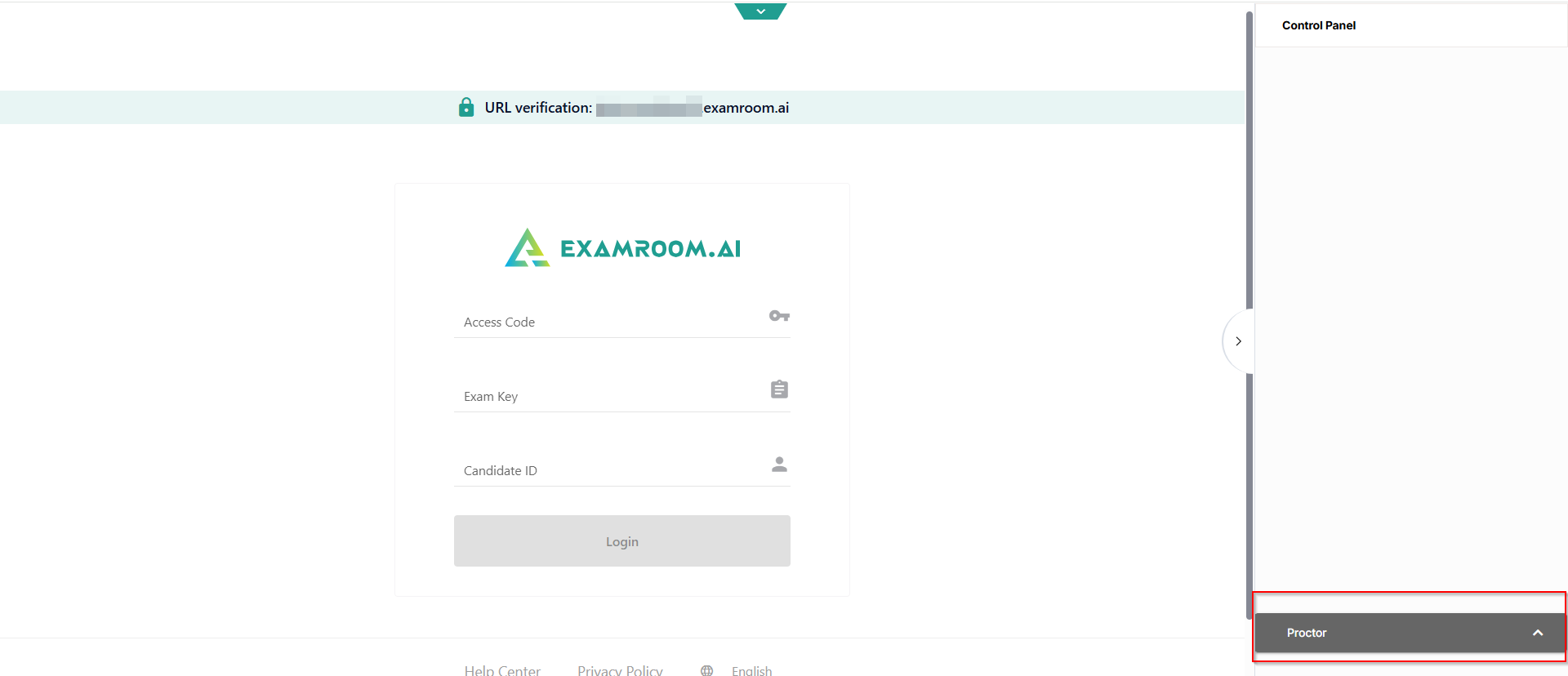
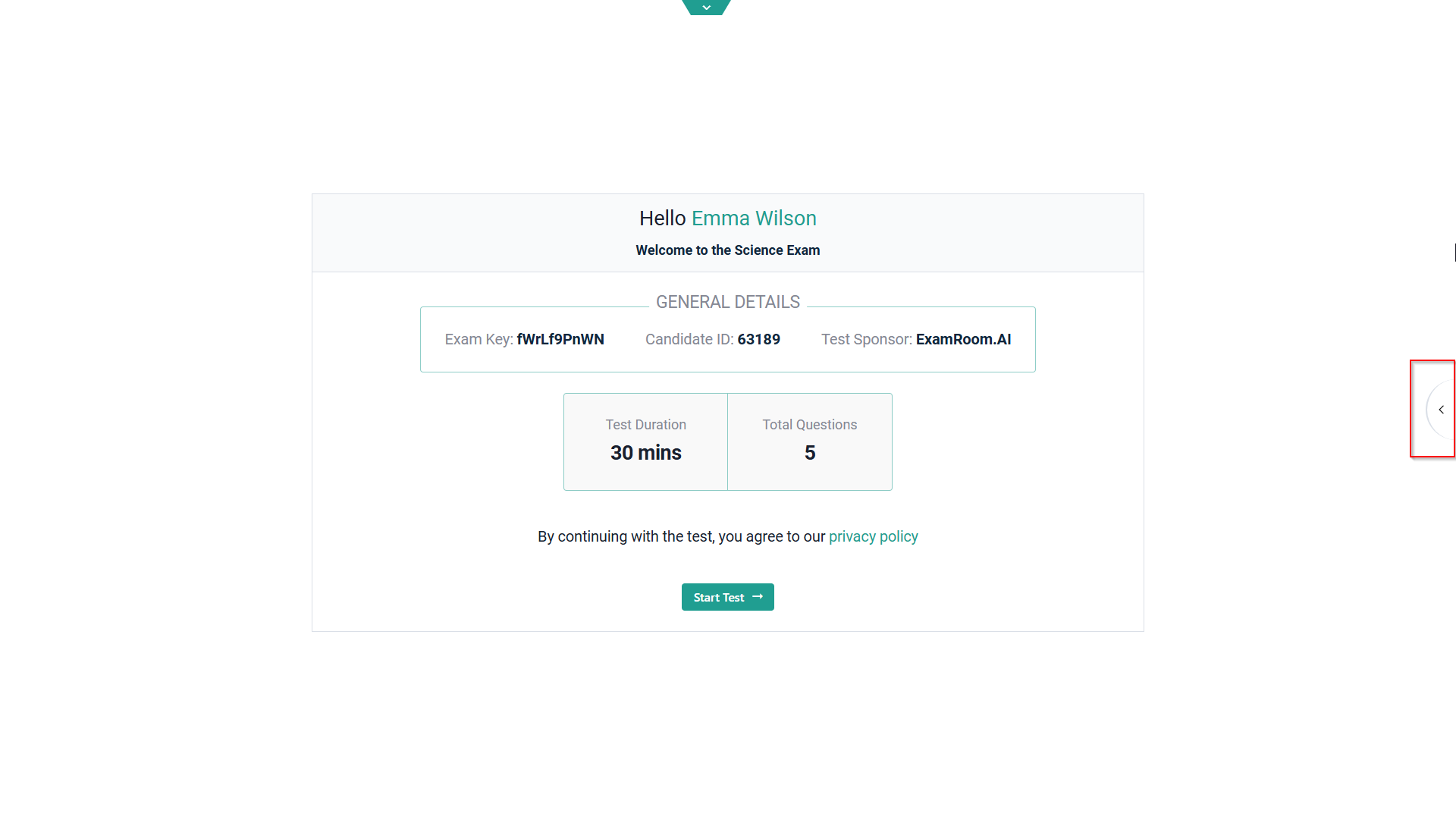
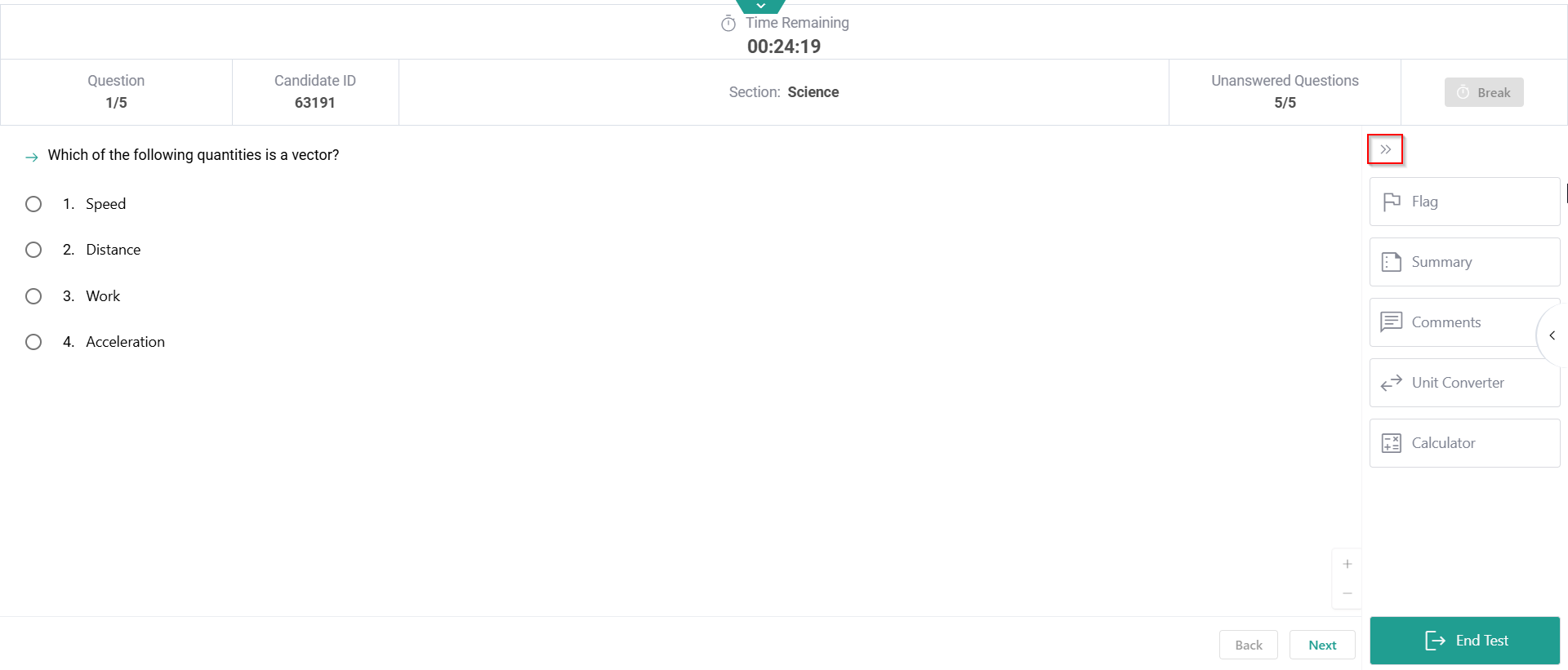
You can contact the proctor using the chat at any point during the exam. Click the arrow icon to open the control panel.
Click on the chat bar here to open the chat box and drop a message to the proctor if any assistance is required.
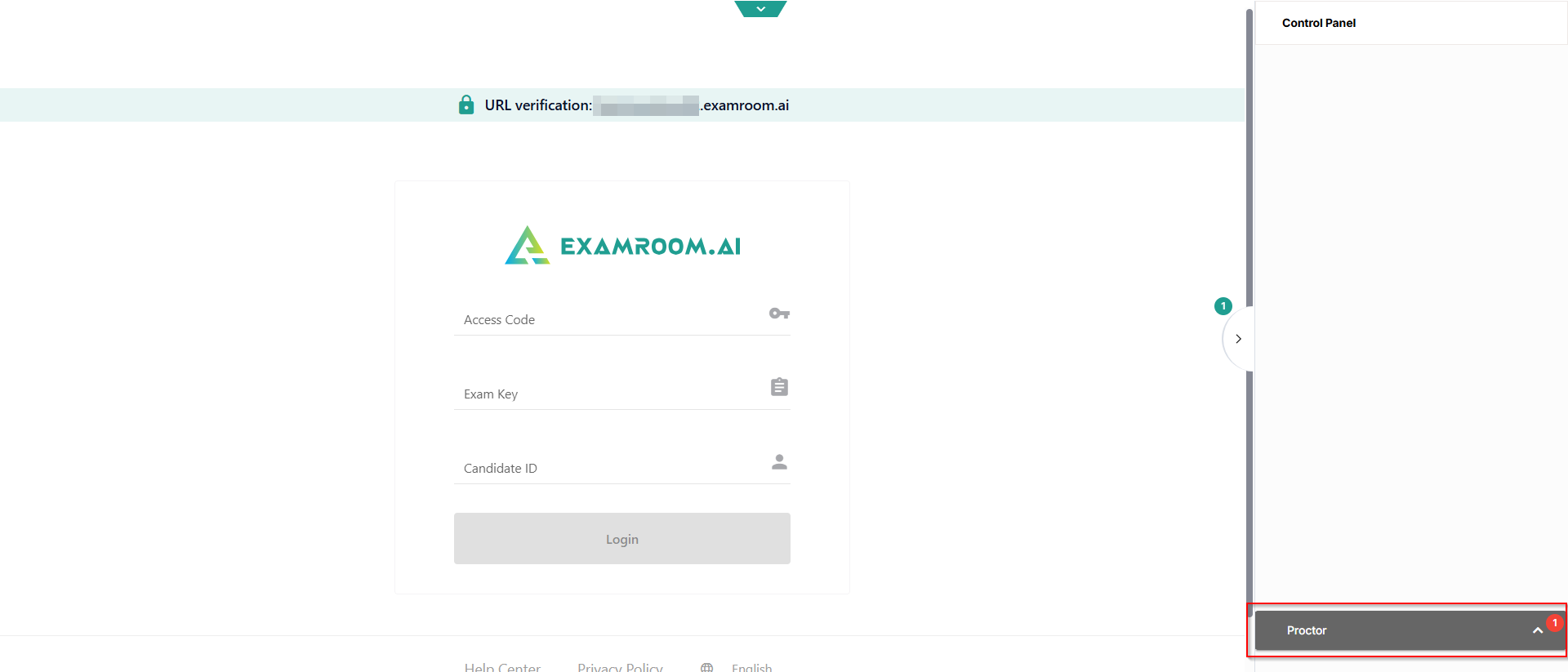
You will also be notified if the proctor drops a message to you.
Click to open the chat box and reply or send a message to the proctor. The chat option will be active throughout your exam session.
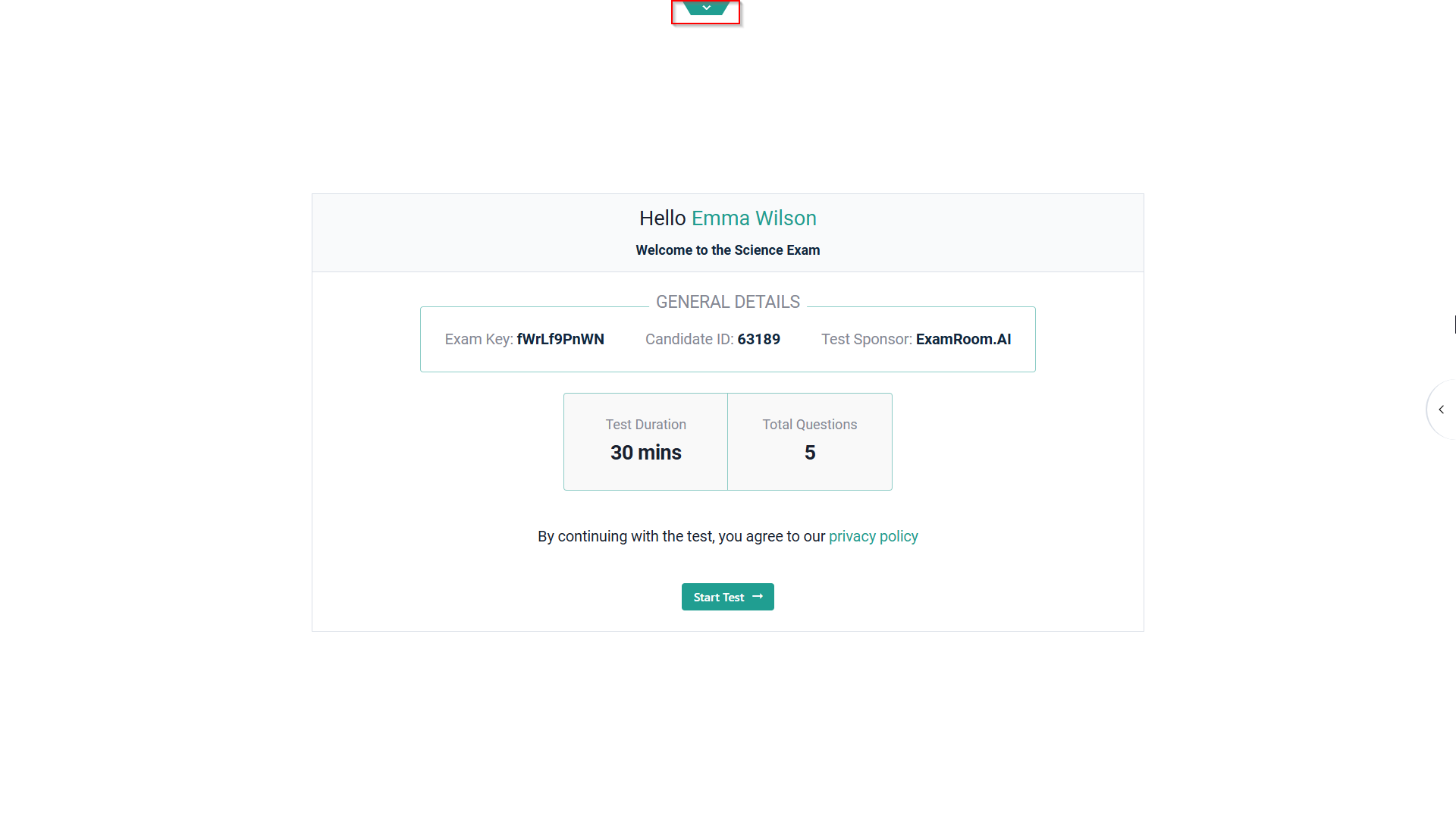
Now, as the proctor enables your access to the exam, you will be able to see a welcome screen, displaying the exam details.
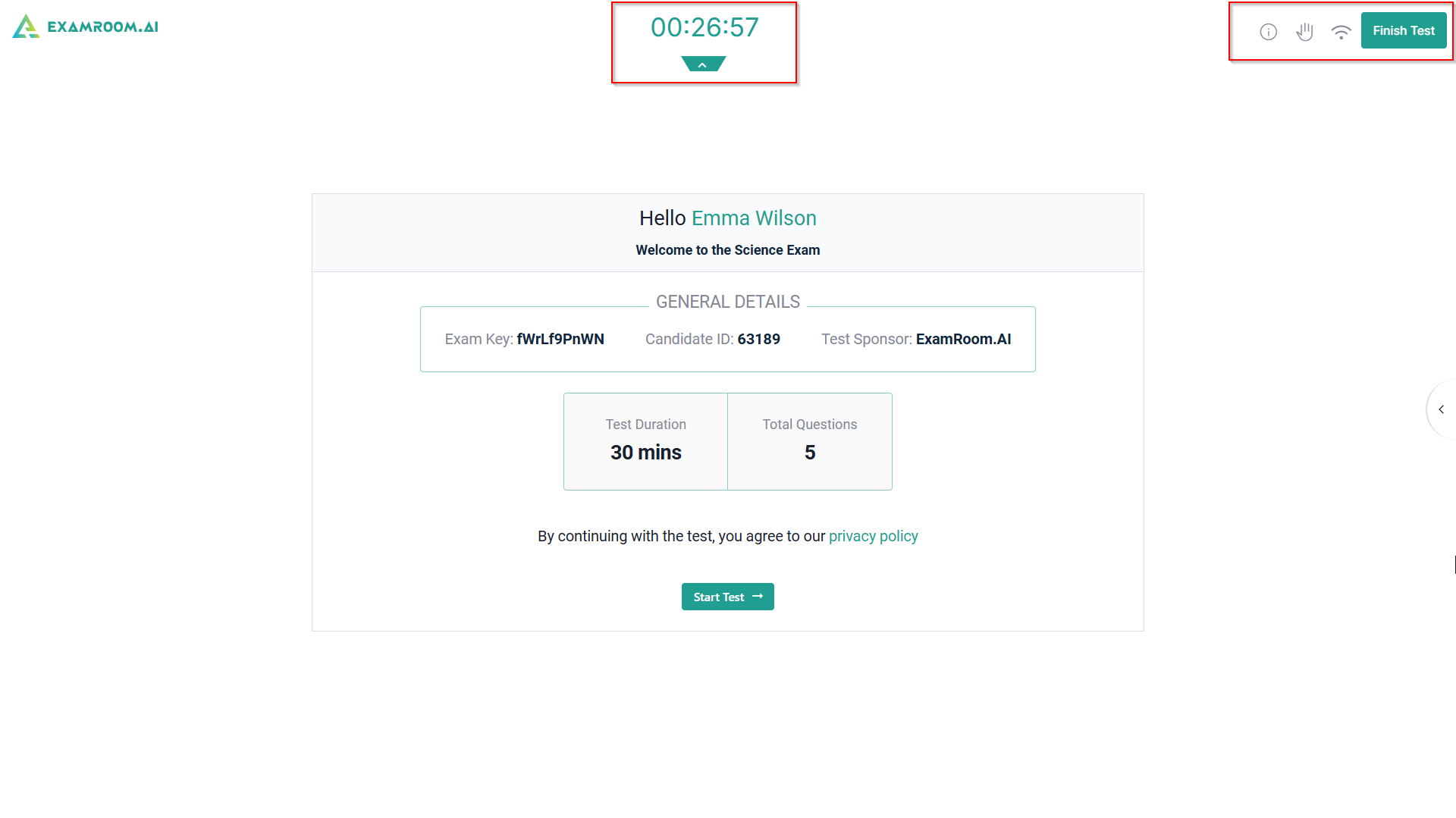
Click the arrow to open the drop-down and explore the options available.
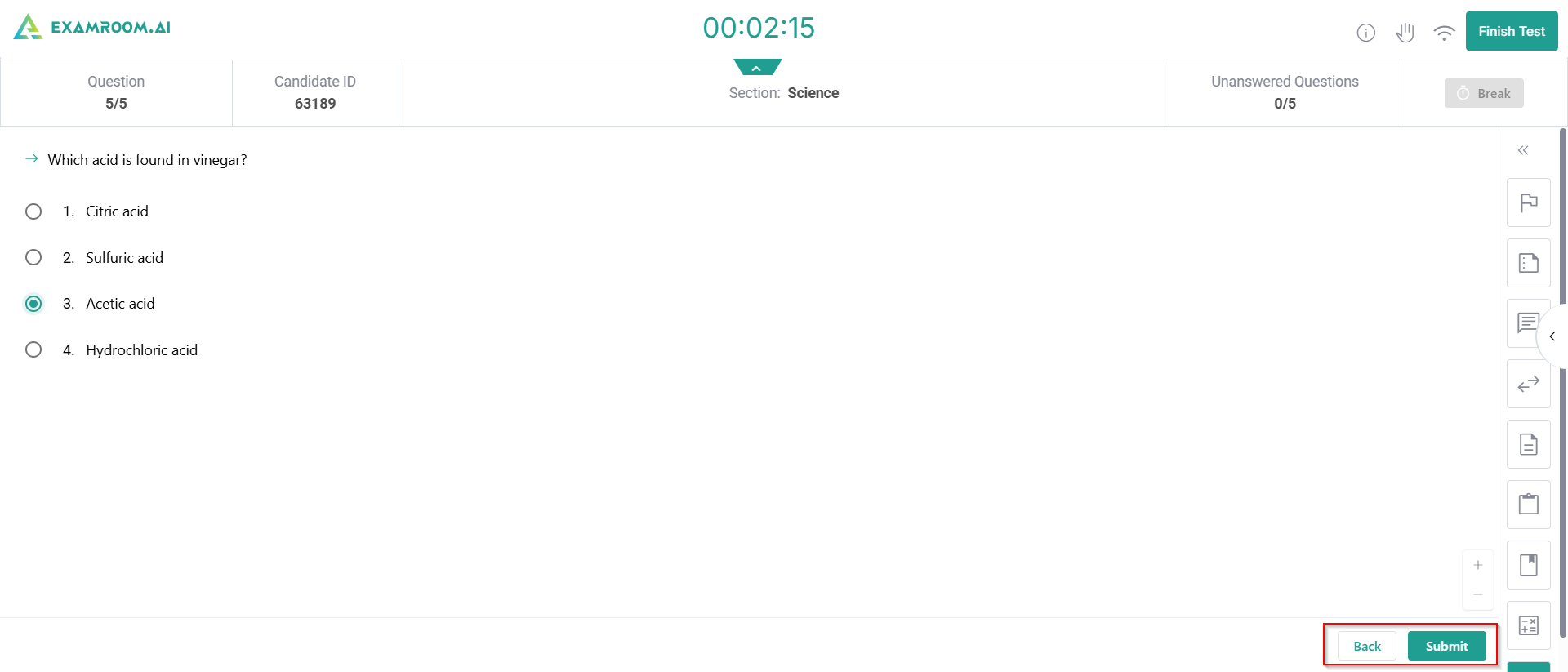
As you open the drop-down menu, in the center, a timer is displayed; it shows the remaining proctoring time. On the right side, there is an information icon, which shows details about the exam. Next is an icon to raise a hand, which can be used to contact the proctor during the exam. The next icon is for Wi-Fi, to check connectivity. Lastly, there is the Finish Test button, which can be used to complete the test at any point during the exam.
Click StartTest to begin the test.
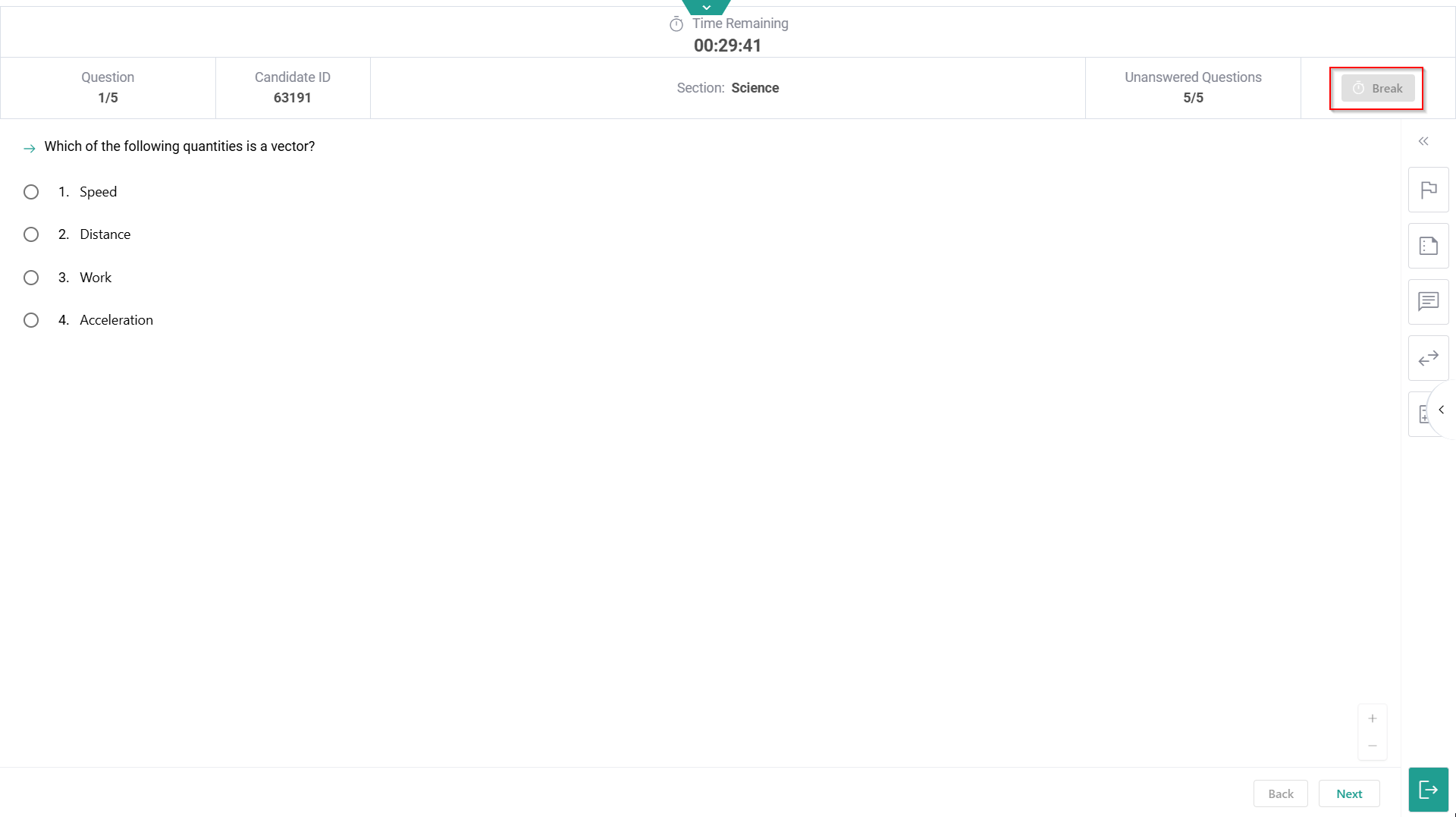
On the next screen, you'll see the number of questions, your Candidate ID, time remaining, and questions answered.
You may find a break icon (depending upon your exam sponsor and exam type), click on the break button to apply for a break during the exam. You will not be able to answer questions during the break period.
Click the arrow icon on the right-side bar to open the proctor chat during the exam and message the proctor if you need assistance.
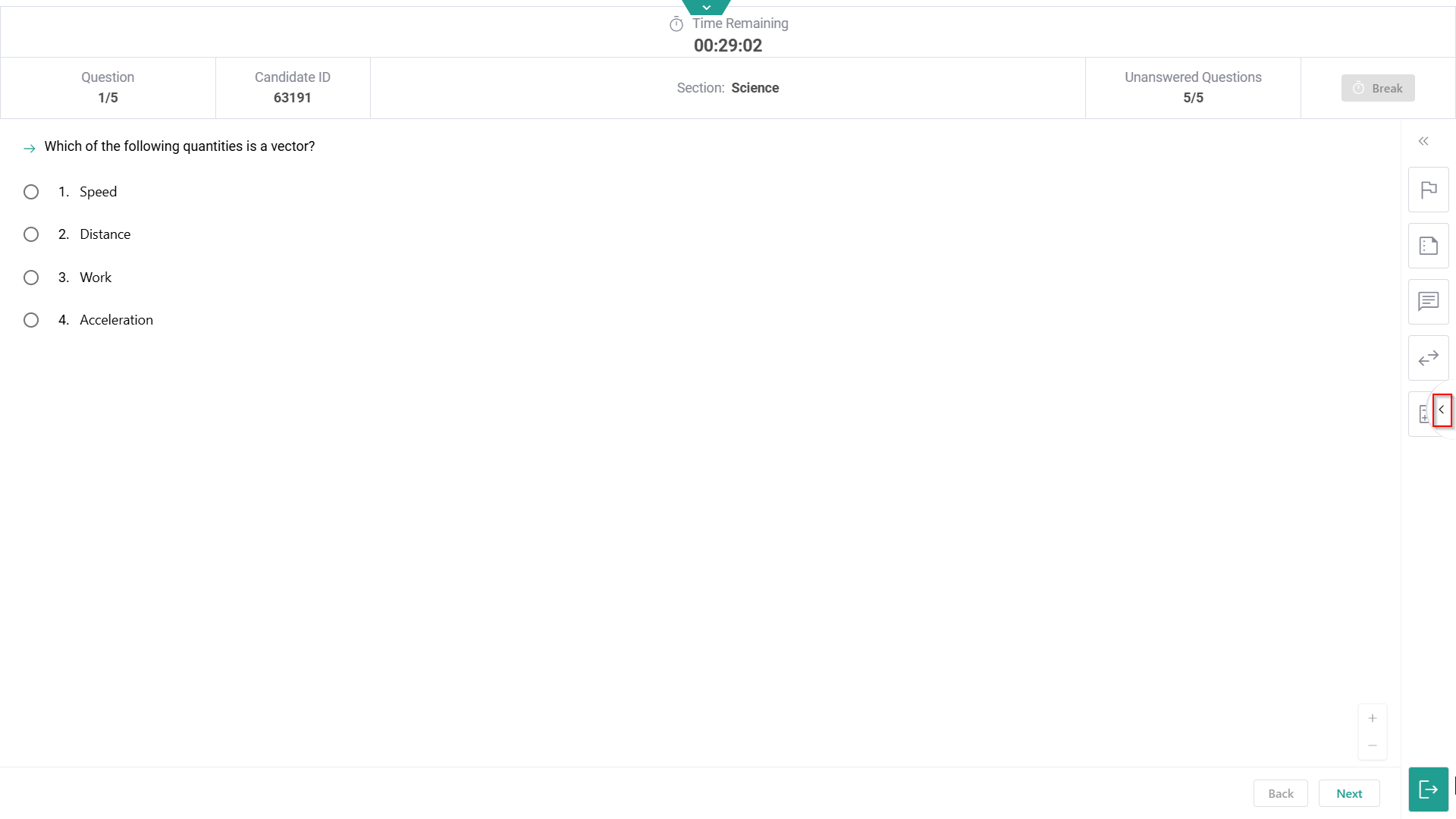
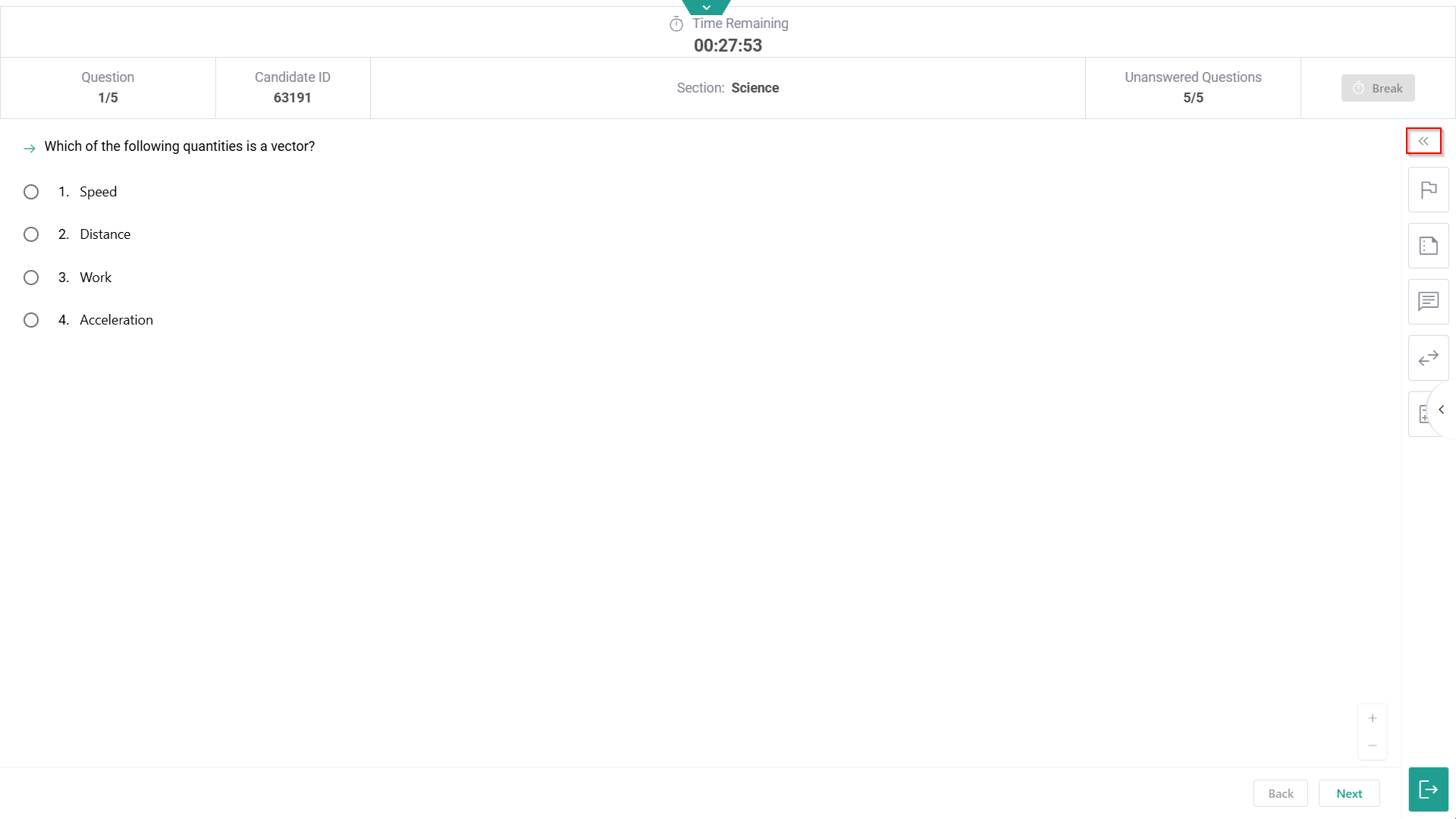
On the right side of the screen, click the arrow to open the widget toolbar to access the widget tools allowed during the examination.
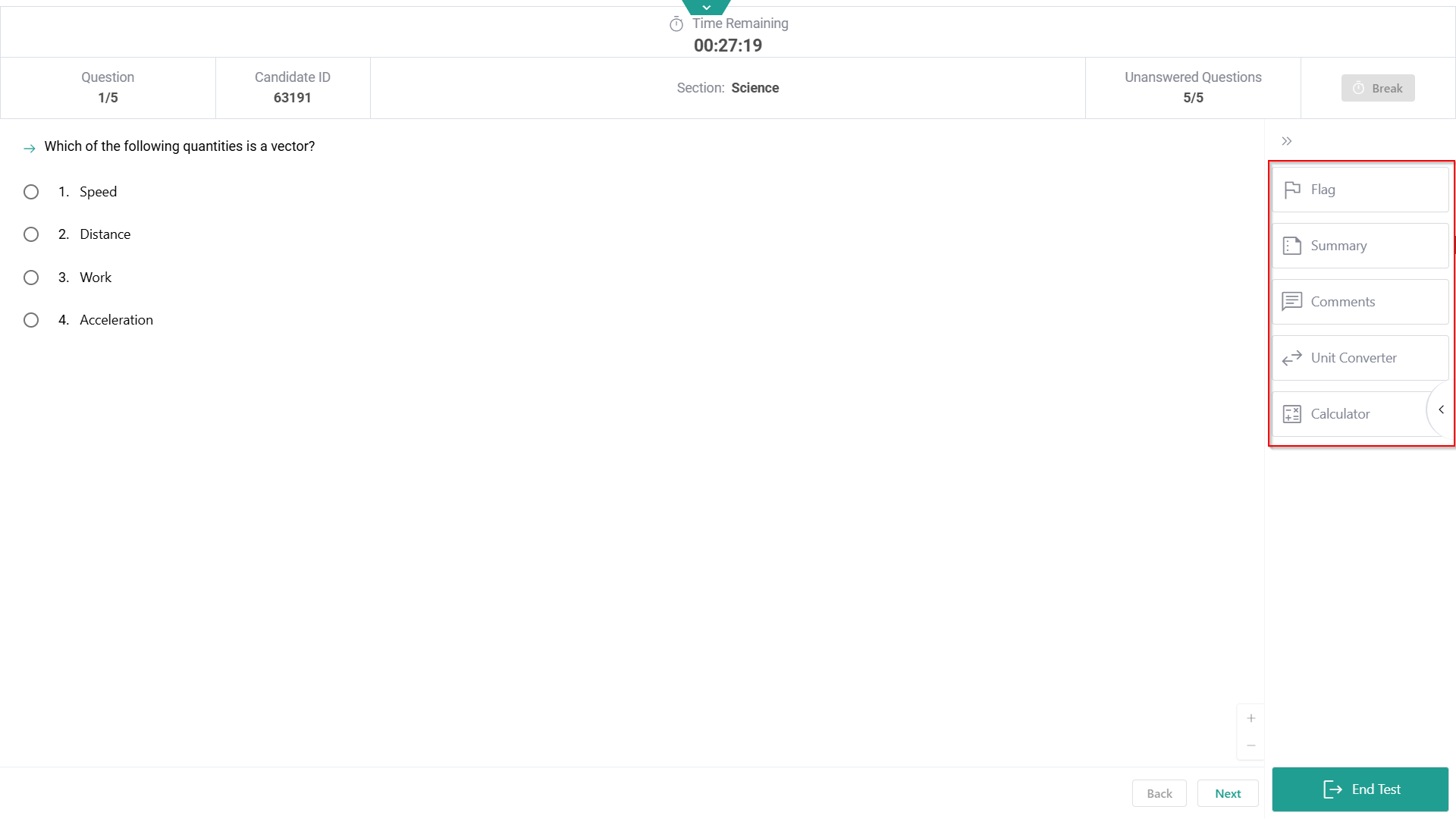
As you click the arrow to open widgets, you can see multiple widgets (may vary as per your test sponsor). The first one given here is a flag; you can use this to flag a question to revisit later.
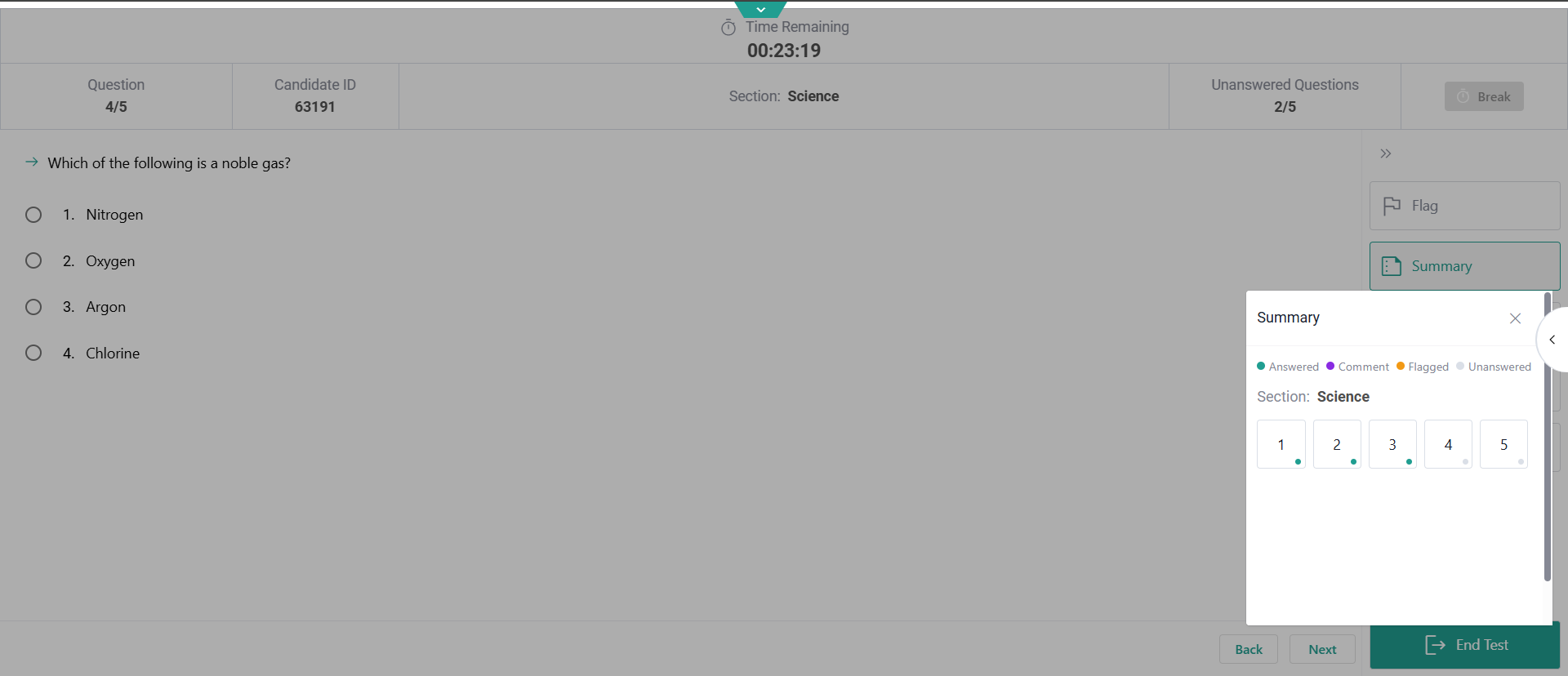
Click Summary to view an overview of your exam. It shows which questions you've answered, commented on, flagged, or left unanswered.
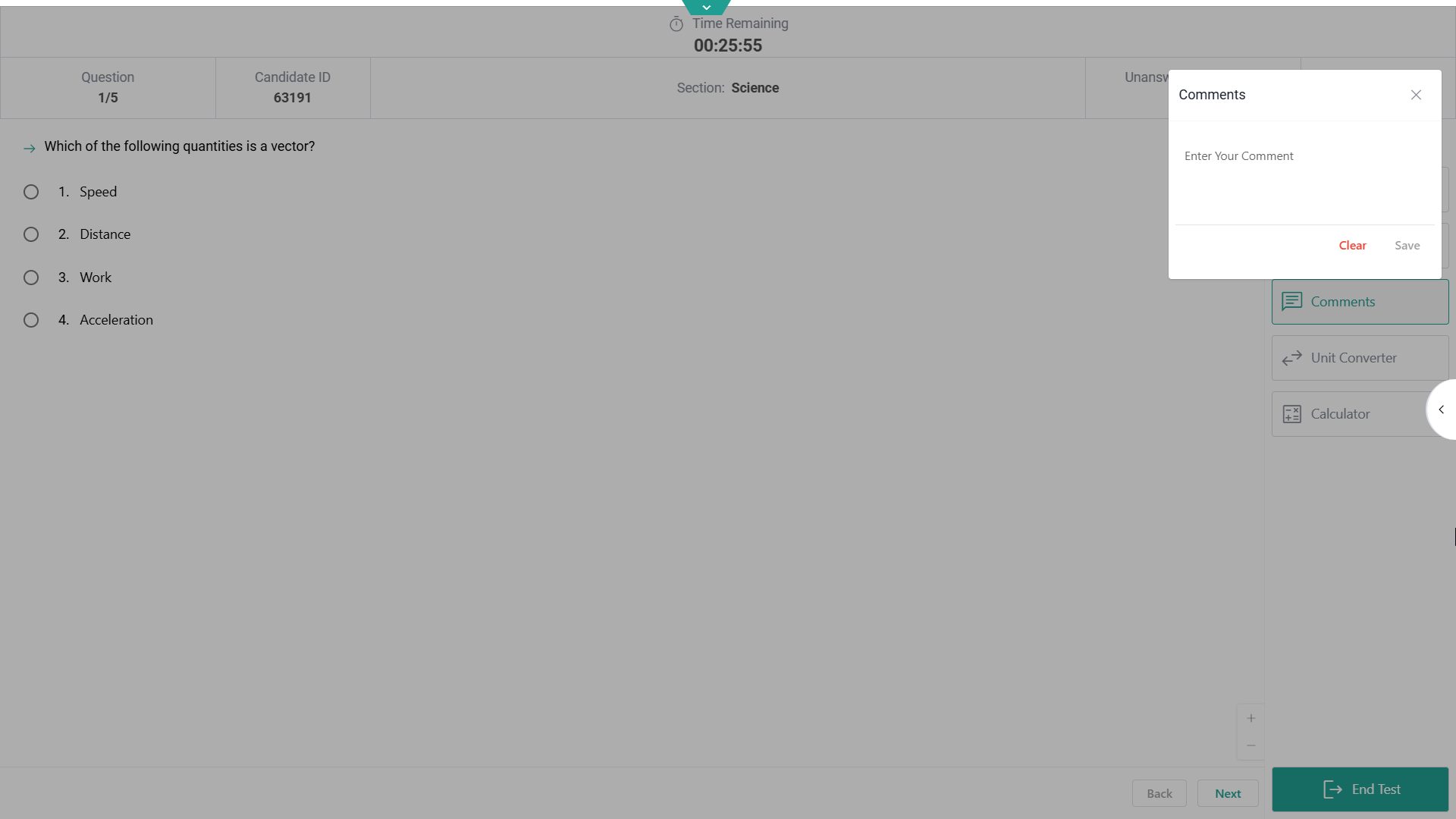
Click Comments to add a comment to any question. You can revisit your comments later, and they will also appear in the exam summary.
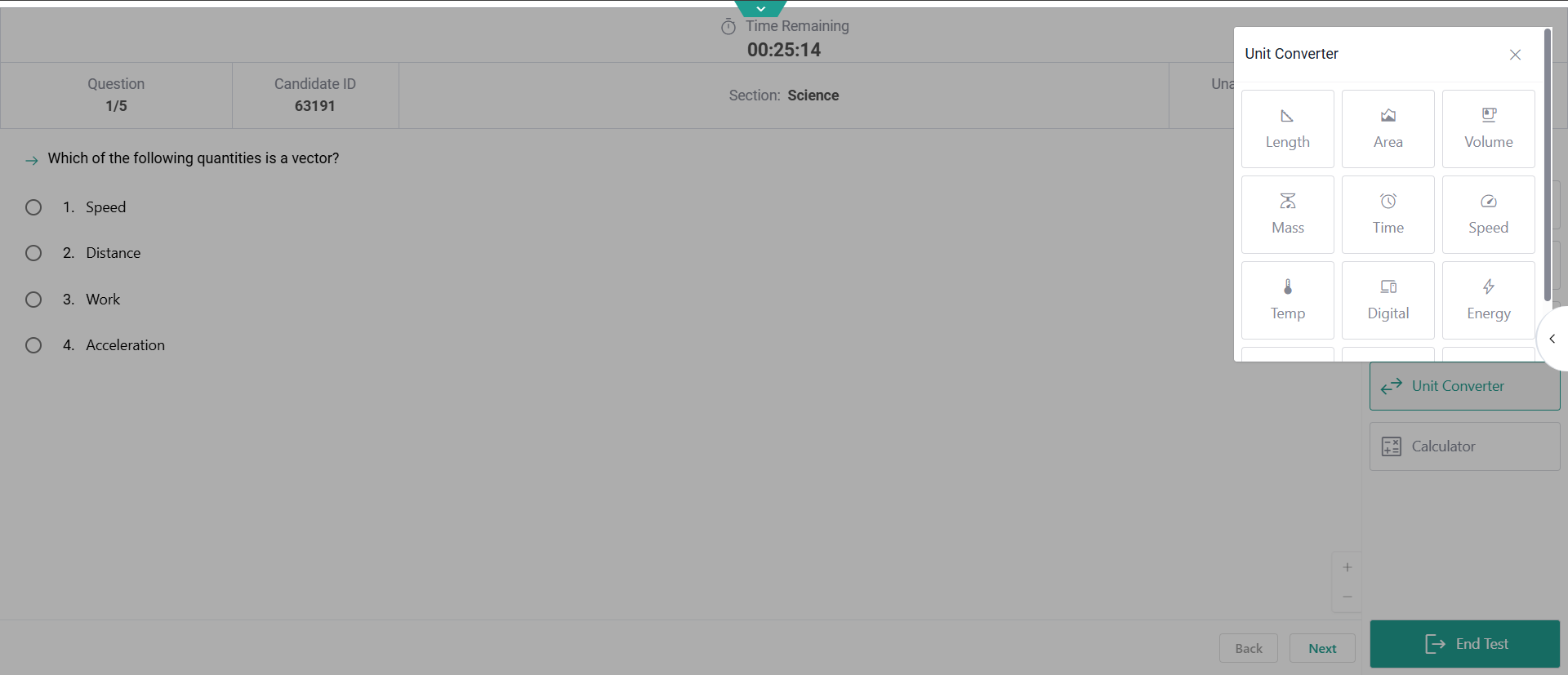
Click UnitConverter to open a list of options to perform conversions as needed.
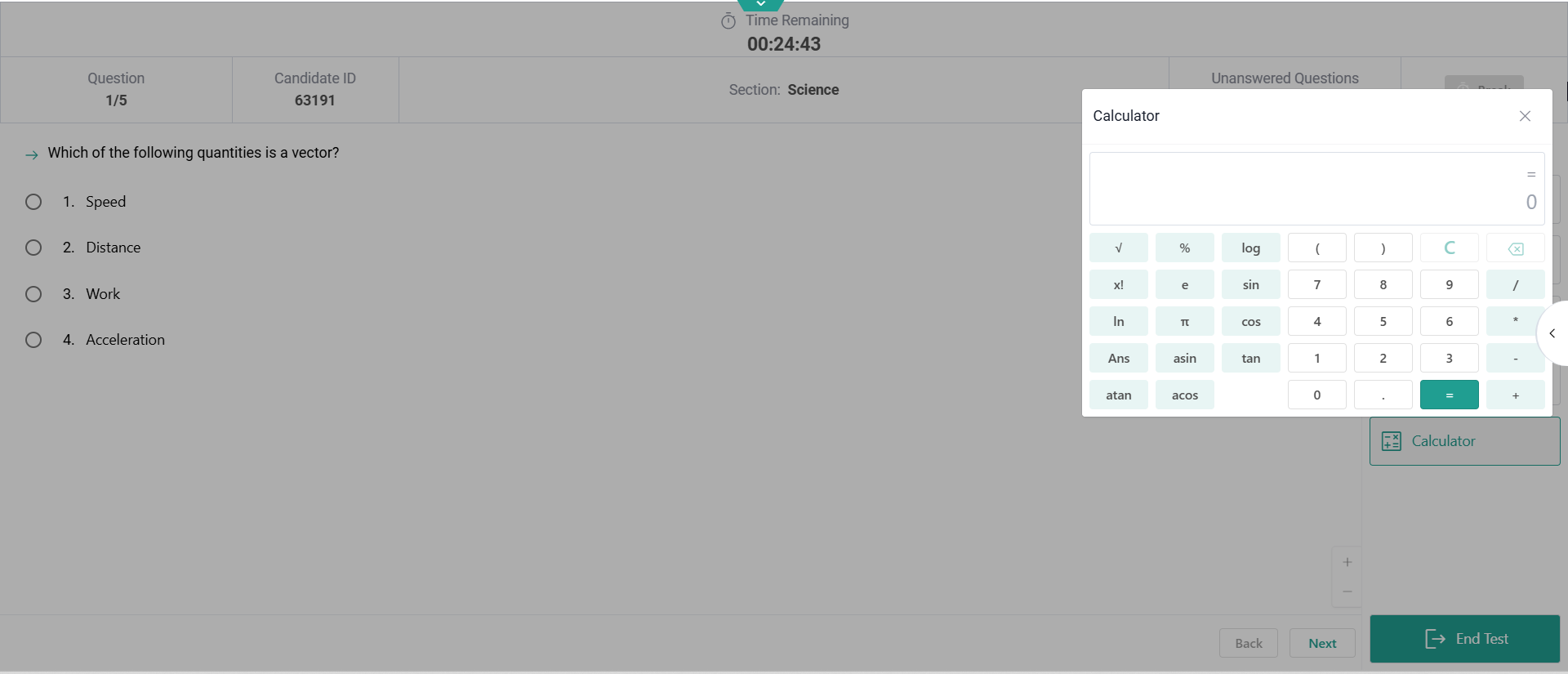
Click Calculator to open the calculator and use it during the exam.
Click the arrow icon to close the widget bar on the right side of the screen.
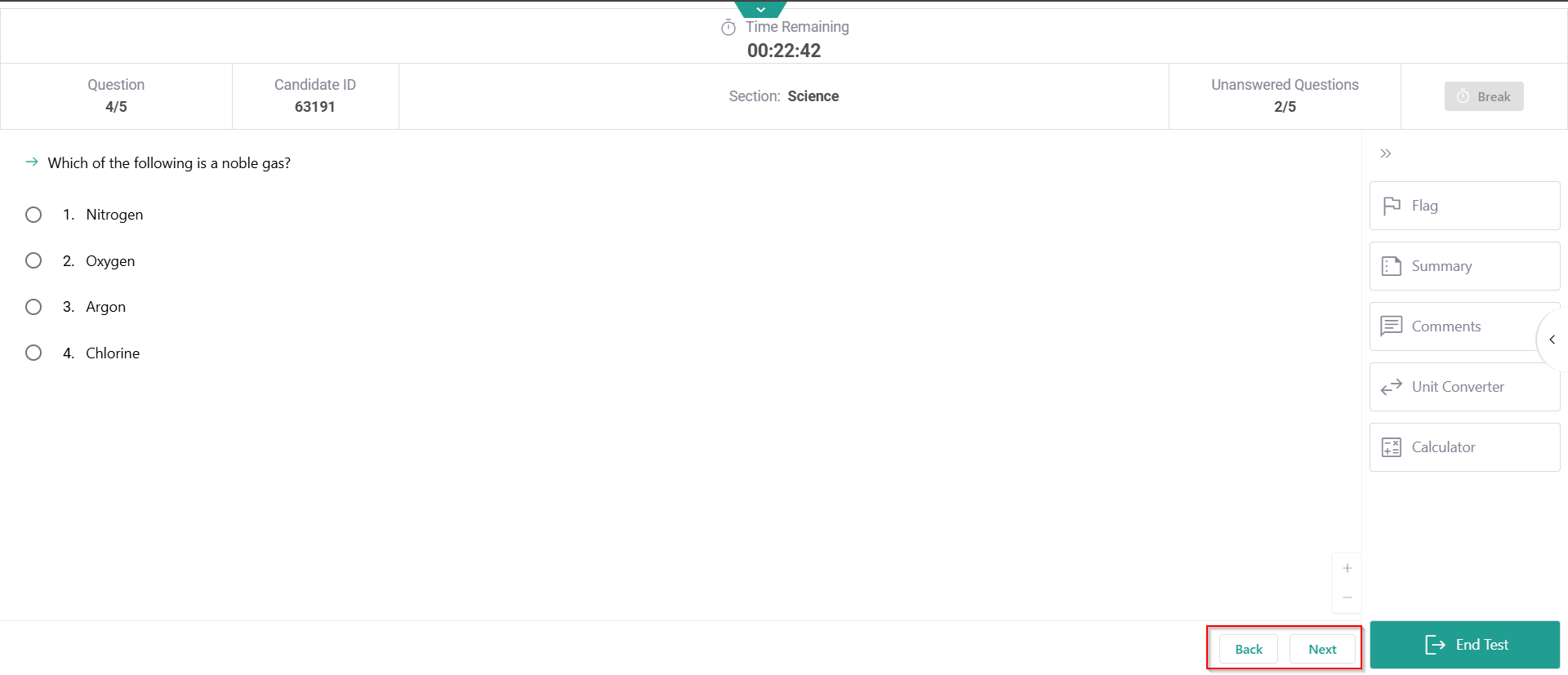
To answer a question, carefully review the question and all answer choices, then select your response. Click Next to save your answer and move forward. Click Back to go back (if allowed by your exam type and sponsor).
At the last question, upon making your selection of answers, click Submit to save your responses.
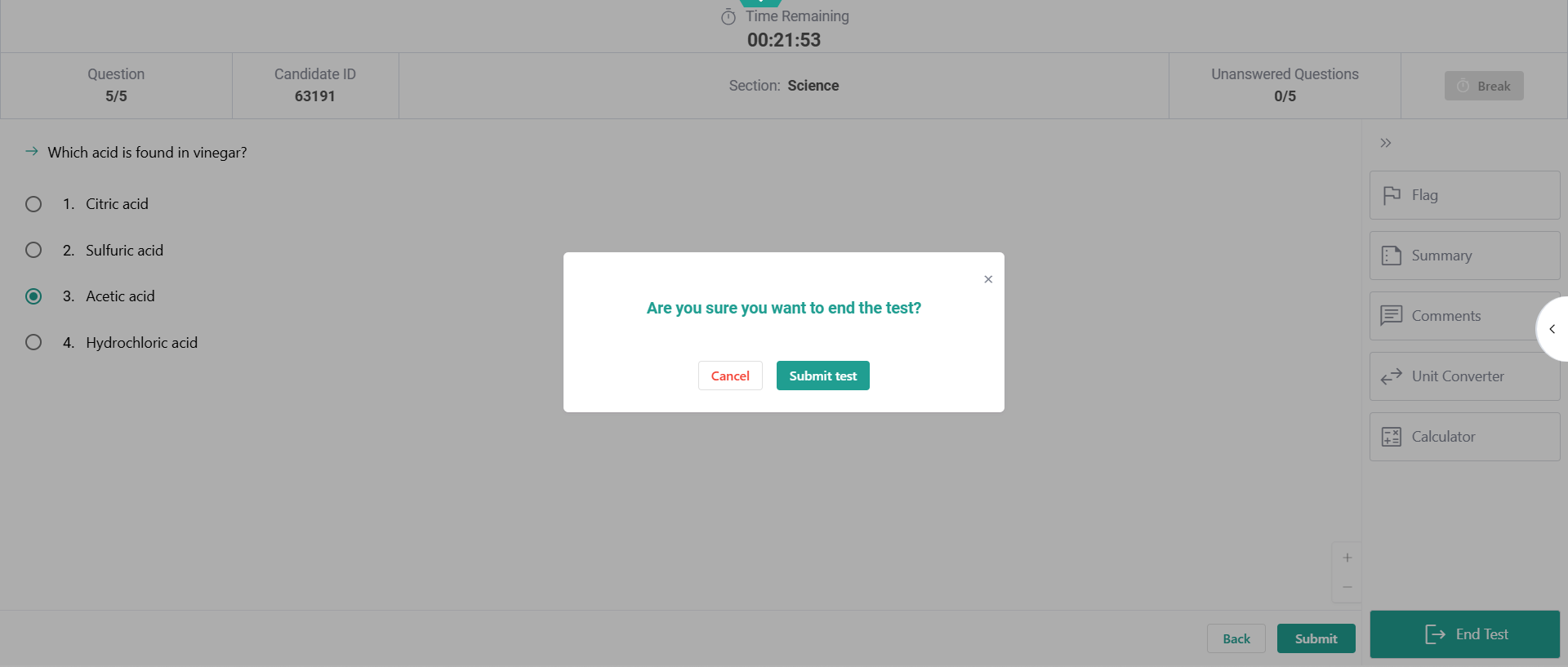
When you click Submit, a pop-up will appear asking if you wish to end the test. Click Submittest to submit your exam.
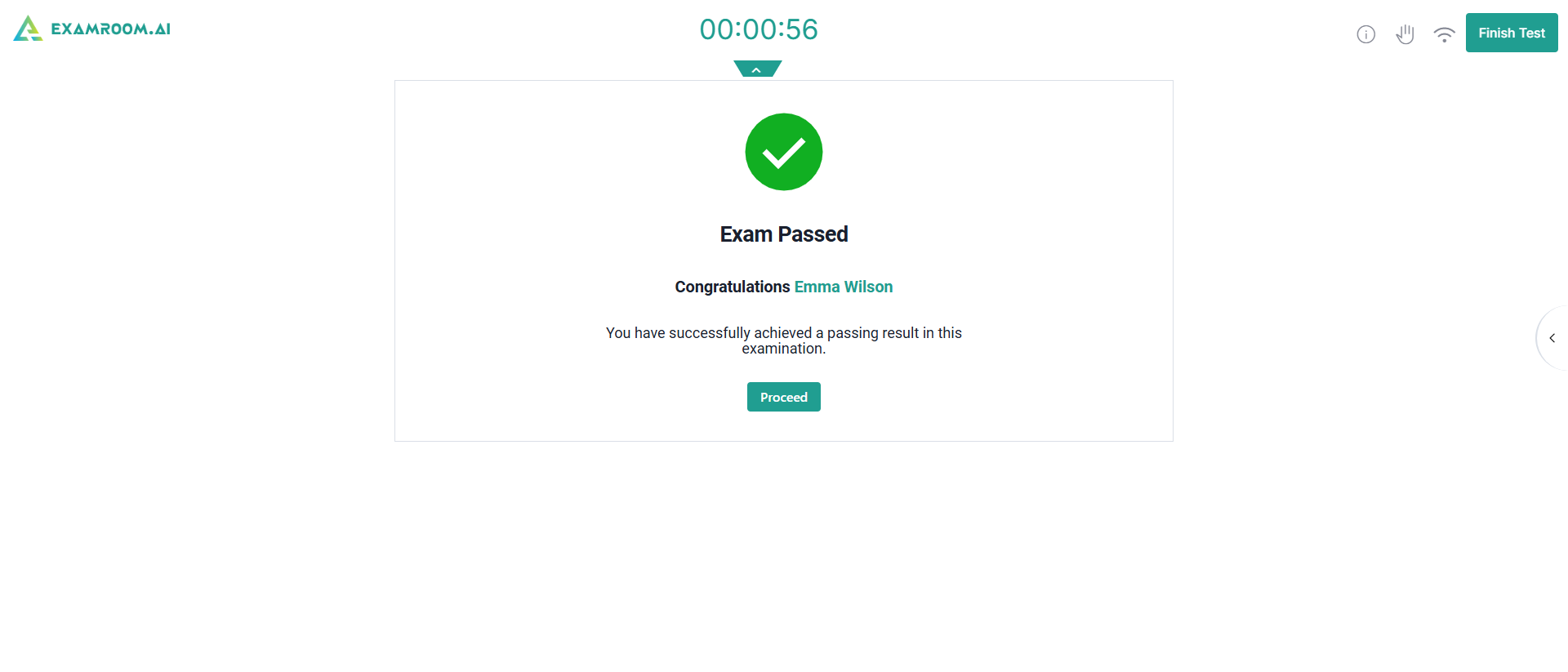
After submitting the test, if permitted by your exam sponsor, your results will be displayed. Click Proceed to go ahead.
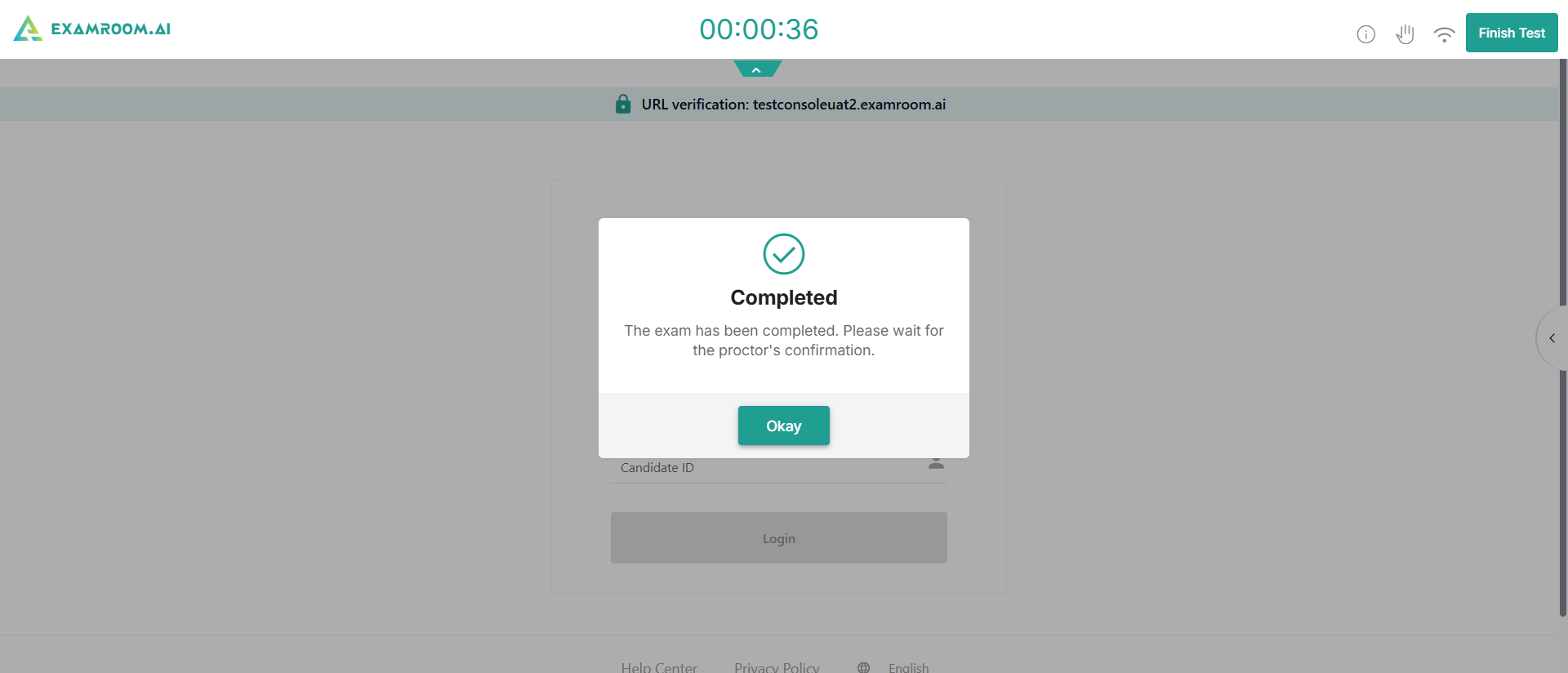
Now, a pop-up appears, indicating that your exam has been completed and is awaiting the proctor’s confirmation. Click Okay, and once the proctor ends the exam, you will be directed to your dashboard.
If you encounter any issues, please contact us at our toll-free number: +1877-848-3926 or use the chat support available on ExamRoom.AI