System Check
Explore the following video to learn how to perform a system check on your device:
Note: The following system check process has been explained in the Chrome browser.
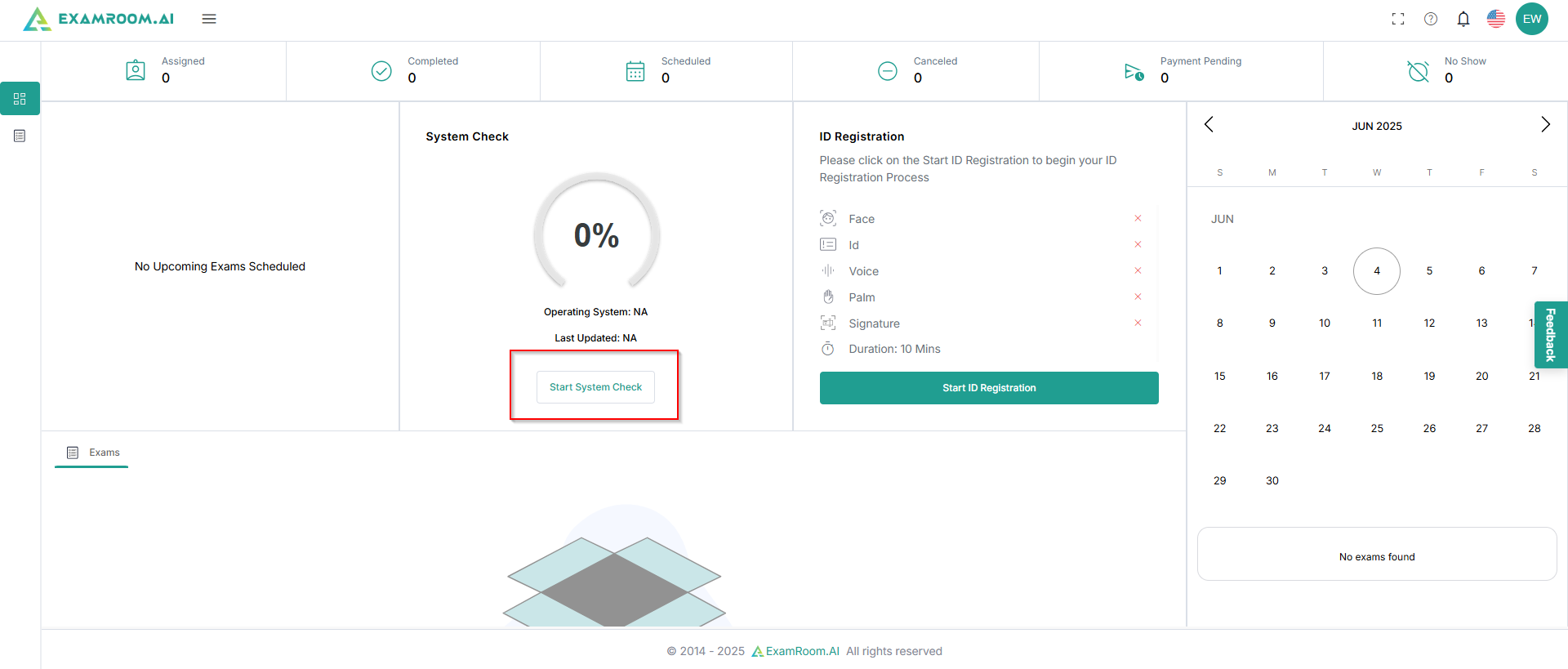
- Once you log in, you will be brought to the Candidate Dashboard. To validate your system configurations, click the Start System Check button.
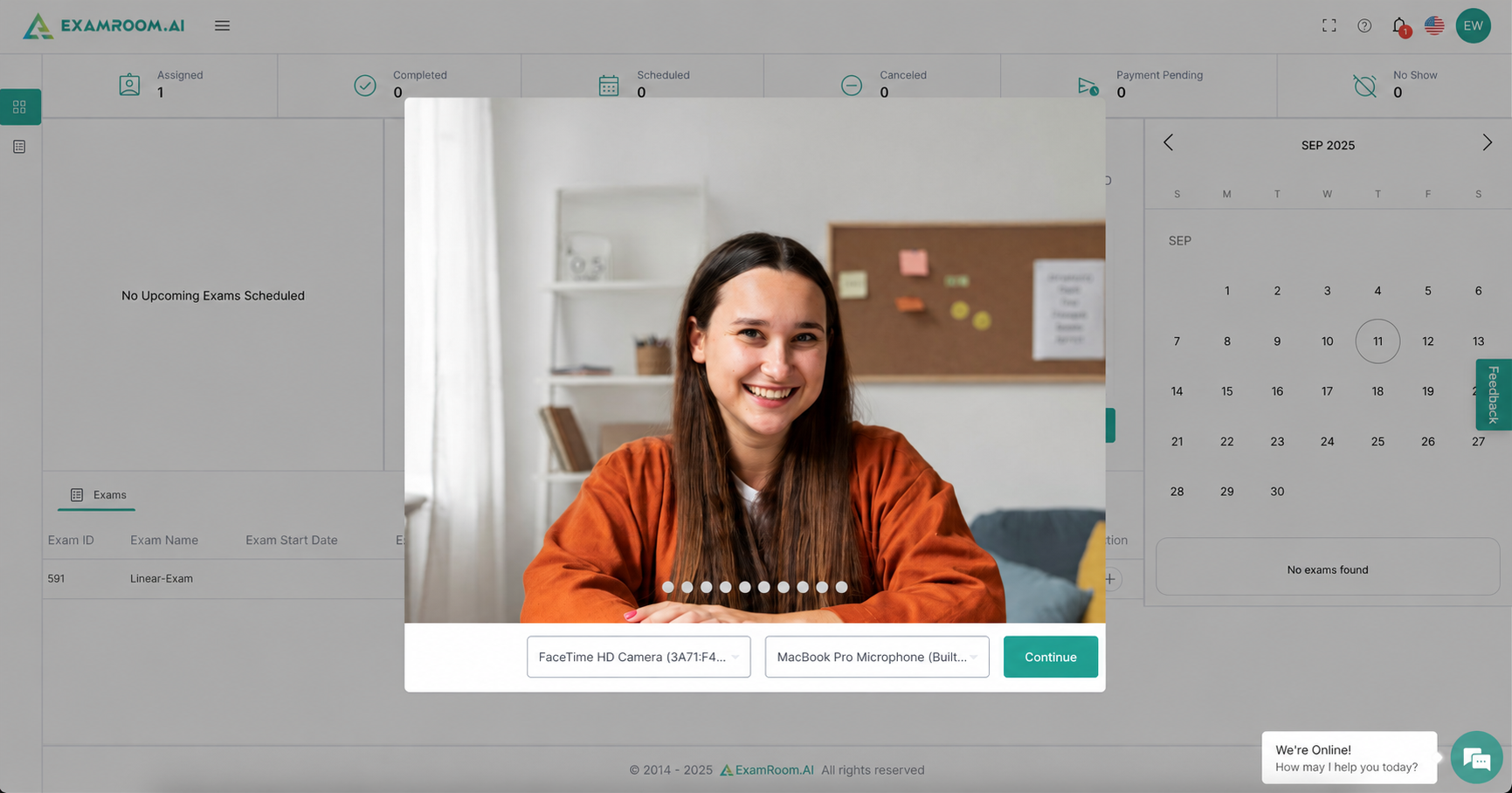
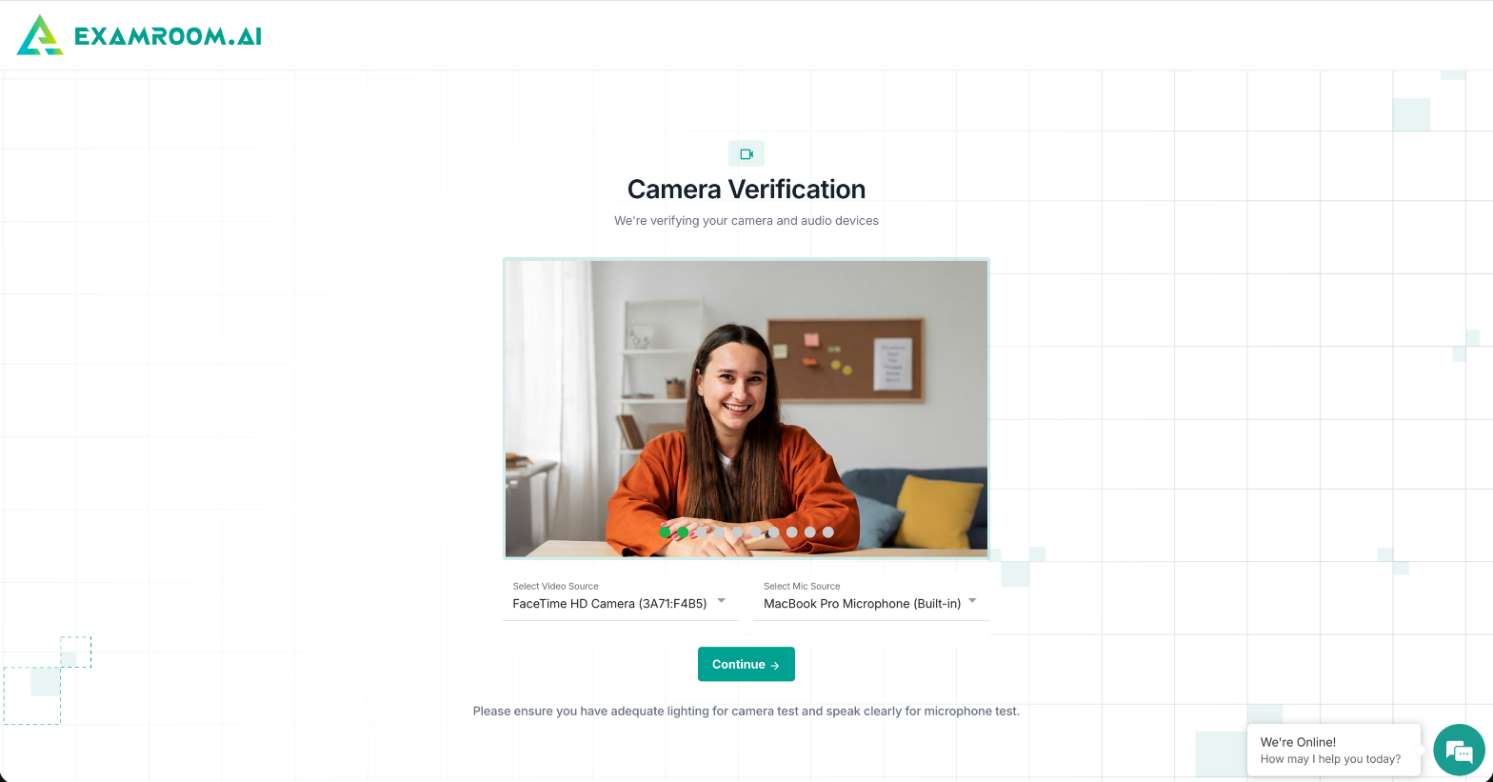
- When you start the system check, your camera and device details are detected, and a live view from the front camera is displayed. Click Continue to move forward. You can also switch your device from the drop-down menu if required.
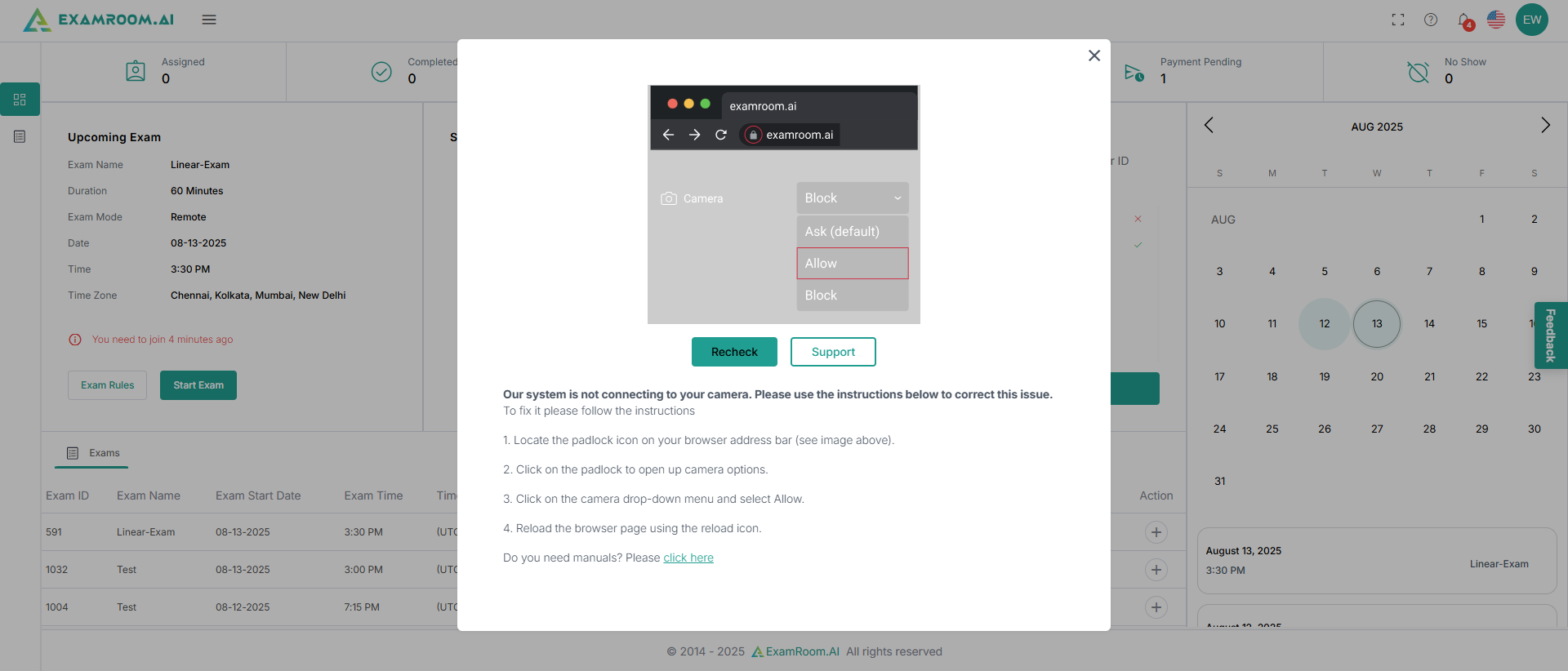
- If you have not provided your camera and microphone access, a pop-up is displayed to help you enable those. Provide access to the camera and microphone, and then click Recheck. If you are using Edge, please check the Edge permissions Or Firefox browser, check the Firefox permissions.
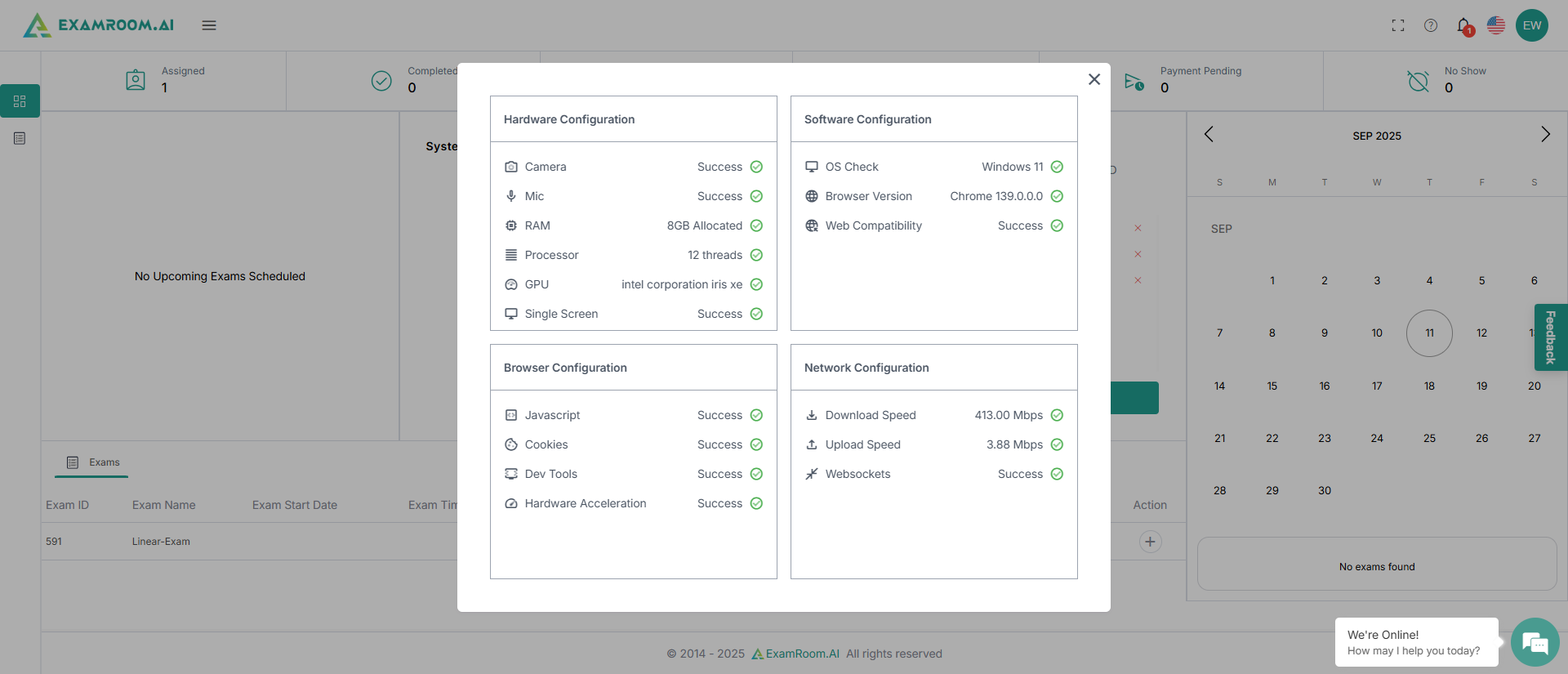
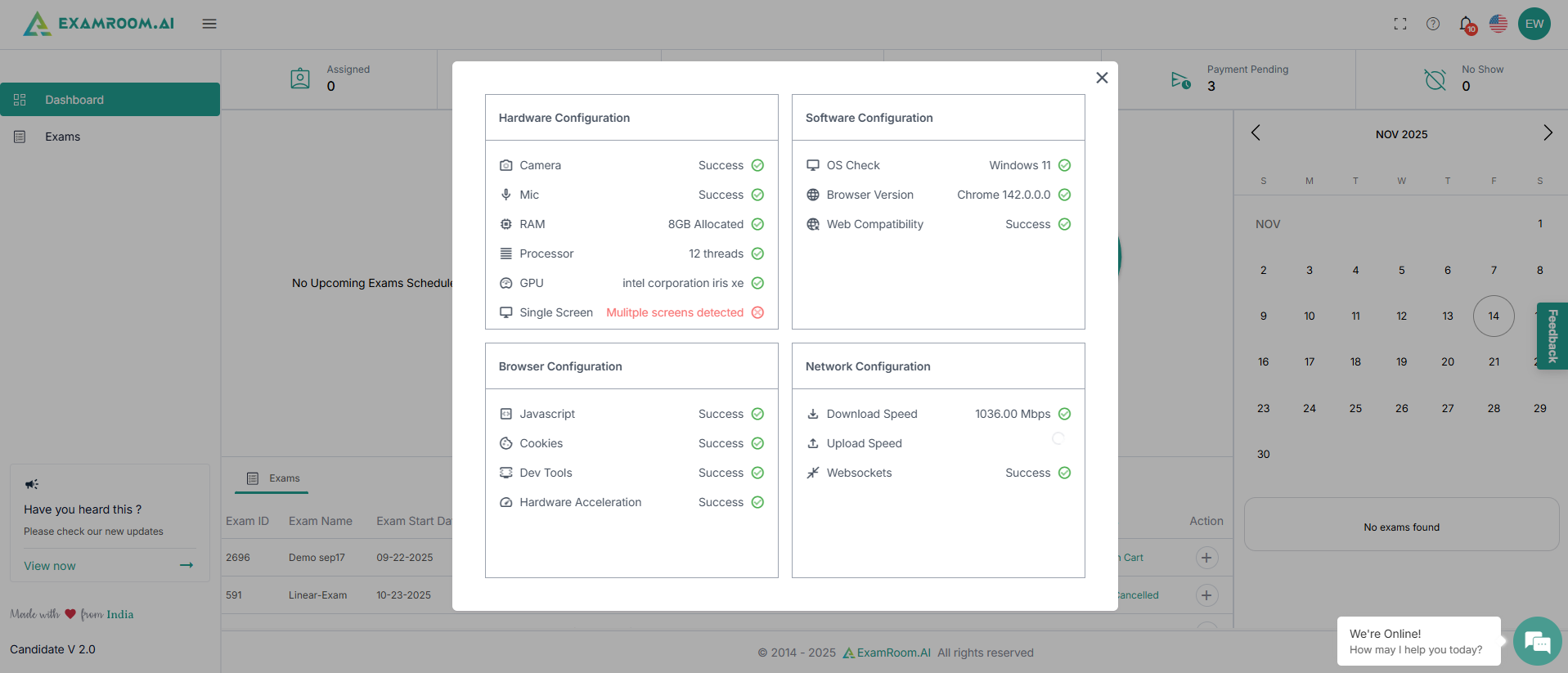
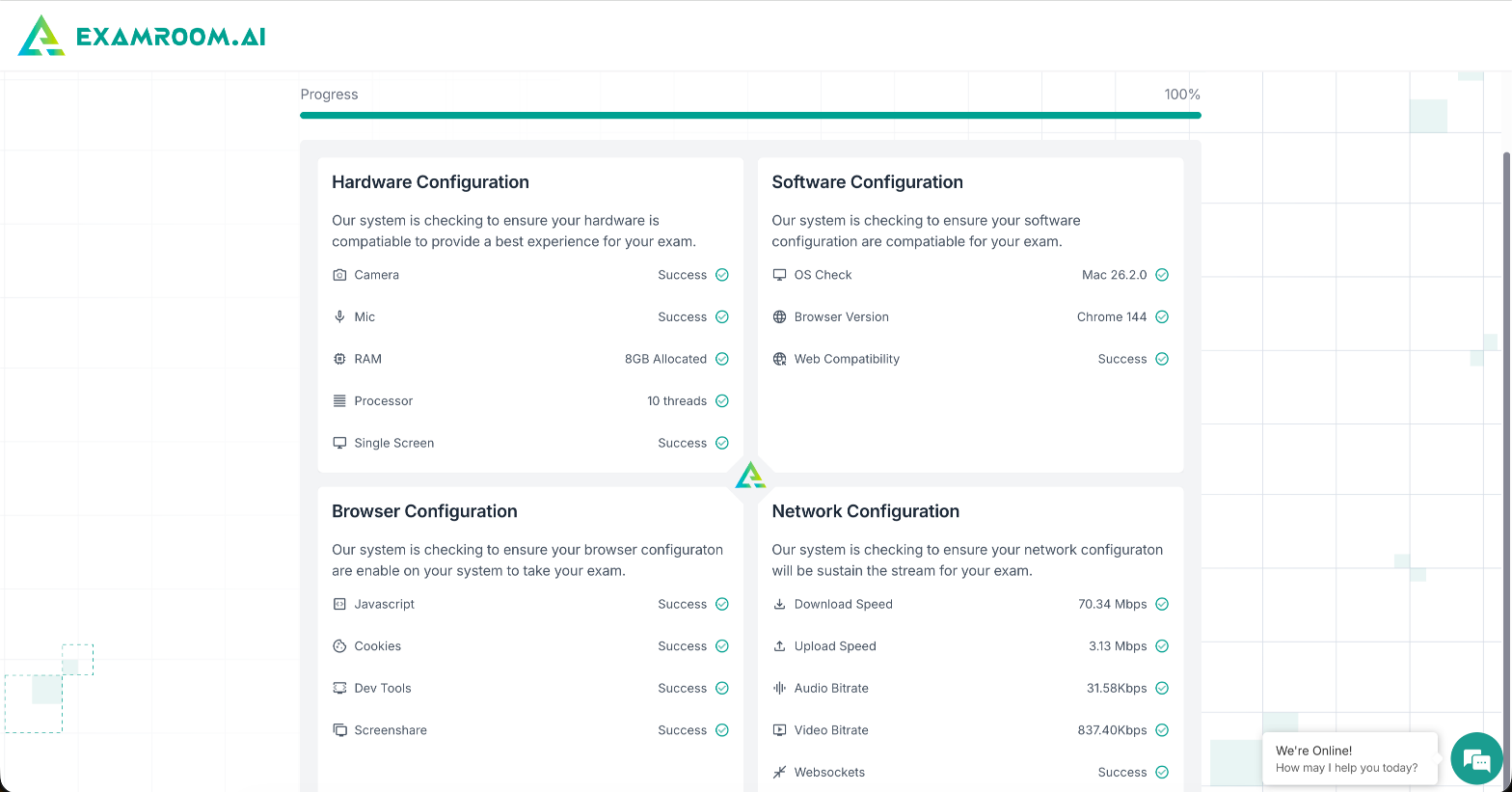
- After your camera and device details are saved, a pop-up shows the hardware, software, browser, and network configurations. Ensure every aspect of the configuration check is marked as success for a smooth examination process.
- To check whether your device meets the minimum requirements, refer Device Compatibility to run ExamRoom.AI System.
Note: - If you are using multiple screens, your system check may fail, and you will not be able to proceed. You must use a single screen to proceed with the exam.
- Disconnect multiple screens from your system and perform the system check again.
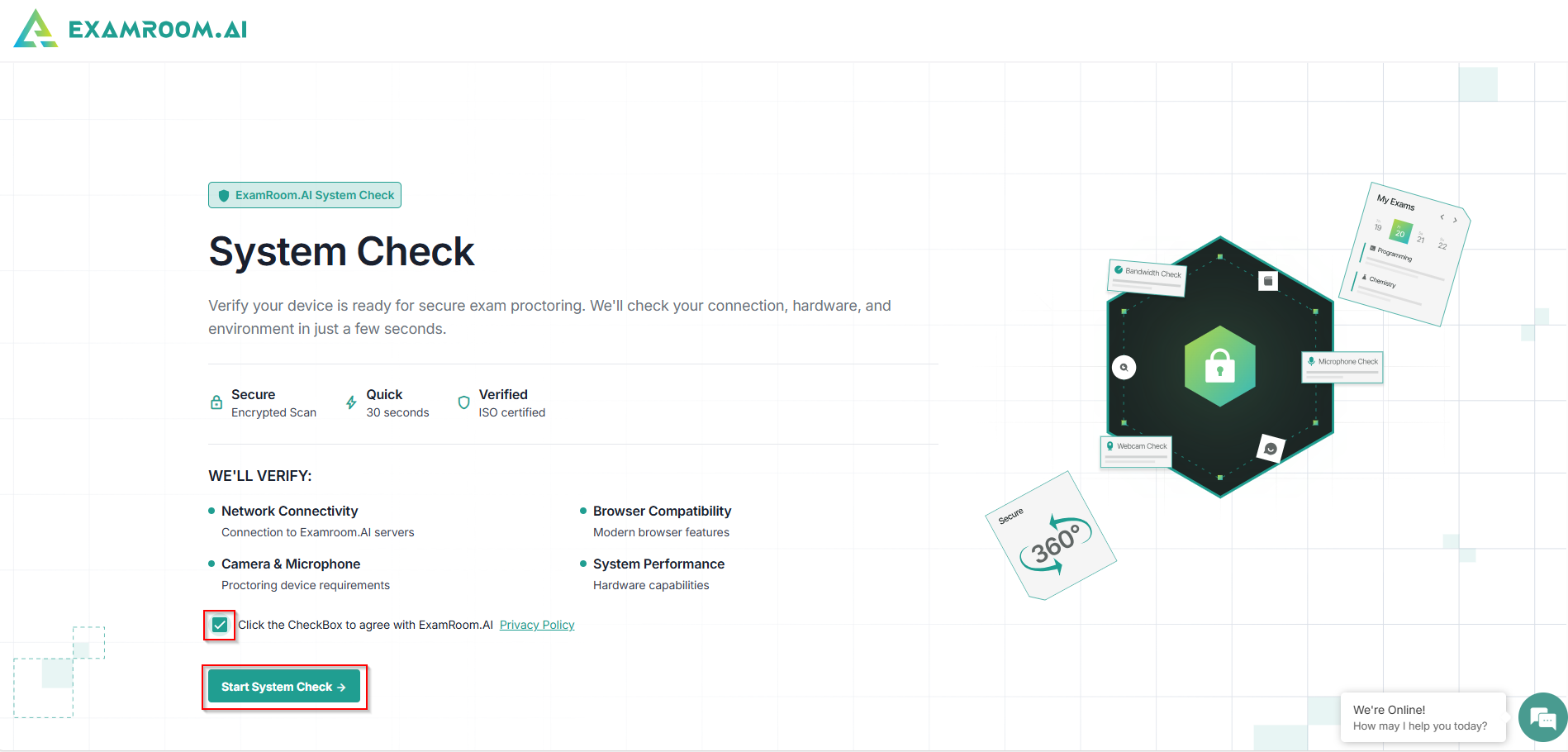
- You can also perform a system check directly from our website. Click system-check to carry out a system check for your device configurations.
- Select the checkbox and click the Start System Check button to start the system check process.
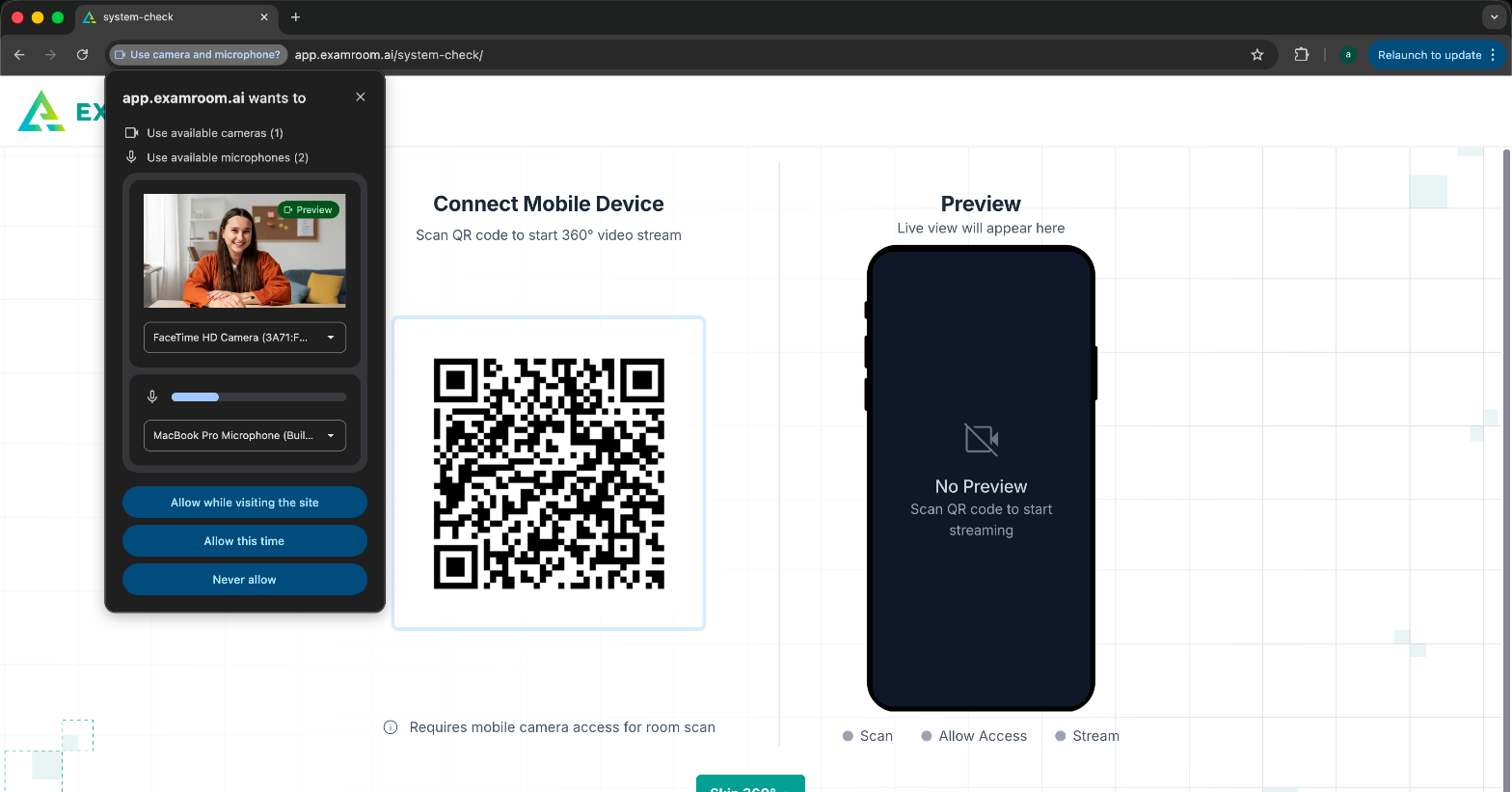
- A pop-up appears to provide camera and microphone access. Click Allow to grant access to your camera and microphone.
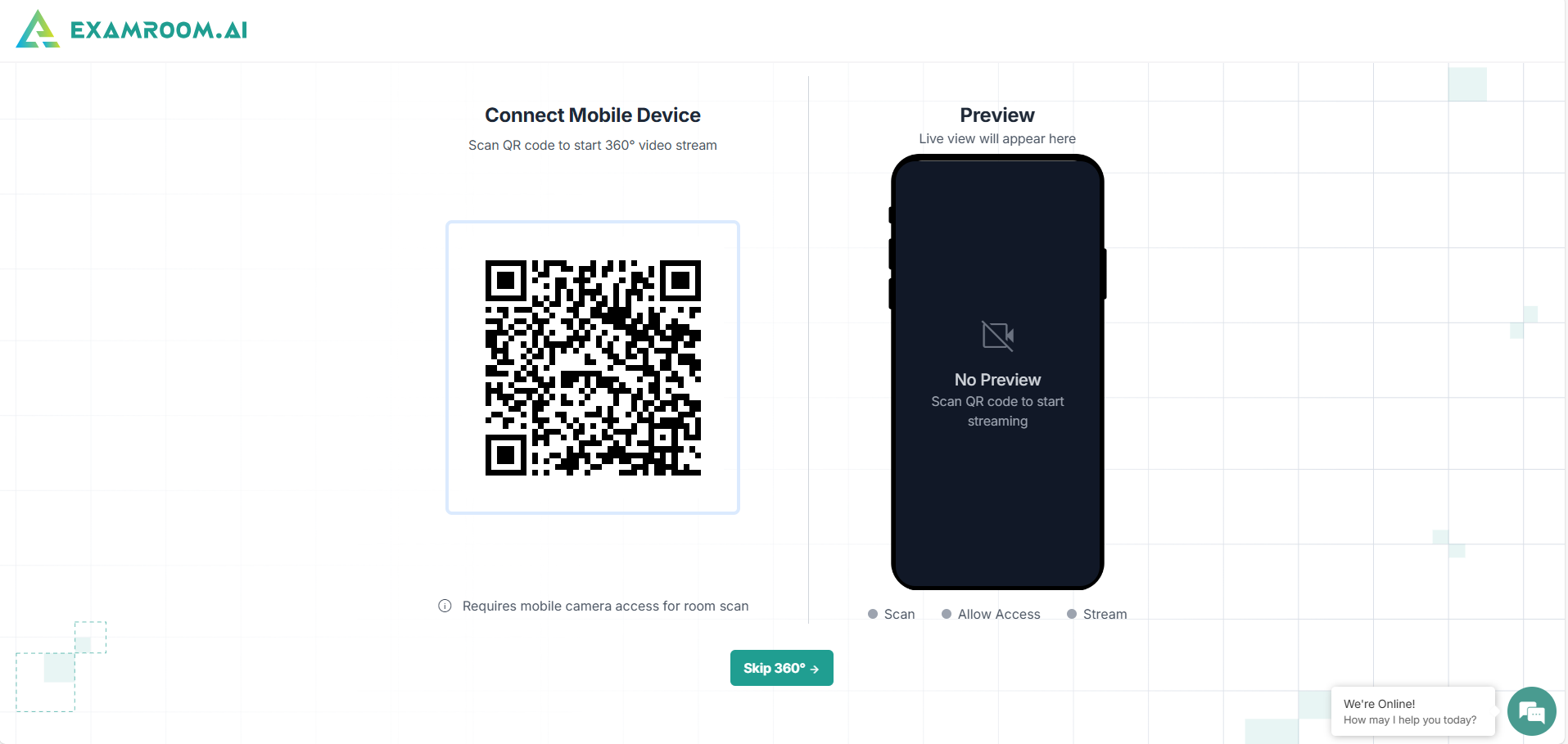
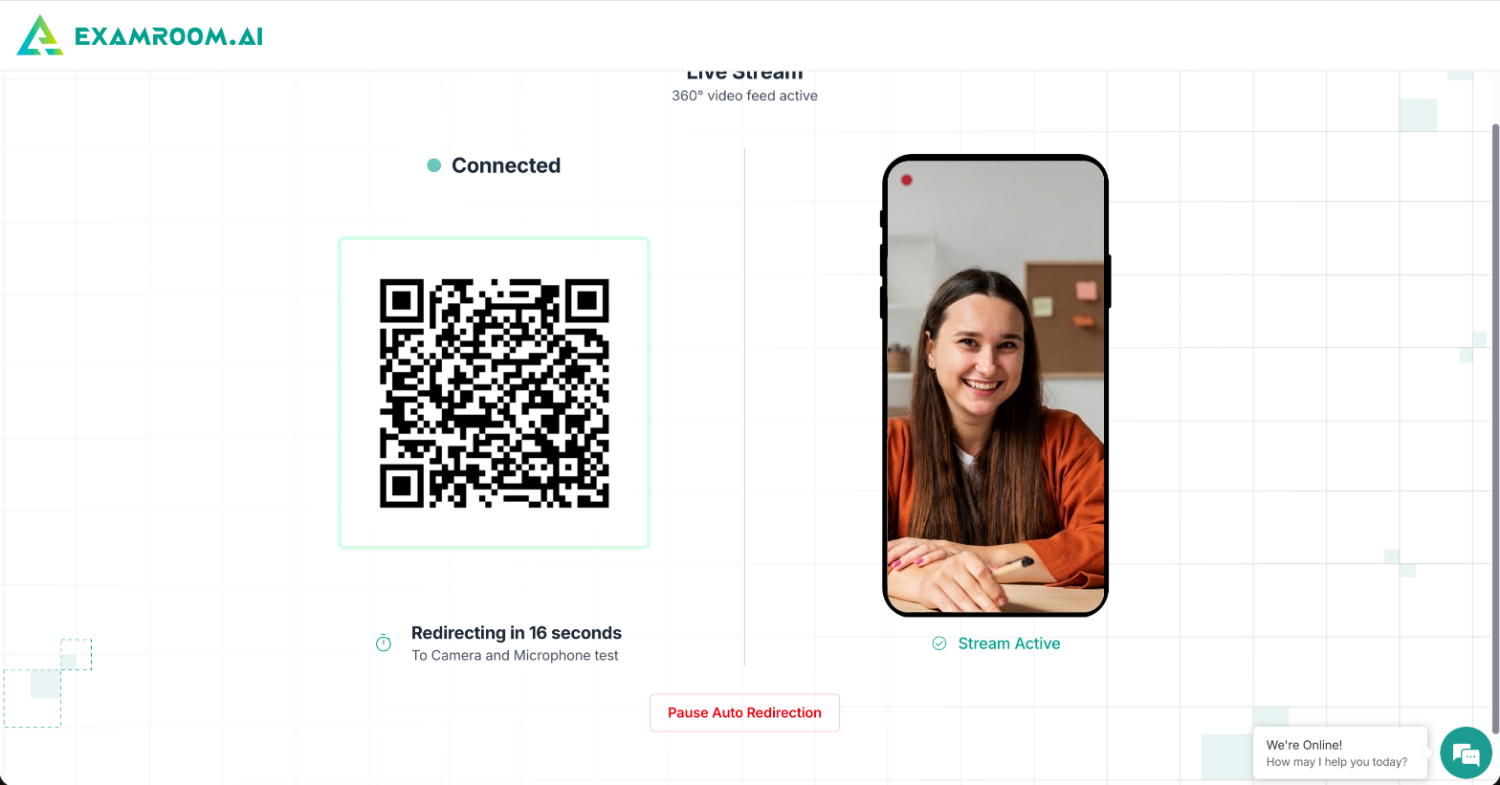
- Now, scan the QR code from your mobile device. You can also skip the 360° process if your exam sponsor allows.
- Once you scan the QR code, your live camera feed will appear on the screen, and you’ll be automatically redirected to the next page. You can then place your phone at the side, facing you.
- On the next screen, your device camera captures your live feed. You also have the option to change your video and microphone source. Click Continue to proceed.
- The process now begins a configuration check, which includes hardware, software, browser, and network configurations. Progress can be seen on the screen. Make sure all elements of the configuration check are successfully completed to guarantee a seamless examination process.
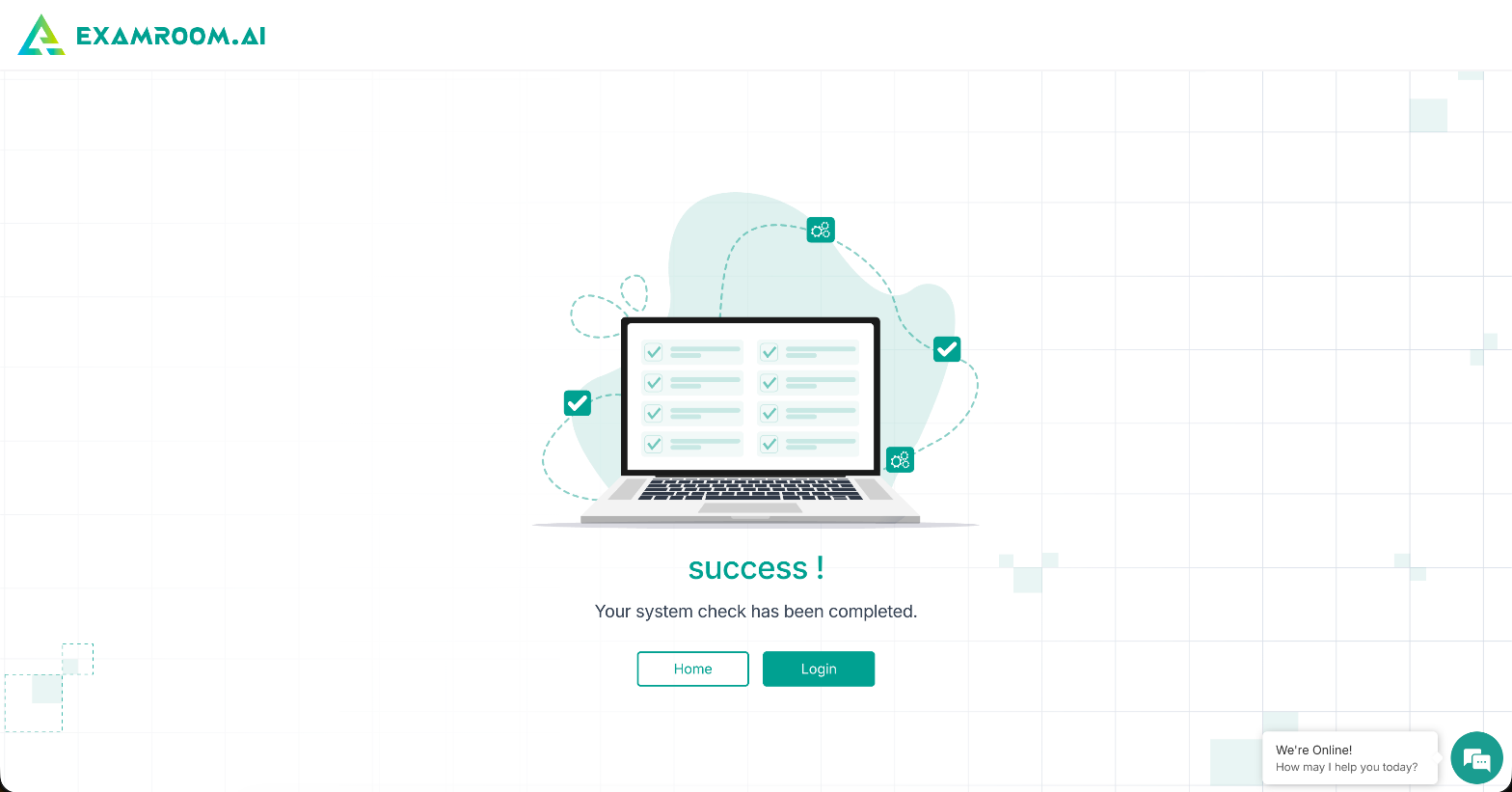
- Once done, a confirmation message is displayed.